Personal settings
Settings → Personal holds what belongs to you rather than to the workspace or the organisation. It is the third menu in the switcher at the top of the settings sidebar and has three pages: Profile, Appearance and AI instructions.
Unlike the Workspace and Organisation menus, this one is personal, not shared. Nothing you change here affects anyone else, and the menu is available to every role.
Profile
A read-only summary of your account: your email, your role, the organisation you are signed in to and how you sign in. When you belong to more than one organisation, Switch organisation lists the others. Sign out ends your session in this browser. Both actions are also in the workspace menu at the top left.
AI custom instructions
Standing instructions the AI agent follows in every conversation you start. They work like the workspace Custom instructions, but they belong to you alone:
- Private. Only you can see or edit them. Admins can't view them.
- Organisation-wide. The same instructions apply in every workspace of the organisation, so you set them once.
- Everywhere you talk to the agent. The in-app AI chat, the Mitzu bot in Slack, the analytics agent you run from MCP clients such as Claude or Cursor, and the scheduled agents you created all include them. MCP tools your client calls directly, without going through the agent, don't use them.
- Scheduled agents follow their owner. A scheduled agent always runs with the personal instructions of the person who created it, so the reports it sends to other people or to a Slack channel reflect that person's preferences.
- They take precedence. When your instructions conflict with the workspace's Custom instructions, the agent follows yours.
Good personal instructions describe how you work: your team and the events you usually care about, the level of detail you want, or how you like results presented. For example: "I work on the growth team, so default to signup and activation events. Keep answers short and show week-over-week changes."
Instructions can be up to 10,000 characters. They are not auto-saved; click Save instructions to persist your changes.
The section only appears when AI is enabled for your organisation and your role can use the AI agent.
Appearance
The Appearance section controls whether Mitzu renders in light or dark mode.
Choosing a mode
Pick one of three options:
| Option | What it does |
|---|---|
| Light | Always use light mode, whatever your device is set to. This is the default. |
| Dark | Always use dark mode, whatever your device is set to. |
| System default | Follow your operating system. If your Mac, Windows, or Linux desktop switches to dark in the evening, Mitzu follows it. |
Mitzu starts in Light for everyone. Dark mode is opt-in: even if your computer is set to dark, Mitzu stays light until you pick Dark or System default here.
The change applies the moment you click — there is no save button, and the page does not reload.
Light and dark
The same home page, in each mode:
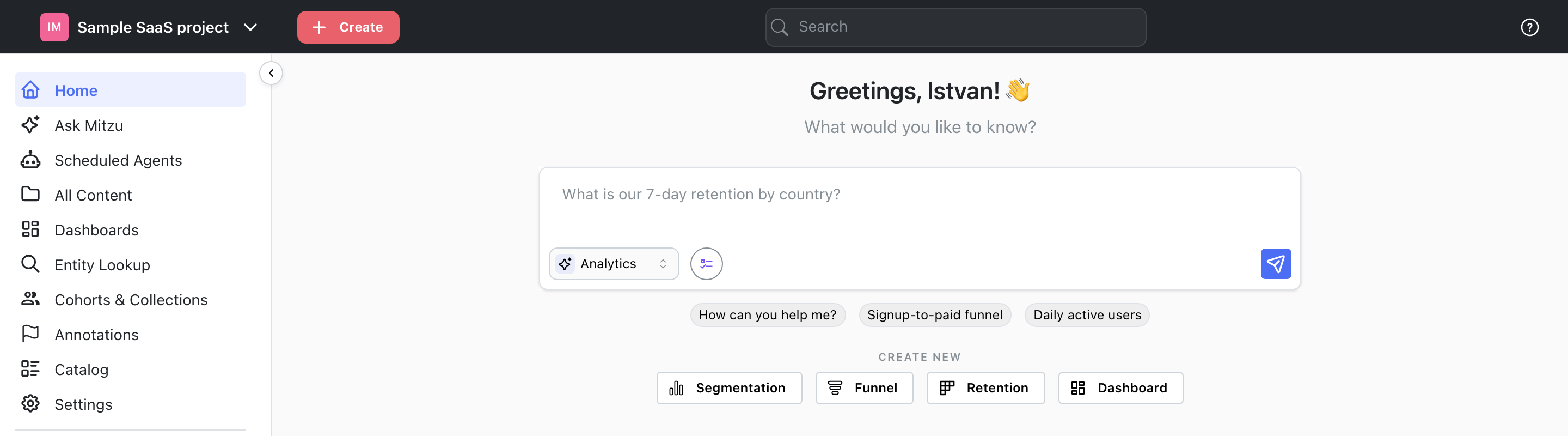
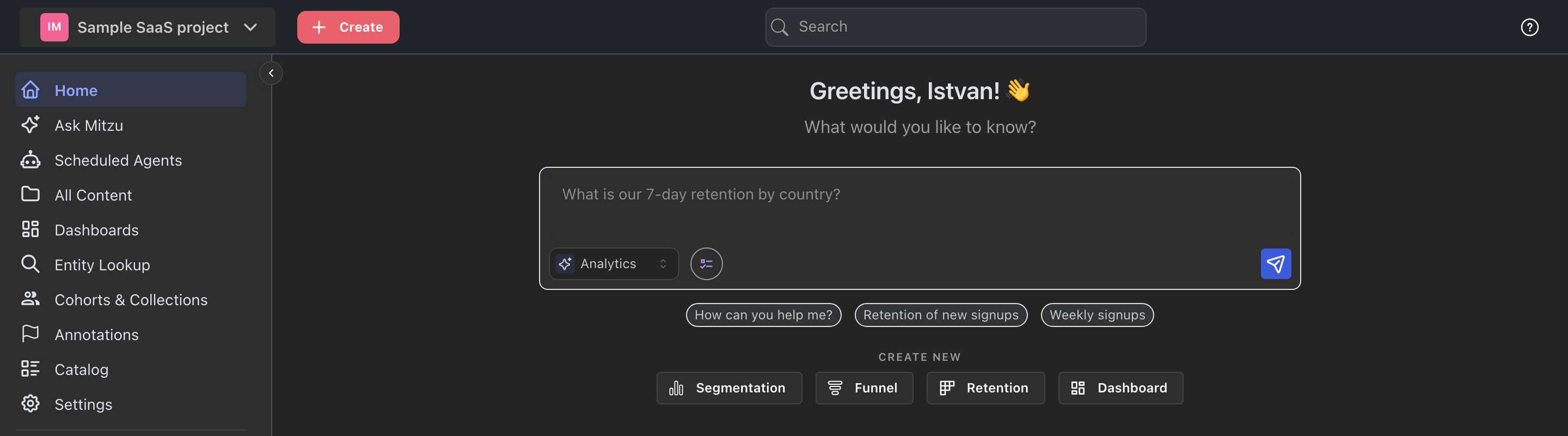
Where the preference is stored
Your choice is remembered per browser, on the device you set it on. It is not attached to your Mitzu account.
In practice that means:
- Setting dark mode on your laptop does not change anything on your phone, or in a different browser on the same laptop.
- A private or incognito window starts from Light again, and forgets your choice when you close it.
- Clearing your browser's site data resets it to Light.
Because the preference is per browser, it also does not travel with anything you share. A dashboard or insight you send to a colleague renders in their chosen mode, not yours.
What stays light
A few things deliberately do not follow dark mode:
- Charts sent outside the app — scheduled agent emails, alert notifications, and dashboard PDF reports. Email clients and PDF viewers vary too much to rely on a transparent background, so these are always rendered on white.
- Chart thumbnails saved before dark mode shipped. Insight preview images generated earlier have a white background baked into the stored image, so they still show as white cards on a dark page until the insight is saved again.