Tags
When several teams share a workspace, tags help each team find its own work. Workspace admins keep a curated list of tags, such as Growth, Finance or Onboarding, and anyone who can edit an asset can label it with up to three of them.
You can tag insights, dashboards, cohorts, collections, annotations, AI chats and scheduled agents.
Managing tags
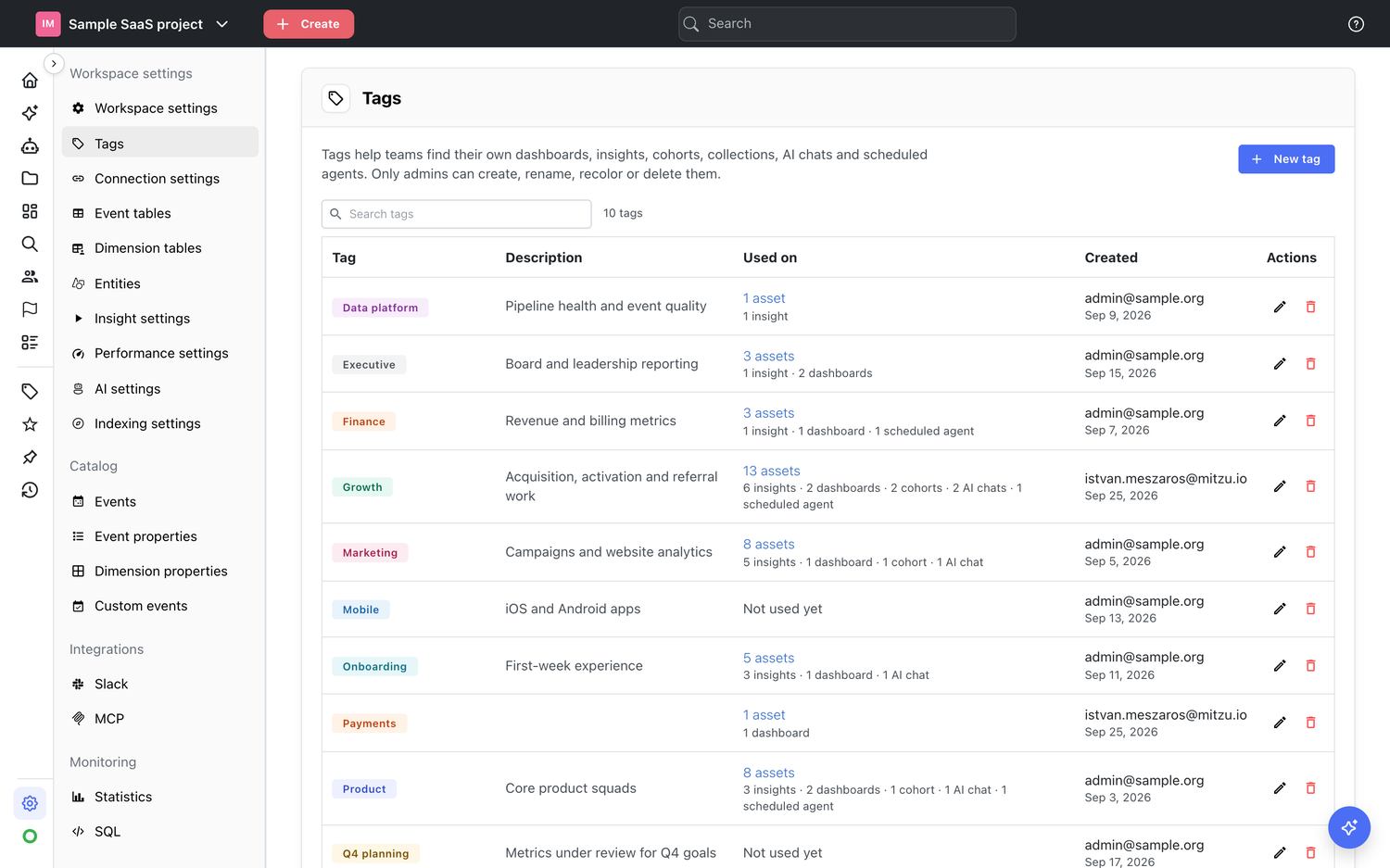
Open Settings → Tags. Only workspace admins can see this tab.
- New tag creates a tag. A tag has a name, a color and an optional description.
- The name is required, at most 24 characters, and unique in the workspace regardless of capitalization.
- The color comes from a fixed palette of 12 hues. Every color stays readable in both light and dark mode.
- The description is shown when someone hovers the tag.
- The table lists every tag with its description, how many assets use it (split by asset type), who created it and when. Click the usage count to browse the tagged assets. Tags that nobody uses yet show Not used yet.
- The pencil icon renames, recolors or re-describes a tag. The change shows up everywhere the tag is used.
- The trash icon deletes a tag. The confirmation tells you how many assets carry it. Deleting a tag removes it from every asset, but the assets themselves are kept.
Tags belong to one workspace. They are not shared or copied between workspaces.
Tagging your work
Tags appear right after the title of a dashboard, insight, cohort, collection, annotation, AI chat or scheduled agent.
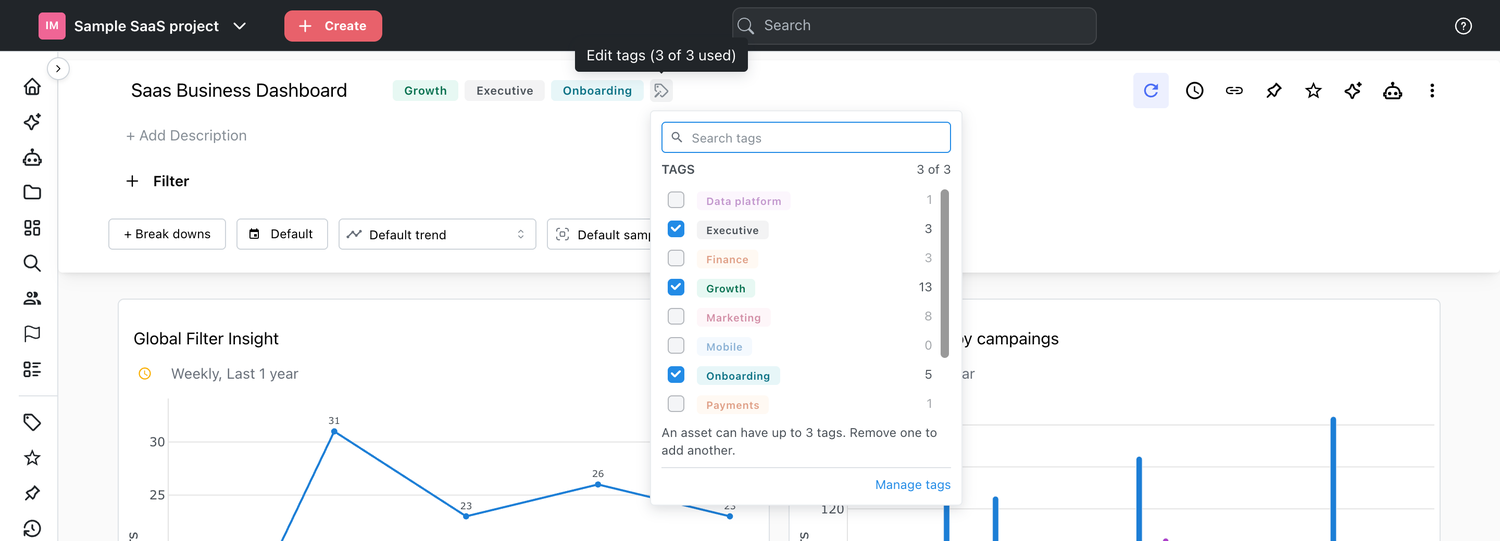
- Click the tag icon after the tags to open the picker. Search for a tag and tick it to add it; untick it to remove it.
- An asset can have at most three tags. At three, the icon turns into an edit icon and the other tags are disabled until you remove one.
- Admins can also create a new tag directly from the picker: type a name that does not exist yet, pick a color and click Create and add. Members can only choose existing tags.
- When you save a new insight, the save dialog has a Tags field. If you started the insight from a dashboard, it is prefilled with that dashboard's tags.
- When you duplicate a dashboard or create a snapshot of it, the dialog has a Tags field prefilled with the original dashboard's tags.
Admins and members can tag the assets they can edit. For AI chats that is the chat's owner, and a locked dashboard can only be tagged by its owner. Viewers see tags but cannot change them.
Finding work by tag
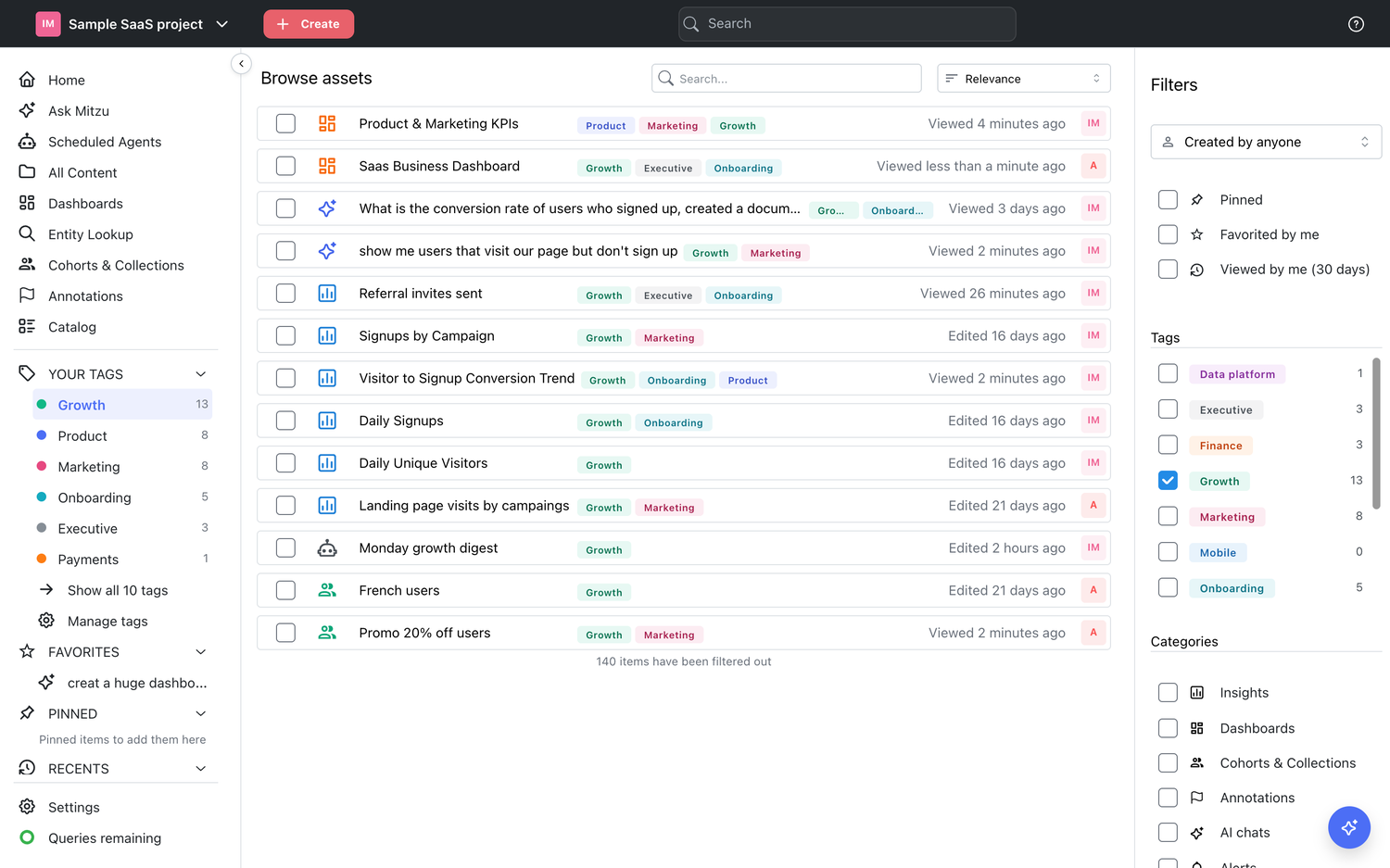
- Click a tag on a Browse row, a search result or next to an asset's title to open Browse filtered to that tag. Tags you can click highlight when you hover them.
- Browse has a Tags filter that matches assets with any of the selected tags, plus an Untagged option for work nobody has labelled yet. The filter is kept in the URL, so you can share or bookmark the view. Browse also lists AI chats and Scheduled agents as categories.
- Your Tags in the sidebar opens a list of the workspace's tags when you hover it. The tags on the work you opened most in the last 30 days come first (or the most used tags if you have no history yet). On small screens it is in the menu at the top left.
- Search shows the four most used tags as filters under the search box, with the rest in the more dropdown next to them. Pick one or more to see only assets with those tags. Search also matches tag names and lists a matching tag above the assets. Type
#growthto list only Growth-tagged assets, or#growth reportto search for "report" among them. Leave out the spaces of a multi-word tag:#growthteam. - Ask Mitzu understands tags, so you can ask questions like "Which dashboards does the Growth team use?".