Slack Integration
Connecting Slack to Mitzu lets your team:
- Chat with Mitzu AI directly from Slack to ask product questions and get chart answers.
- Receive scheduled insight alerts and anomaly notifications for this workspace in a Slack channel of your choice.
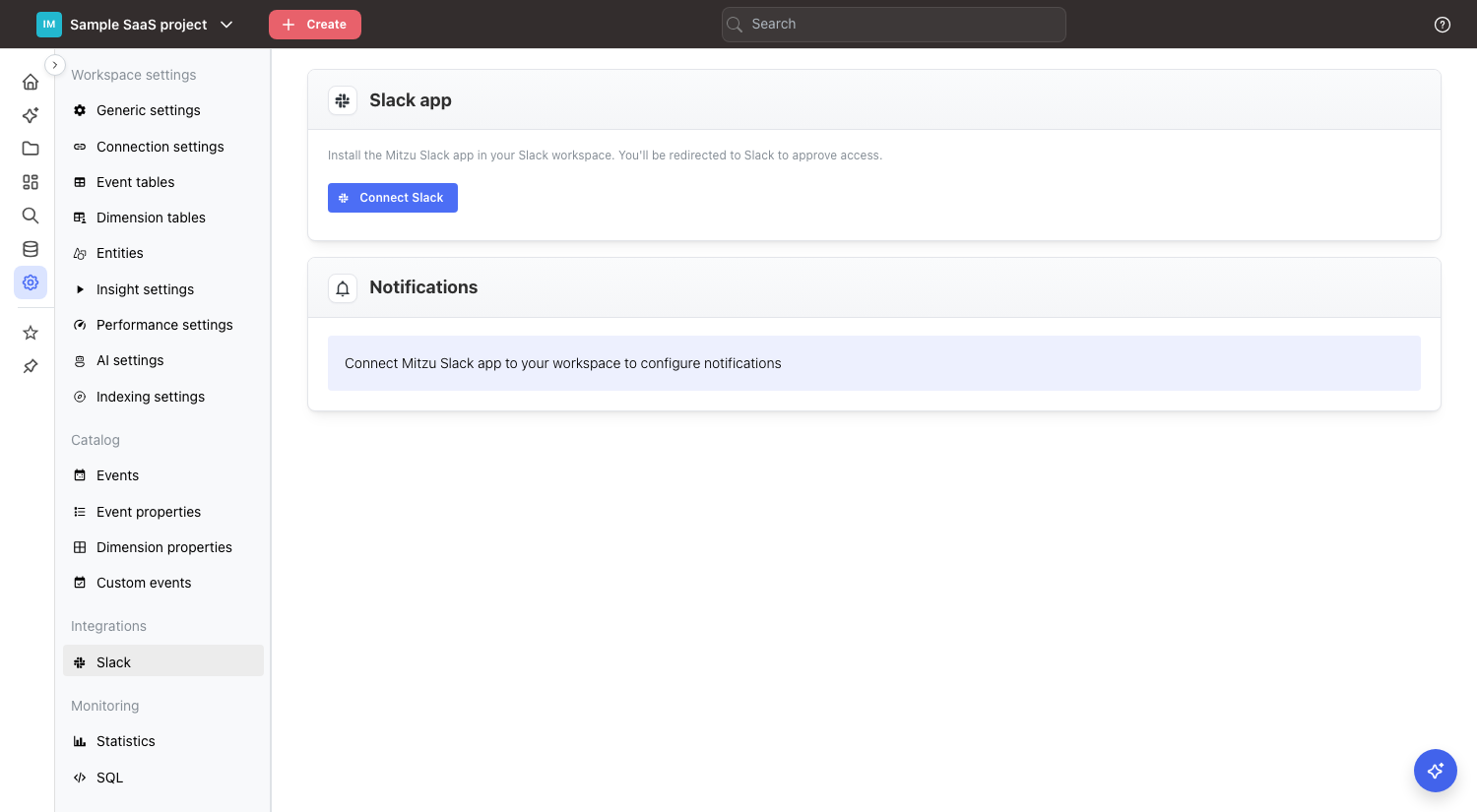
Connect the Mitzu Slack app
- Click Connect Slack. A new tab opens with the Slack OAuth consent screen.
- Choose the Slack workspace you want to connect to Mitzu and review the requested permissions.
- Click Allow to install the Mitzu Slack app. Slack redirects you back to Mitzu once the install succeeds.
After installation, the Mitzu app appears in your Slack workspace's apps list. Each Mitzu workspace is linked to a single Slack workspace.
note
You need permission to install apps in the target Slack workspace. If your Slack admin restricts app installs, forward the OAuth link to them so they can complete the install on your behalf.
Pick a notification channel
Once the Slack app is connected, the Notifications section becomes active:
- Click the refresh icon next to the channel dropdown to load the list of available channels from Slack.
- Open the Slack channel dropdown and pick the channel where Mitzu should post alerts. The selection is saved automatically.
- Click Send test notification to confirm the channel is reachable — Mitzu posts a short test message to the selected channel.
warning
Mitzu can only post to channels the @Mitzu app has been added to. If the test message fails, open the target channel in Slack, type /invite @Mitzu, and try again.
What gets posted to the channel
The selected channel receives:
- Scheduled insight alerts — insights saved with a schedule post a snapshot and a link back to Mitzu at each run.
- Anomaly notifications — configured anomaly monitors post when a metric deviates from its expected range.
- Mitzu AI replies — when a teammate mentions
@Mitzuin a channel or sends a direct message to the app.
All notifications include a link back to the originating insight or dashboard in Mitzu.