Single sign-on
SSO lets your team sign in to Mitzu through your company's identity provider instead of managing a separate password. SSO is configured once at the organization level and applies to every workspace.
Mitzu supports:
- Google SSO
- AWS Cognito
- Any OIDC (OpenID Connect) compatible identity provider, such as Microsoft Entra ID, Okta, OneLogin, Auth0 or Keycloak.
SAML is not supported. Most identity providers that offer SAML also offer OIDC; create an OIDC application instead.
Before you start
- SSO must be enabled for your organization by Mitzu. Contact support@mitzu.io with your organization name and your company email domain, for example
acme.com. Until then the SSO tab shows SSO is not enabled. - Once the email domain is registered, everyone who signs in with an address on that domain is sent to SSO, and requests to join the organization are turned off for that domain. Finish the setup on the same day.
- Only users with the Admin role can change the SSO settings.
- Keep your current Mitzu session open in one browser until you have tested the new settings in another.
Mitzu endpoints
Open Settings in the left sidebar, choose Organisation at the top of the settings menu, then open the SSO tab. The Mitzu endpoints section lists the URLs your identity provider needs:
| Field | Use it in your identity provider as |
|---|---|
| Redirect URL | The allowed callback or redirect URI. It must match exactly. |
| Login URL | The link for starting the sign-in from the identity provider, such as an Okta or My Apps tile. |
| Logout URL | The front-channel logout URL, if your identity provider asks for one. |
| Home URL | The application's home page. For a sign-out redirect URI, append /auth/unauthorized to the Home URL. |
Point identity provider tiles and bookmarks at the Login URL, not the Home URL. A sign-in started anywhere else fails and returns the user to the Mitzu login page.
Google SSO
Create a new app client in Google
- Open the SSO tab in Mitzu, as described in Mitzu endpoints:
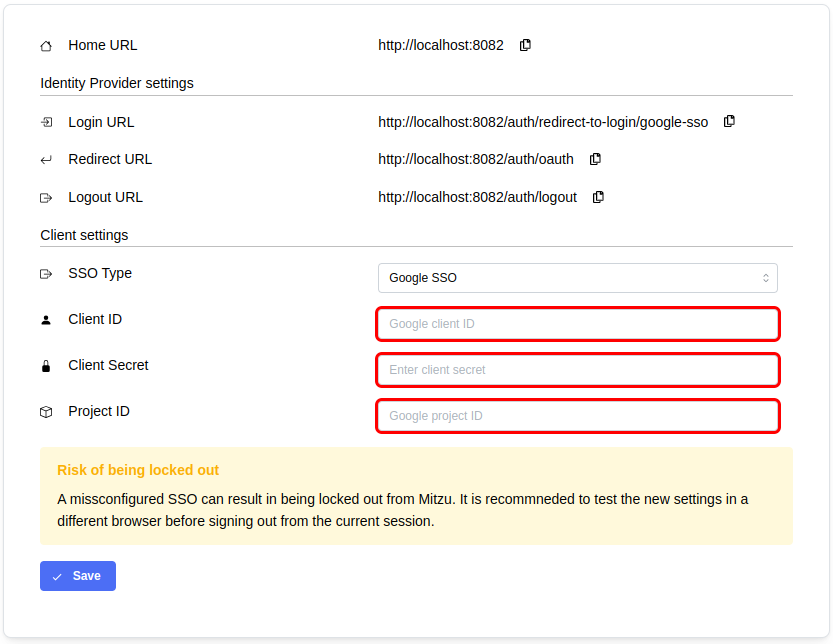
- In the Google Cloud Console, select a project that belongs to your Google Workspace organization.
- Open Google Auth Platform → Audience (APIs & Services → OAuth consent screen in older consoles) and set the user type to Internal. With External, any Google account can sign in.
- Open Google Auth Platform → Clients (or APIs & Services → Credentials) and create a new OAuth client with the following settings:
- Application type: Web application
- Authorized redirect URIs: the Redirect URL from the Mitzu SSO tab
- Copy the client ID and client secret. Newer projects show the secret only once.
Configure Mitzu with the Google app client
- Select Google SSO as the SSO type and fill in:
- Client ID and Client Secret, taken from the OAuth client.
- Project ID, shown in the project picker or on the Dashboard page in the project info box. Use the ID, such as
acme-sso-412207, not the project name or number.
- Click Save.
AWS Cognito
Create a new app client in AWS Cognito
- Open the SSO tab in Mitzu, as described in Mitzu endpoints:
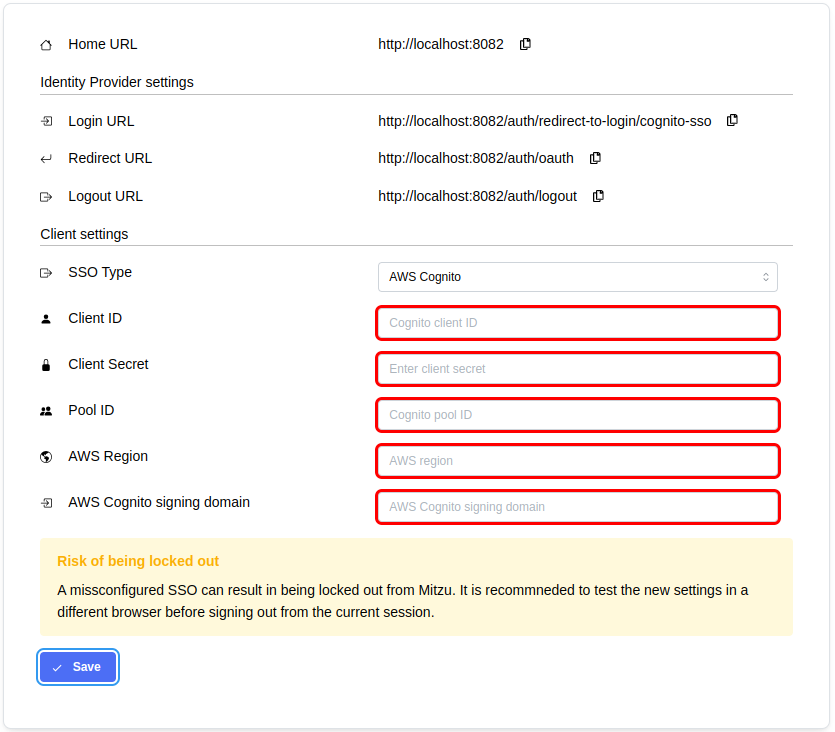
- Open the AWS Console and create a new app client in your AWS Cognito user pool with the following settings:
- Application type: Traditional web application (a confidential client with a client secret). A secret can't be added to an existing client later.
- Allowed callback URLs: the Redirect URL from the Mitzu SSO tab
- Allowed sign-out URLs: the Home URL with
/auth/unauthorizedappended - OAuth 2.0 grant types: Authorization code grant
- OpenID Connect scopes:
openidandemailmust be selected
Configure Mitzu with the Cognito app client
- Select AWS Cognito as the SSO type and fill in:
- Client ID and Client Secret, taken from the app client settings page in AWS.
- Pool ID and AWS Region, taken from the user pool overview page. The region is the part of the pool ID before the underscore.
- AWS Cognito signing domain, the full domain of the user pool, such as
acme.auth.eu-west-1.amazoncognito.com, or your custom domain.
- Click Save.
OIDC
Requirements
Your identity provider's application must:
- use the Authorization Code flow, as a web application with a client secret,
- accept the client secret in the request body (
client_secret_post), - allow the
openidandemailscopes and include anemailclaim in the ID token, - sign ID tokens with RS256,
- have token and JWKS endpoints that are reachable from the internet.
Create a new app client in your identity provider
- Open the SSO tab in Mitzu, as described in Mitzu endpoints:
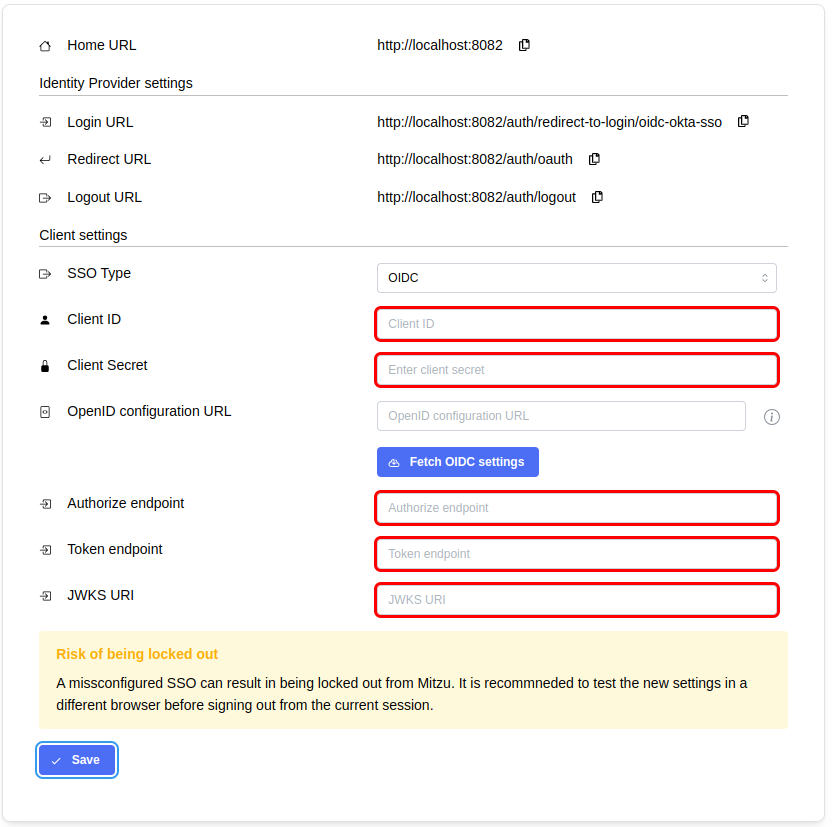
- Open the web console of your identity provider and create a new client application with the following settings:
- Application type: Web application
- Grant type: Authorization Code
- Sign-in redirect URIs: the Redirect URL from the Mitzu SSO tab
- Sign-out redirect URIs: the Home URL with
/auth/unauthorizedappended - Initiate login URI, if available: the Login URL
- Client authentication: client secret
- Assign the users or groups who should have access to Mitzu.
Configure Mitzu with the OIDC app client
- Select OIDC as the SSO type and fill in:
- Client ID and Client Secret, taken from the OIDC app client's settings page.
- Authorize endpoint, Token endpoint, and JWKS URI. Enter them manually, or paste your identity provider's
/.well-known/openid-configurationURL into OpenID configuration URL and click Fetch OIDC settings to fill them in.
- Click Save.
Microsoft Entra ID
- In the Microsoft Entra admin center, open App registrations and click New registration:
- Supported account types: Accounts in this organizational directory only (Single tenant)
- Redirect URI: platform Web (not Single-page application), with the Redirect URL from the Mitzu SSO tab
- On the app's Overview page, copy the Application (client) ID and the Directory (tenant) ID.
- Under Certificates & secrets, create a new client secret and copy its Value, not its Secret ID. Note the expiry date: sign-ins stop working when the secret expires.
- Under Token configuration, add the optional claim email for the ID token. Under API permissions, click Grant admin consent.
- Under Enterprise applications, open the app, set Assignment required? to Yes in Properties, and add the users or groups who should have access under Users and groups.
- In Mitzu, use the following OpenID configuration URL and click Fetch OIDC settings:
https://login.microsoftonline.com/<tenant-id>/v2.0/.well-known/openid-configuration
Entra ID only includes the email claim for users whose Email property is filled in. Users without one can't sign in to Mitzu.
Okta
- In the Okta Admin Console, open Applications → Applications → Create App Integration, and choose OIDC - OpenID Connect and Web Application.
- Set Sign-in redirect URIs to the Redirect URL from the Mitzu SSO tab. Under Assignments, limit access to the groups who should use Mitzu.
- To show Mitzu on the Okta dashboard, set Login initiated by to Either Okta or App and Initiate login URI to the Login URL.
- Copy the Client ID and Client secret from the General tab.
- In Mitzu, use
https://<your-okta-domain>/.well-known/openid-configurationas the OpenID configuration URL and click Fetch OIDC settings.
Changing the settings later
The Client Secret field shows dots after saving. Leave the dots to keep the stored secret. If you change the SSO type, enter the secret again. To rotate an expired secret, create a new one in your identity provider, paste it into Client Secret, and click Save.
Signing in
Users sign in by typing their company email on the Mitzu login page under Enterprise single sign-on and clicking Log in with company SSO. Opening the Login URL also starts the sign-in.
Members and roles
- Anyone your identity provider lets sign in is added to the organization with the Member role. Control who has access in your identity provider.
- To give someone a different role from their first sign-in, invite them before they sign in.
- Invite as external user, in the invite dialog, creates an email and password account for people outside your identity provider.
- Accounts that existed before SSO keep signing in with email and password. Signing in through SSO with the same email creates a separate account with the Member role. The Login column on the Members page shows
private SSOorbasic authentication.
Troubleshooting
| Problem | Cause and fix |
|---|---|
| SSO is not configured for this email on the login page | The email domain is not registered for your organization, or it differs from the one registered. Contact Mitzu support. |
| An error on the identity provider's page about the redirect URI | The redirect URI in your identity provider doesn't exactly match the Redirect URL. Check https, the host name, and that there is no trailing slash. |
| An error on the identity provider's page saying the user is not assigned | Assign the user, or one of their groups, to the application in your identity provider. |
| The user is sent back to the Mitzu login page after signing in | Usually a wrong or expired client secret, a wrong client ID or JWKS URI, a missing email claim, or a sign-in started from the Home URL instead of the Login URL. Check the settings, or contact Mitzu support. |
| The user signs in but doesn't see their dashboards or isn't an admin | They signed in with SSO with an email that already had a password account, so a separate account was created. Change the role of the private SSO account on the Members page. |
| Fetch OIDC settings fails with Response is not a valid JSON | The URL is not the configuration document. It must end in /.well-known/openid-configuration. |
| Sign-ins stopped working after months of use | The client secret expired. Create a new one and save it in Mitzu. |