Metric Tables
Overview
Some numbers are not built from events. Revenue, MRR, active subscriptions or support ticket counts usually live in tables your data team already maintains in the warehouse. A metric table brings those numbers into Mitzu, next to your event-based insights.
A metric table is a table or view in your warehouse that your data team already maintains, for example a dbt model. Each row covers one period, for example one day. Mitzu turns every value column into a metric and applies date ranges, time grain, filters and break downs on top. Joins and other modelling stay in your warehouse, where they are versioned and reviewed with the rest of your data models.
Only workspace admins can add and configure metric tables.
Add a metric table
Click Add metric table.
Source
Choose the schema and the table or view, the same way as for event tables. The metric table is named after it, for example finance.daily_revenue, and each table can be added once.
Click Next: Columns. Mitzu reads the column list from the table's definition, without reading any rows, suggests a role for each column from its type and takes you to the Columns tab. While it reads, you see how long it has been waiting and can click Cancel to stop. A warehouse that was asleep can take a few minutes to start. If the read fails, you see the warehouse's error message on the Source tab.
Preview table is optional. It reads up to 1,000 rows, shows them on the Source tab with how many rows it fetched, fills in a sample value for each column and detects how much time one row covers from the spacing of the time values: hourly, daily, weekly, monthly, quarterly or yearly. Roles and names you already changed on Columns stay as they are. Picking another schema or table clears the preview.
On BigQuery, previewing a table reads its first rows without running a query, which BigQuery doesn't charge for. Views, materialized views and external tables can't be read that way, so Mitzu previews them with a query. BigQuery bills that query for a full scan of the tables behind the view, whatever the row limit, so prefer a table over a view on very large data.
Columns
The Columns tab lists every column of the table in a paginated table, 20 per page, with a suggested role. Filter by column name or by role to find a column in a wide table. Sample values show once you preview the table, or, when you configure a saved table, for dimension columns Mitzu has already indexed. Without a preview, pick how much time one row covers yourself.
Mitzu suggests the role from the column's type: dates and timestamps become the time column, numbers become metric values unless the name looks like an identifier, and other columns become dimensions. Only date or timestamp columns can be the time column for now. A number or text column that stores dates, such as a Unix timestamp, can't be picked as Time. Convert it to a date or timestamp in the table or view first.
Mitzu keeps the column list of a table for up to 24 hours. If you just added a column in the warehouse, click the refresh icon next to Table or view, then Next: Columns, and the new column shows up.
| Role | Use it for |
|---|---|
| Time | The date or timestamp of the row. At most one column, and it must be a date or timestamp column. Without a time column each metric is a single number, for example current ARR. |
| Metric value | A number you want to chart. Give it a metric name and a roll-up rule. |
| Dimension | A column to break down and filter by, such as plan_type. |
| Ignore | Columns Mitzu doesn't use. |
For a dimension column you can pick the matching property: an event property, or a property of an entity such as a user or a company, grouped by entity with its icon. Mitzu suggests one when the names match. With the link in place, an insight filter on that property applies to the metric too. If the linked property no longer exists, the modal warns you but still saves.
Metric names may repeat across metric tables. Mitzu warns about a repeated name but doesn't block saving.
Rolling up to longer periods
The roll-up rule decides what Mitzu shows when you look at a longer period than one row, or at a single big number. Summing daily MRR, for example, gives a meaningless total.
| Rule | Use it for | A week of daily rows shows |
|---|---|---|
| Add up | Revenue, signups, orders | the sum of its days |
| Use the latest value | MRR, active subscriptions, balances | its last day |
| Average | Average daily MRR over a month, average queue length | the average of its days |
| Lowest value | Lowest daily balance | its lowest day |
| Highest value | Peak concurrent users | its highest day |
| Don't roll up | Unique counts, rates | nothing: the metric is shown only at the grain one row has, because summing daily unique users counts returning users twice |
For rates such as conversion rate or average order value, pick Don't roll up, or add the two parts (for example orders and visitors) as separate metrics and divide them with a formula. Averaging daily rates ignores how many orders or users each day had.
Check the roles and roll-up rules, then click Save on the Columns tab (Back returns to the source). Mitzu blocks saving and says why when there is no metric value column or when more than one column is marked as the time column.
Charting a warehouse metric
Warehouse metrics appear in the event picker of a segmentation insight, under Warehouse metric, with their metric table and roll-up rule. They are offered for the first segment, not in funnels, retention or journeys.
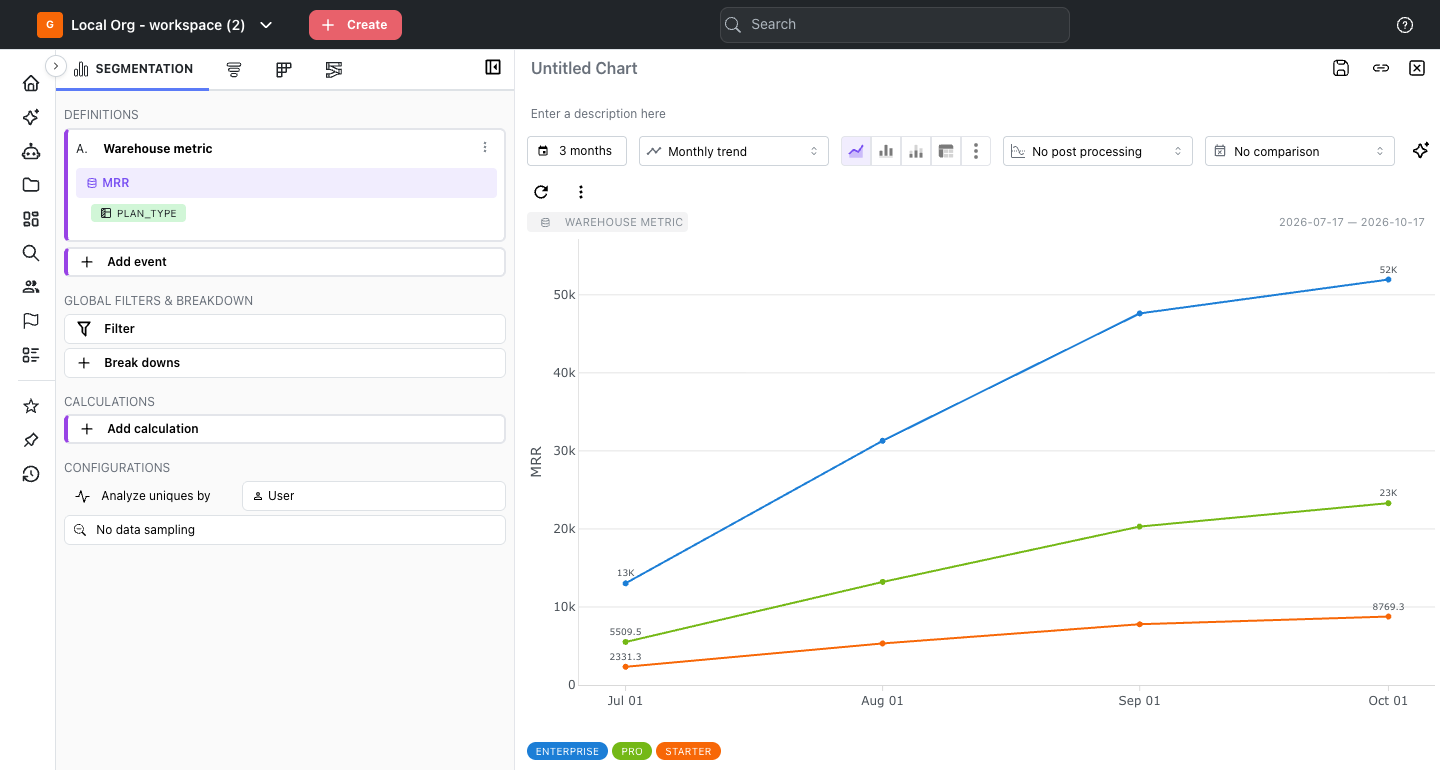
- In Segmentation, click Select an event and pick a metric from Warehouse metric.
- Pick the date range and time grain. Each period shows the metric rolled up with its rule, for example the last day's MRR for each month.
- Optionally break it down by one of its dimension columns with + Break downs.
The segment has no aggregation type; the number comes from the table. A Warehouse metric badge next to the date range names the table.
Time grains
A grain shorter than one row, weeks shown per month, quarter or year, and a Don't roll up metric at any other grain or as Overall show a message instead of a chart, with the reason under Show details. With Overall, the rule applies across the whole range: the total, the last row, the average day, the lowest or the highest day.
A table with one row per week, month, quarter or year always counts whole rows. When the date range starts or ends inside one of those periods, for example Last 30 days on a monthly table, the chart counts every period the range touches and says so with a badge such as Covers Sep 1 – Oct 31 (whole months). Pick a range that starts and ends on the table's period boundaries to count exactly that range. A daily table counts the exact range.
When the metric isn't broken down by every dimension column, rows are first added up across the other dimensions, then the rule applies. Average is unweighted: each day counts the same, however many orders or users it covers.
Use the latest value shows, for each period, the most recent day that has rows, adding up every row on that day; a plan with no row that day is left out. With a break down, every line uses that same day. Mitzu only uses rows inside the date range, or, on a table with weekly or longer rows, inside the whole periods the range touches. When the table has no rows in it, for example because today's row hasn't loaded yet, the chart says so and shows the dates the table does have rows for. To chart the latest complete day, exclude the current day in the date range picker.
Filters and break downs
Filter a warehouse metric with + Filter on its card, or with the insight's Filter. The value picker suggests the values indexing found. On the card, + Filter and + Break downs list every dimension column of the metric, labelled by its matching property: an event property, a property of an entity such as a user, or a warehouse column when it has none.
The insight's Filter and Break downs don't list a column a second time when its matching property is already in the list. Pick the property, and it applies to the metric through the column. An insight filter or break down on an event or user property with no linked column is skipped for that metric, and a Filter not applied or Break down not applied badge says which.
Combining with event metrics
Use a warehouse metric in a formula like any segment, for example A / B with Revenue booked and unique users of Login. Both use the same date range and time grain, so their periods line up. On a table with weekly or longer rows, a metric that adds up, averages or takes the lowest or highest value needs a date range on that table's period boundaries in a formula. Otherwise it would count whole months while the event metric counts only the range, and the formula shows a message instead of a chart.
Removed metrics
A saved insight whose metric was removed shows "This warehouse metric no longer exists". Before you remove a metric table, the Remove dialog shows how many saved insights use its metrics.
Asking the analytics agent
The analytics agent sees the same warehouse metrics as the event picker, with their tables, roll-up rules, grains and dimension columns. Ask in business terms, for example "What was our MRR by plan in September?" or "Revenue booked per active user each week". The agent builds a segmentation insight on the metric, so its answer follows the same rules as a chart you build yourself and opens as a regular insight.
The agent breaks a warehouse metric down and filters it only by the metric's own dimension columns. When you ask for a break down the table has no column for, or a grain the table can't support, such as hourly MRR from a daily table, it says why and offers what the metric does support.
Configure a metric table
Select a metric table and click Configure. The same modal opens on the Columns tab with the saved settings, and you can switch between Source and Columns freely and save from either tab. A saved metric table keeps its schema and table, the same as event and dimension tables. To use another table, remove the metric table and add the new one. Opening, switching tabs and saving don't read the warehouse. Preview table reads rows only when you click it, and adds any columns that are new in the table. Metric names show their current names from the catalog, so saving the definition never undoes a rename made in the catalog.
Changing the grain or the columns marks the table as needing a re-index.