Connection settings
Overview
To use Mitzu, you must configure the connection to your data warehouse. Open Settings → Workspace → Data → Connection. Workspace Admins can change the connection.
Mitzu will never copy or modify any data in your data warehouse. That said, we strongly recommend creating a dedicated read-only user for Mitzu in your data warehouse.

Mitzu can be configured to work with several data warehouse types. See the warehouse integrations page for detailed instructions.
Don't have a warehouse yet? You can also upload a CSV file directly to get started.
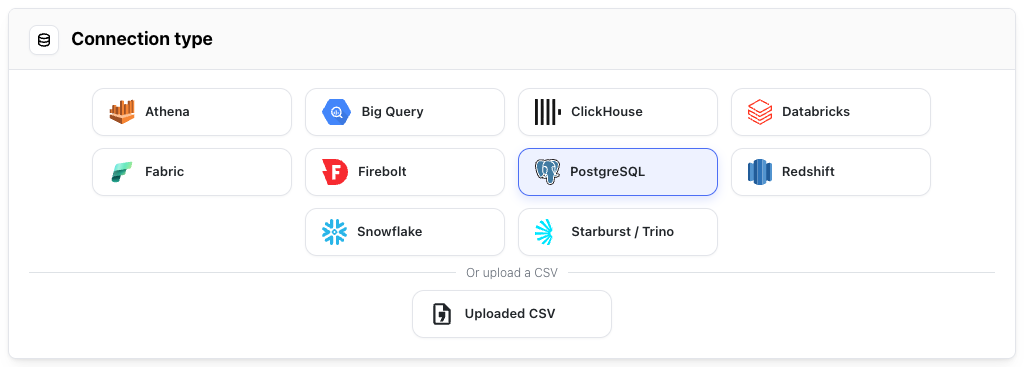
Connection type
The Connection type section shows a button for each supported warehouse. Below them, under Or upload a CSV, is the Uploaded CSV button. Pick the button for your warehouse. The Connection details section then shows the fields that warehouse needs.
Connection details
Enter the values your warehouse asks for. The warehouse integrations page explains where to find them for each warehouse. For example, the Redshift page explains where to find them in AWS. If you leave the port empty for Redshift, Mitzu uses 5439.
For an uploaded CSV, the section holds the file upload instead. See Uploaded CSV.
When the connection uses Databricks Personal OAuth, the page also shows a Databricks account section. Each member signs in there with their own Databricks account. See Databricks.
Test the connection and save
Two buttons at the bottom of the Connection details section:
- Test connection checks the details against your warehouse. Nothing is saved.
- Test connection & Save runs the same check, and saves the connection only if the check passes.
If your warehouse accepts connections only from known IP addresses, add Mitzu's IP address to its allowlist before you test. The page shows the address in an alert.
After the connection is saved, a Configure workspace button appears. It opens the AI conversation that sets up the workspace. Next, add your event tables on the Event tables tab.
Slow queries on Redshift
To see the warehouse's cluster status next to slow queries, turn on Gather cluster info on the Insights settings tab. It works with Snowflake, Databricks, BigQuery, Trino and Redshift.
Video tutorial
A video showing how to set up your workspace in 5 minutes.