All content
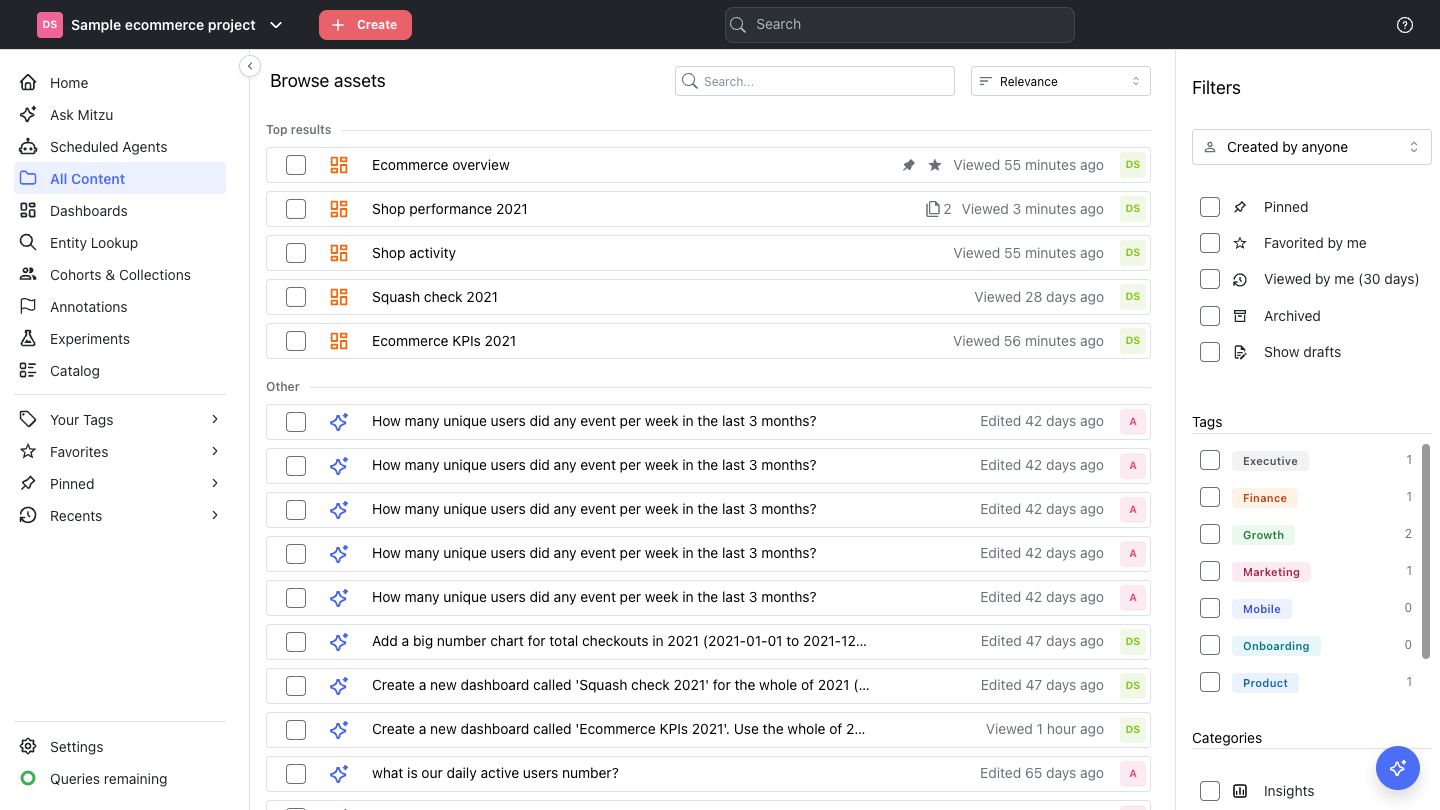
All content is the list of everything in the workspace: insights, dashboards, cohorts and collections, annotations, AI chats, alerts, scheduled agents and experiments. Open it from All Content in the sidebar. The page is titled Browse assets.
Use cases
- Find a dashboard that someone else built.
- List the insights you have starred, or the ones pinned to the workspace.
- Find every item with a tag.
- Clean up old work by archiving or deleting several items at once.
Filtering the list
The filters are in the panel on the right of the list.
Categories
Tick one or more categories to show only those types. The list is:
- Insights
- Dashboards
- Cohorts & Collections
- Annotations
- AI chats
- Alerts
- Scheduled agents, when AI is turned on
- Experiments
Created by
The owner menu shows Created by me, Created by anyone, and each person in the workspace. Mitzu remembers Created by me or Created by anyone the next time you open All content.
Pinned, favorites, recents and status
- Pinned shows the items pinned to the workspace.
- Favorited by me shows the items you starred.
- Viewed by me (30 days) shows the items you opened in the last 30 days.
- Archived swaps the list for the archived items. See Archiving.
- Show drafts adds the dashboards and experiments that are still drafts. Everyone else's drafts stay hidden until you tick it.
Tags
The Tags list shows each tag with the number of items that use it. Untagged shows the items without a tag. A tag that no longer exists is listed as Deleted tag, so you can still clear it from the filter. See Tags.
Searching and sorting
Type in the Search... box to match names, descriptions and tag names.
The sort menu above the list has five options:
- Relevance is the default. When the list mixes dashboards with other types, the dashboards come first under Top results.
- Last edited groups the items by when they were last changed.
- Alphabetical groups the items by their first letter.
- Most viewed (30 days) puts the most viewed items first.
- Last viewed (30 days) groups the items by when you last opened them.
Reading the list
Each row shows the type icon, the name, the owner as Created by and the time as Edited or Viewed. Items that are pinned, favorited, scheduled, hidden or archived show a small status icon. A dashboard row also shows its page count.
Hover over an insight or a dashboard to see a preview of it.
The list shows 25 items per page. Page controls appear below the list when there is more than one page.
Selecting items and bulk actions
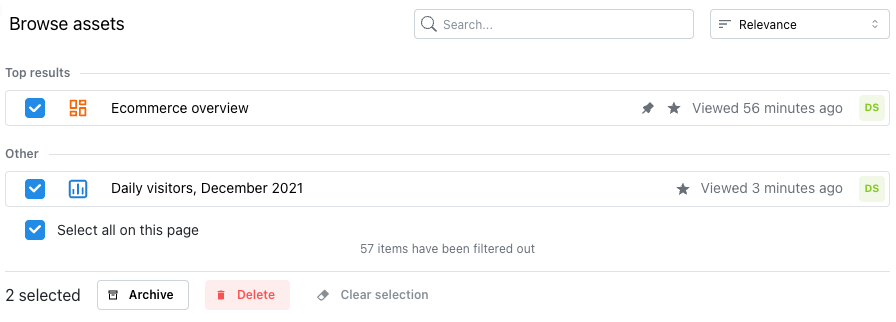
Tick the rows you want. Select all on this page ticks every row on the current page. The selection checkboxes appear only for people who can edit the workspace.
When something is selected, a bar at the bottom of the list shows the number of selected items and these buttons:
- Archive archives the selected items. When the Archived filter is on, the button reads Unarchive.
- Delete deletes the selected items.
- Clear selection unticks everything.
Archive opens an Archive assets dialog. It lists the items that will be archived. Items you cannot archive are left out and listed with the reason, for example Only the owner can archive this. Click Archive in the dialog to confirm. Unarchive works straight away, without a dialog. See Archiving for what an archived item keeps and loses.
Delete opens a Delete assets dialog that says the selected items are removed from the workspace. It lists the items that will be deleted. Items you cannot delete appear in a yellow box and are skipped. If a cohort is used in other places, the dialog lists them. Click Delete in the dialog to confirm. If you might need the items again, archive them instead.
Related pages
- Archiving explains what archiving hides and what keeps working.
- Tags explains how to label items and filter by them.
- Saved insights explains how insights are saved and found.