Archiving
Workspaces fill up with insights, dashboards and cohorts that nobody opens any more but that something still depends on. Deleting them breaks those dashboards and links. Archiving takes an asset out of every list and search instead, and keeps it working wherever it is already used.
You can archive insights, dashboards, cohorts, collections, annotations, AI chats, alerts, scheduled agents and experiments.
What archiving does
An archived asset no longer shows up in:
- Browse, unless you turn on the Archived filter
- Search and the Home page
- The sidebar's Favorites, Pinned and Recents lists. Pins and favorites are kept, so they come back when you unarchive.
- Pickers: adding an insight to a dashboard, choosing a dashboard for an insight or an AI chat, the cohort filter in Explore, saving over an existing cohort, and experiment metrics
- The Scheduled agents list and Recent chats
- Mitzu AI's workspace and cohort search
- Tag counts in Browse, the sidebar and search. With the Archived filter on, Browse's tag counts cover archived assets instead. Settings → Workspace → Tags counts both, because deleting a tag removes it from archived assets too, with separate links to the active and the archived assets.
An archived asset keeps working:
- Links to it still open it, with an Archived badge next to its title.
- Dashboards still show archived insights, and insights still use archived cohorts and metrics.
- Alerts, dashboard reports and scheduled agents keep running.
- It keeps its owner, tags and history. Archiving is not deleting: an archived asset can be unarchived or deleted at any time.
Archive and unarchive
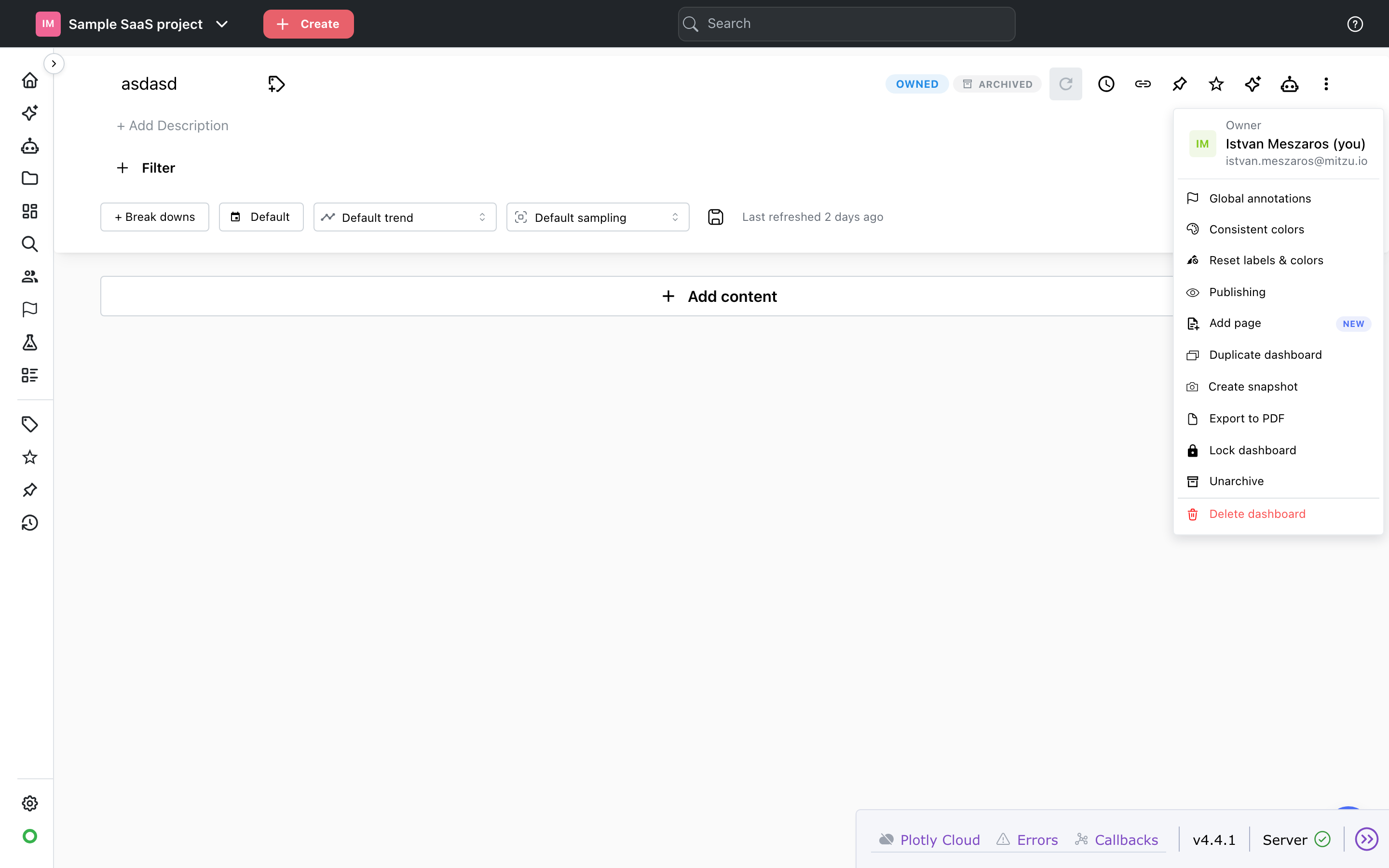
- From the asset: open the menu next to the title (More actions on an insight, the ⋮ menu on a dashboard, the menu on a cohort or annotation) and pick Archive. The same item says Unarchive on an archived asset. Scheduled agents have Archive in their card menu on the Scheduled agents page and an Archive / Unarchive button on their detail page. Experiments have Archive and Unarchive buttons on their detail page.
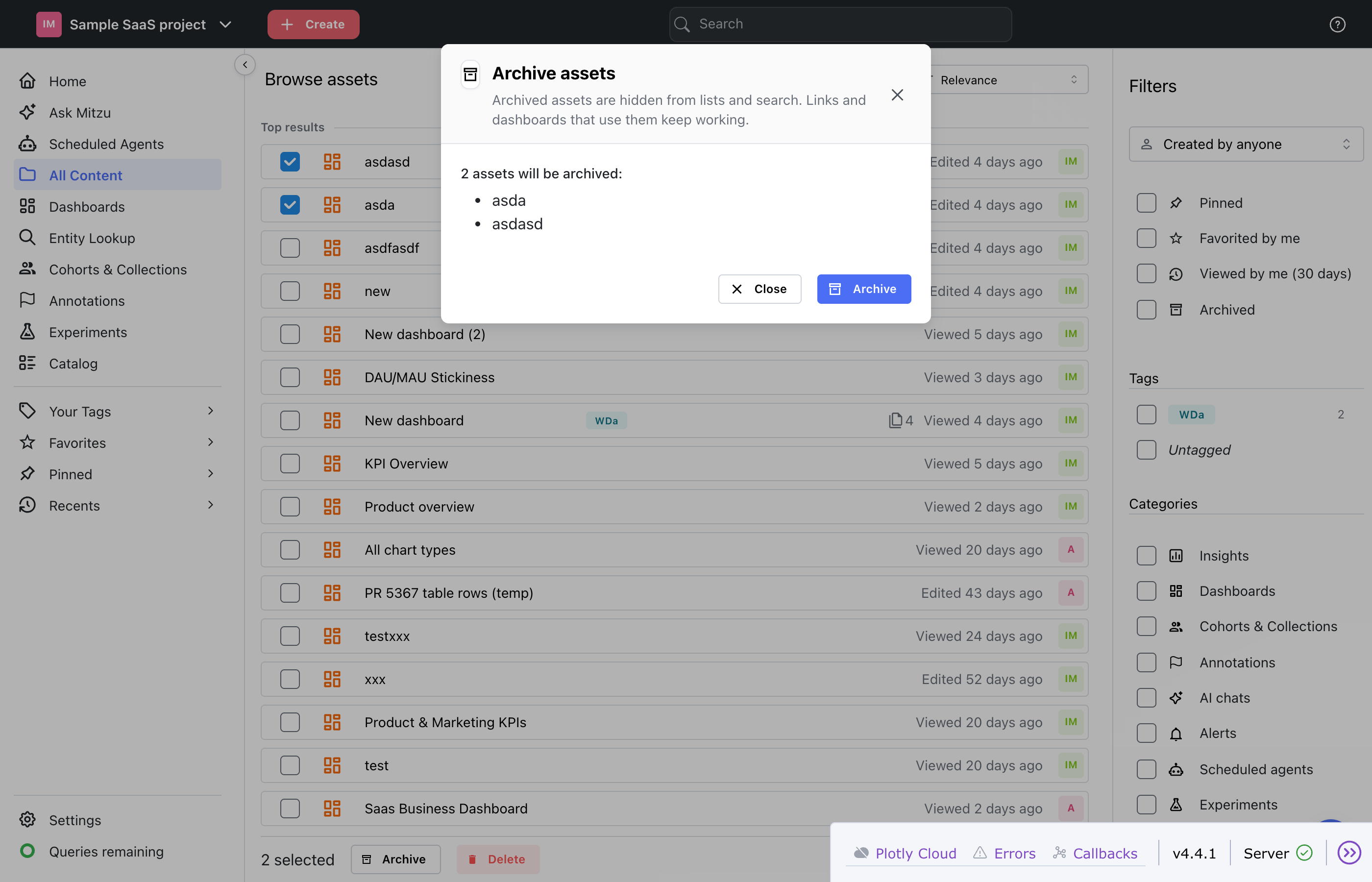
- In bulk from Browse: tick the rows (or Select all on this page under the list) and click Archive next to Delete; Clear selection unticks everything. A dialog lists the assets that will be archived; click Archive in it to confirm, or Close to keep them. Assets you are not allowed to archive are left out of the list, with the reason, and when none of the selected assets can be archived the Archive button is disabled. To bring assets back, turn on the Archived filter, tick them and click Unarchive: unarchiving happens straight away, without a dialog.
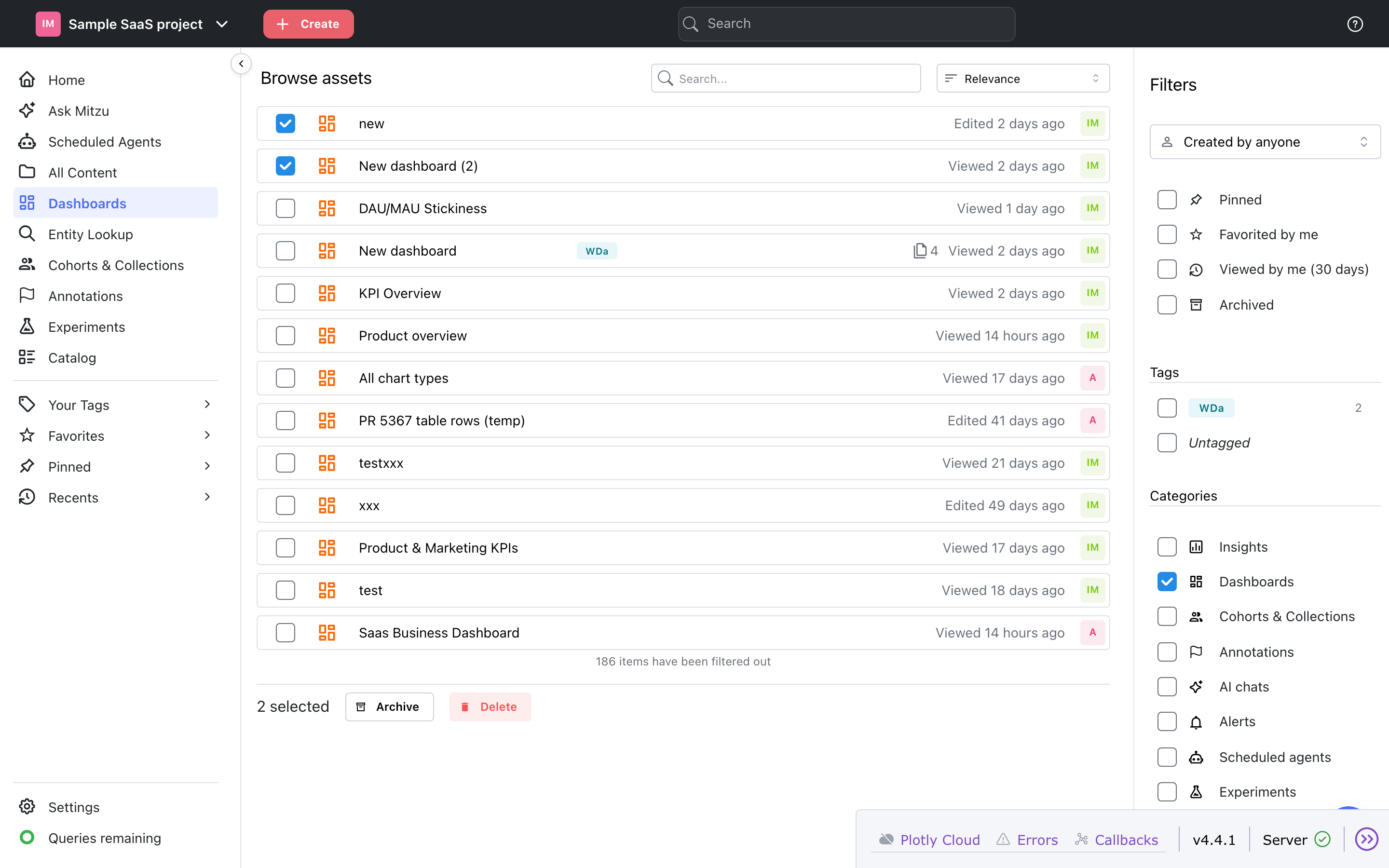
AI chats and alerts don't have their own page menu yet; archive them from Browse.
Finding archived work
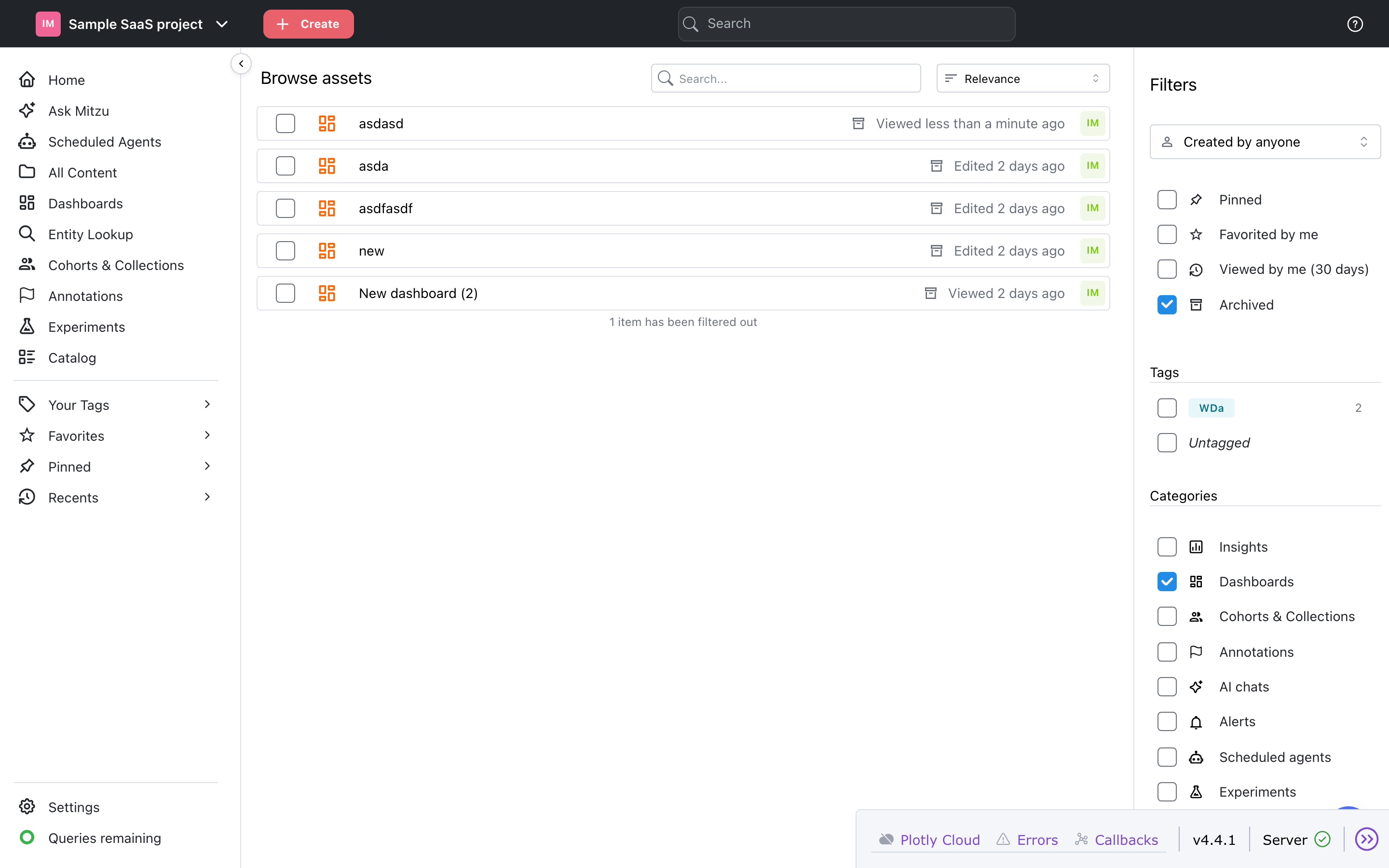
Turn on Archived under Filters in Browse. The list shows only archived assets, with the archive icon on each row, and the other filters (categories, tags, created by, search) still apply. The filter is kept in the URL, so you can share or bookmark the view.
Who can archive
Archiving follows your workspace role:
- Workspace Members, Admins and the Workspace Owner can archive and unarchive anything they can edit.
- Workspace Viewers see the Archived badge and filter, but can't archive or unarchive.
- A locked dashboard and an AI chat can only be archived by their owner.
- An insight or dashboard that is pinned to the workspace can only be archived by a Workspace Admin or the Workspace Owner, because archiving takes it off everyone's Home page.