Workspace access
When one Mitzu organization holds data for several teams or clients, not everyone should open every workspace. Workspace access decides who can open each workspace and what they can do there.
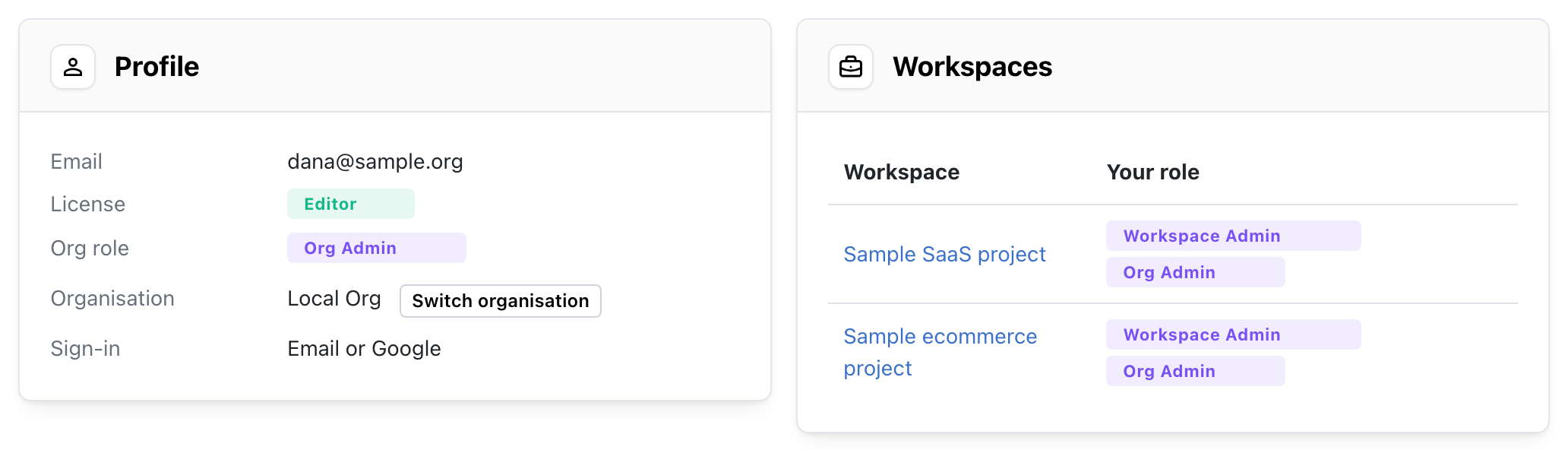
Every person has a license, an org role for the whole organization, and a workspace role in each workspace they can open. The license decides which org roles are possible, and the org role decides which workspace roles are possible: an Org Viewer is always a Workspace Viewer. For who should have which, see Recommended setup.
Use cases
- Keep a client's or a team's workspace to the people who work on it.
- Let a team lead manage their own workspace without making them an admin of the whole organization.
- Let an analyst build in their own workspace and only read another team's.
- Keep a person's dashboards, insights and agents with the team when they leave the workspace.
Licenses and org roles
Both are set on the organization's Members page.
| License | Who it is for |
|---|---|
| Editor | A paid editor seat. Can be Org Owner, Org Admin or Org Member. |
| Viewer | Free. People who only read insights and dashboards. Always an Org Viewer. |
| Org role | Who it is for |
|---|---|
| Org Owner | The one person who owns the organization. An Org Admin who can't be removed and whose license and org role can't be changed. |
| Org Admin | People who run the organization: they invite and remove people, change licenses and roles, and set up single sign-on, API keys, AI credentials and billing. |
| Org Member | People who build analyses. Their access to each workspace depends on their workspace role. Needs an Editor license. |
| Org Viewer | People who only read. They are a Workspace Viewer in the workspaces that are open to everyone and the ones they are added to. Needs a Viewer license. |
Workspace roles
| Workspace role | Who can have it | What it adds |
|---|---|---|
| Workspace Owner | Org Owner, Org Admin or Org Member | Everything in the workspace, including deleting it, opening or restricting it, and handing over ownership. Content from people who lose access is transferred to the Workspace Owner. |
| Workspace Admin | Org Owner, Org Admin or Org Member | The workspace's settings and its people. |
| Workspace Member | Org Owner, Org Admin or Org Member | Creating and editing insights, dashboards and other content. |
| Workspace Viewer | Org Owner, Org Admin, Org Member or Org Viewer | Reading insights and dashboards. |
By default, everyone has the workspace role that matches their org role:
- Org Owners and Org Admins open every workspace, open or restricted, as Workspace Admins. They can be given a lower role in a workspace, Workspace Member or Workspace Viewer, but never No access, and they can't be removed from a workspace. The lower role applies inside that workspace only: they keep every org-level power, such as the organization's settings and changing anyone's workspace roles on the organization's Members page.
- Org Members are Workspace Members in the workspaces that are open to everyone. They can be made Workspace Admins or Workspace Viewers in any workspace, and are added to restricted workspaces as Workspace Members unless you pick another role.
- Org Viewers are Workspace Viewers in every workspace they can open, and can only be added to restricted workspaces as Workspace Viewers.
Anyone without one of these roles in a workspace has No access to it.
What each role can do
In the table, Org Admin means an Org Admin or the Org Owner with their default role, Workspace Admin. An Org Admin given a lower role in a workspace can do there what that role can.
| In a workspace | Org Admin | Workspace Owner | Workspace Admin | Workspace Member | Workspace Viewer |
|---|---|---|---|---|---|
| Open the workspace and read its insights and dashboards | Yes | Yes | Yes | Yes | Yes |
| Run queries on the data warehouse | Yes | Yes | Yes | Yes | - |
| Create and edit insights, dashboards, cohorts, annotations and experiments | Yes | Yes | Yes | Yes | - |
| Edit the data catalog: events, properties, custom events and filter groups | Yes | Yes | Yes | Yes | - |
| Add tags to content | Yes | Yes | Yes | Yes | - |
| Ask Mitzu AI questions about the data | Yes | Yes | Yes | Yes | - |
| Use the AI configuration agent | Yes | Yes | Yes | - | - |
| Pin insights and dashboards to the workspace | Yes | Yes | Yes | - | - |
| Create, rename and delete tags | Yes | Yes | Yes | - | - |
| Change workspace settings: connection, event tables, entities, dimensions, indexing, performance, AI, Slack and MCP | Yes | Yes | Yes | - | - |
| Add and remove people and change their workspace roles | Yes | Yes | Yes | - | - |
| Open or restrict the workspace | Yes | Yes | - | - | - |
| Hand over ownership of the workspace | - | Yes | - | - | - |
| Claim ownership of the workspace | Yes | - | - | - | - |
| Delete the workspace | Yes | Yes | - | - | - |
| In the organization | Org Admin | Everyone else |
|---|---|---|
| Create workspaces | Yes | - |
| Invite and remove people, and change their license and org role | Yes | - |
| Single sign-on, API keys, AI credentials, billing and subscription | Yes | - |
| Usage and Query manager | Yes | - |
| Claim ownership of the organization | Yes | - |
Workspace roles never reach the organization's settings. A Workspace Owner or Workspace Admin is an Org Member in every other respect.
Open and restricted workspaces
Every workspace has an access type: Open or Restricted.
- Open — everyone in the organization, including people who join later, can open the workspace. Org Members are Workspace Members, Org Viewers are Workspace Viewers. People added on the Members tab keep the role they have there, for example Workspace Admin or Workspace Viewer.
- Restricted — only the Org Owner, the Org Admins, the Workspace Owner and the people added on the Members tab can open the workspace.
The Create workspace dialog asks Who can open it?: pick the Open or the Restricted card. It starts on Open. Only Org Admins can create workspaces, and the person who creates one becomes its Workspace Owner.
The Members tab
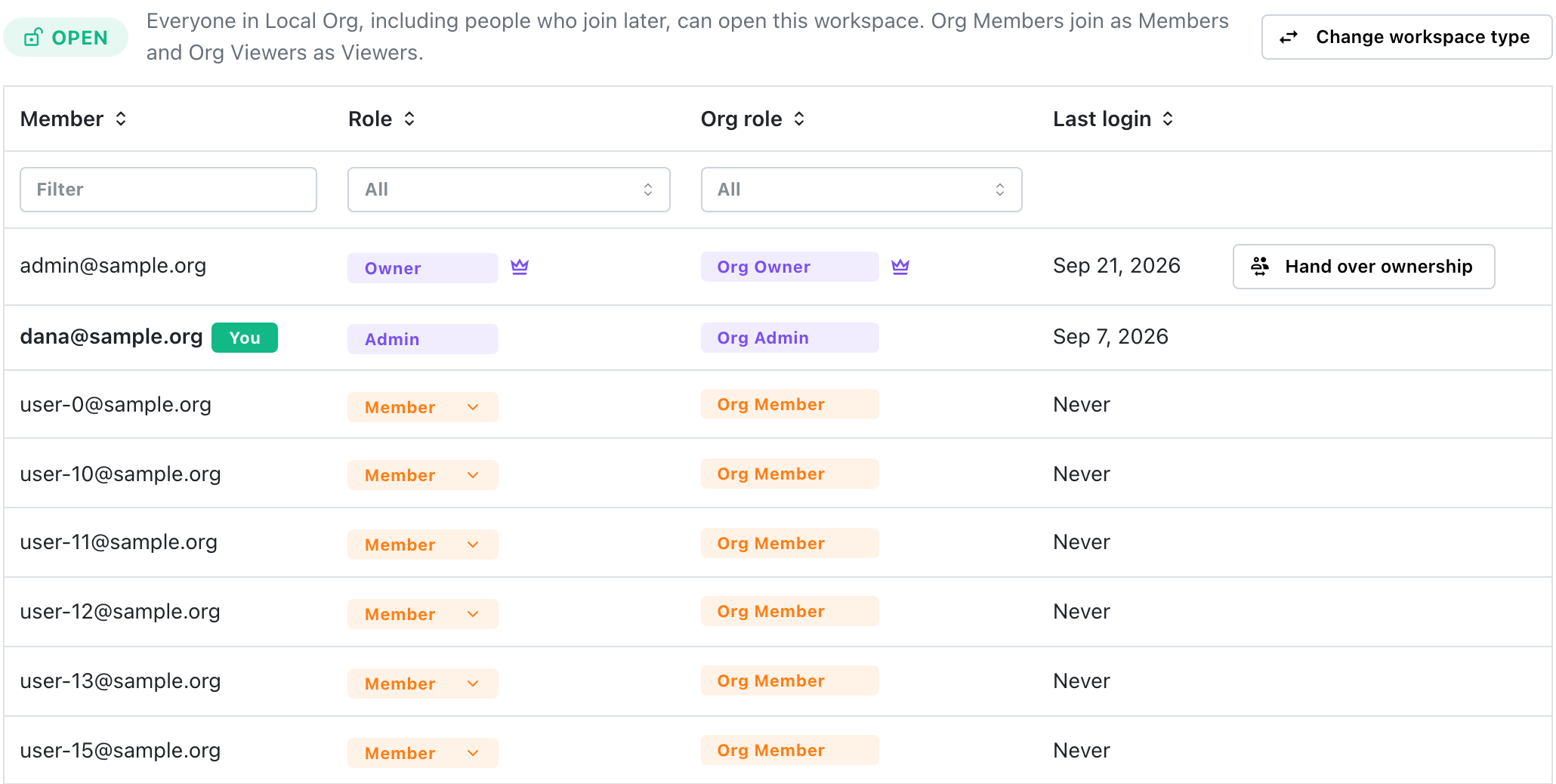
Open a workspace's settings and select the Members tab. The Workspace members table lists everyone in the organization with their role in this workspace, 15 per page: the Owner and Admins first, then Members, then Viewers, then people with No access. The row under the headers filters each column: type in Member, or pick a Role or Org role; click a header to sort. On this page workspace roles are shown without the "Workspace" prefix (Owner, Admin, Member, Viewer); org roles keep theirs. The Owner and the Org Owner have a crown next to their badge; hover it to see what ownership means. Your own row is marked You. What each role can do, at the bottom of the tab, explains every role.
Each row has a View assets link in the Assets column, with the number of items that person created in this workspace in brackets, for example View assets (12). It opens this workspace's All Content page filtered to what that person created, so you can see what they own here before you change their role or remove them. The number counts what you would see on that page.
Above the table, a badge shows the workspace access type, Open or Restricted, next to Change Access Type. Under it, the Workspace Owner is named. The Workspace Owner sees Hand over ownership next to it; everyone else sees Claim ownership.
Badges use one colour per level everywhere: admins purple, members orange, viewers gray. No access is plain text.
The Members tab is available to the Workspace Owner, Workspace Admins, and Org Admins who are Workspace Admins there. Org Admins can also change anyone's role in any workspace from the organization's Members page.
Changing a role, adding and removing people
Click the person's role badge and pick Admin, Member or Viewer. Org Admins and the Org Owner have the dropdown too, next to their org badge; Admin is marked as their default. Only Org Admins can change an Org Admin's or the Org Owner's role; for a Workspace Admin who isn't an Org Admin, their badge is locked. In an open workspace the role everyone gets is marked everyone; picking it again for someone with a different role puts them back on it.
- Adding someone: in a restricted workspace, people who can't open it show No access. Pick a role for them to add them. They get an email about it. To add someone who is not in your organization yet, an Org Admin has to invite them first. Org Admins see an Invite members button at the top of the Members tab that takes them to the organization's Members page, where invites are sent.
- Removing someone: in a restricted workspace, pick No access. The dialog says what the person owns in the workspace before you confirm, and they lose access as described in When someone loses access. Closing the dialog keeps their role.
Org Viewers can only be Viewers: in an open workspace they have no dropdown, and in a restricted one they can be given Viewer or No access. The Workspace Owner, the Org Owner and the Org Admins can't be given No access. The Workspace Owner can't be changed here, and you can't change your own role. A role that can't be changed shows as a plain badge; hover it to see why.
Changing the workspace access type
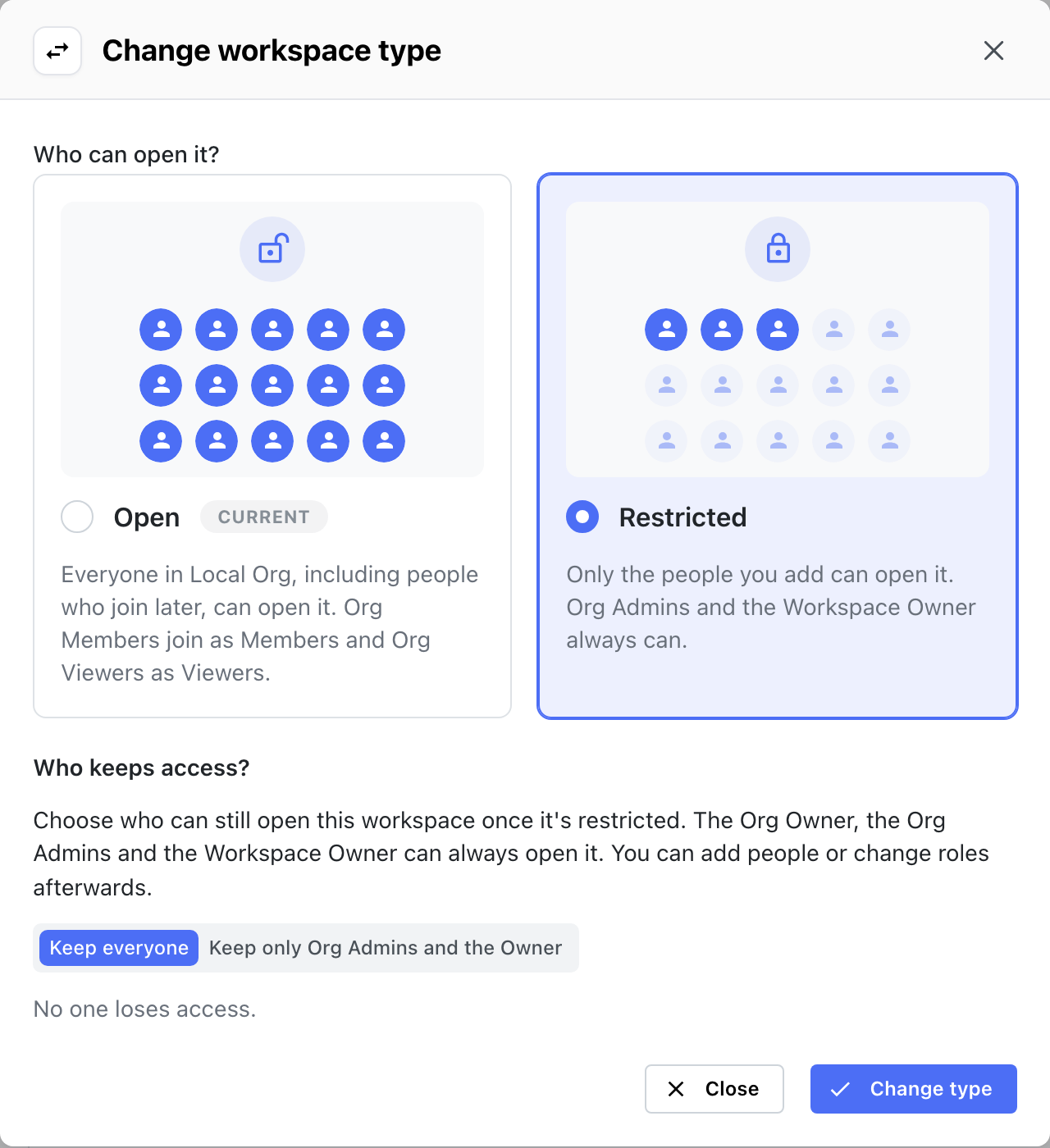
A workspace's access type is either Open or Restricted. Only the Workspace Owner and Org Admins can change it; for everyone else Change Access Type is disabled, and hovering it says why. Click it to open the Change Access Type dialog. It shows the same Open and Restricted cards as the Create workspace dialog, with the workspace's current access type marked Current. Pick the other card to see what changes, then click Change Access Type.
Restricting a workspace
Pick Restricted. Under Who keeps access?, choose Keep everyone or Keep only Org Admins and the Owner. The Org Owner, the Org Admins and the Workspace Owner can always open a restricted workspace. The dialog counts the people who will lose access and lists the content that moves to the Workspace Owner.
With Keep everyone, everyone is added to the workspace as a Workspace Member, or as a Workspace Viewer if they are an Org Viewer. People who already had a role there, such as Workspace Admins, keep it. With Keep only Org Admins and the Owner, everyone else loses access, including people added as Workspace Admins, as described in When someone loses access. Either way you can add people or change roles on the Members tab afterwards.
Opening a workspace
Pick Open. The dialog says how many people will gain access. Nobody loses access when a workspace is opened, and added roles stay.
Workspace Owner
Each workspace has exactly one Workspace Owner.
- The person who creates a workspace becomes its Workspace Owner.
- Workspaces that existed before workspace access, and workspaces whose Workspace Owner left the organization, are owned by the Org Owner. When another Org Admin claims ownership of the organization, these workspaces move with it.
- A Workspace Owner needs an Editor license. They can be the Org Owner, an Org Admin or an Org Member. When ownership is handed over, only a Workspace Admin of that workspace can receive it.
To change it, click Hand over ownership above the members table, pick the new Workspace Owner and confirm. Only the Workspace Owner can do this. The list only offers the workspace's Workspace Admins: to hand it to someone else, make them a Workspace Admin first. An Org Admin whose role in this workspace is lowered to Workspace Member or Workspace Viewer isn't offered either. The new Workspace Owner gets an email about it. The previous Workspace Owner keeps access as a Workspace Admin, or as an Org Admin if they are one.
An Org Admin who isn't the Workspace Owner takes the workspace over instead: click Claim ownership above the members table and confirm. They become the Workspace Owner, and the previous Workspace Owner keeps access as a Workspace Admin. The button is only enabled while the Org Admin's own role in the workspace is Admin; for anyone who isn't an Org Admin it is disabled.
How license and org role changes affect workspaces
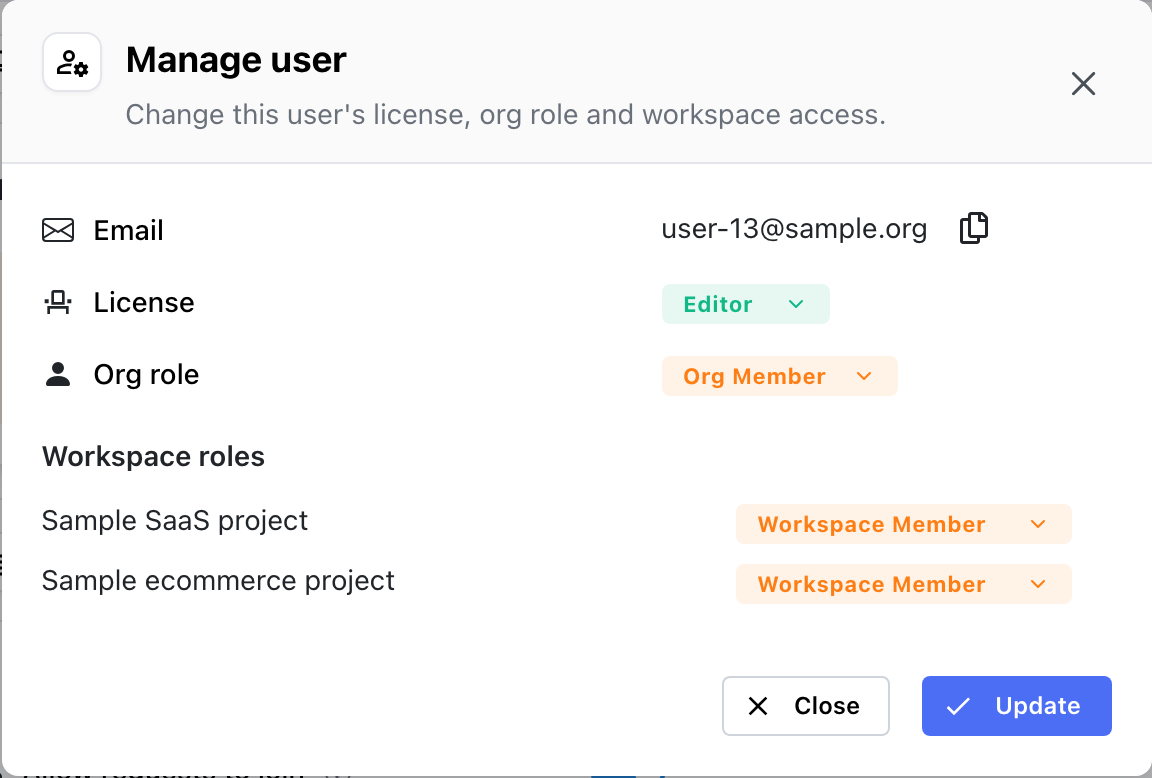
Licenses and org roles are changed on the organization's Members page. In the Manage dialog, the workspace roles update as soon as you pick another license or org role, so they show what the change gives. Change any of them before you click Update.
| Change | Effect on workspace roles |
|---|---|
| Org Member → Org Admin | Workspace Admin in every workspace. Earlier workspace roles are cleared; give them a lower role per workspace afterwards if needed. Needs an Editor license. |
| Org Admin → Org Member | Keeps every restricted workspace as a Workspace Member, so nobody loses access by surprise. Workspaces where they had a lower role keep it. Remove them from workspaces afterwards if needed. |
| Editor license → Viewer license | The person becomes an Org Viewer and every workspace role becomes Workspace Viewer. Their editor seat is freed. Not possible while the person is a Workspace Owner: hand over their workspaces first. |
| Viewer license → Editor license | The person becomes an Org Member and a Workspace Member in every workspace they could open. |
| Org Owner | Can't be changed. Another Org Admin has to claim ownership first. |
If the owner of a scheduled insight refresh or dashboard report can no longer refresh it in a workspace, for example after being made a Workspace Viewer there, the schedule keeps running as the Workspace Owner, so subscribers keep getting their reports. Scheduled agents don't: an agent runs with its owner's role, so it doesn't run while its owner's role in the workspace can't run it. A Workspace Viewer can't run any agent, and a configuration agent needs Workspace Admin or higher. Give the owner a higher role again, or have someone else recreate the agent.
When someone loses access
A person loses access to a workspace when they are removed from a restricted workspace, not kept when the workspace is restricted, or removed from the organization.
Removed from a workspace or not kept when restricting it:
- their dashboards, insights, cohorts, scheduled agents, alerts and other content in the workspace are transferred to the Workspace Owner, so nothing is lost. The content stays with the Workspace Owner even if the person gets access again later;
- they stop receiving alert, dashboard report and scheduled agent emails from the workspace, and the Slack bot and MCP clients no longer answer them about it;
- they get an email saying they lost access, and the Workspace Owner gets an email listing the content they received.
Removed from the organization: their content in each workspace is transferred to that workspace's Workspace Owner. Workspaces they owned go back to the Org Owner, together with their content there. Alerts are kept and handed over.
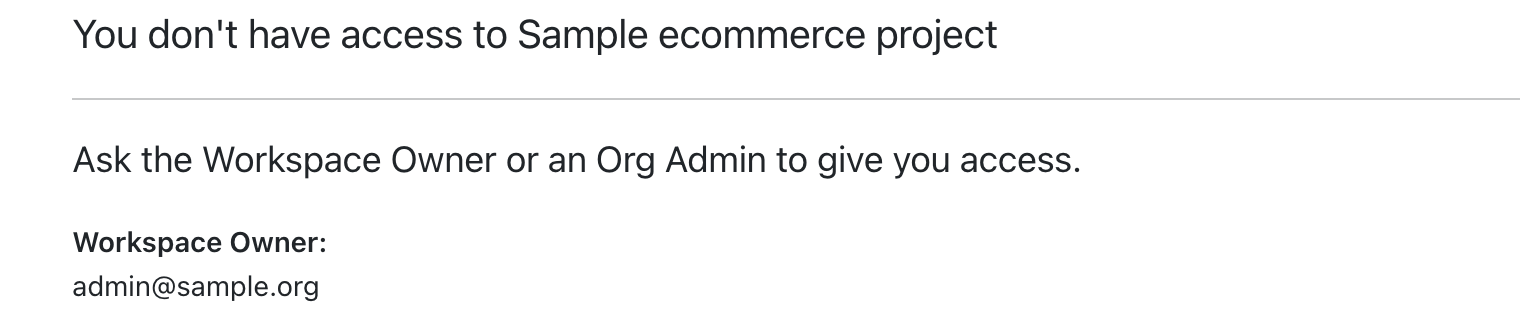
Opening a link to a workspace without access shows a page that names the Workspace Owner and the Org Admins to ask for access. Someone who can't open any workspace sees an empty state on the home page.
Integrations, API keys and shared links
- Alerts, dashboard reports and scheduled agents only email people who can open the workspace, and their recipient pickers only list those people.
- Slack answers a person only about workspaces they can open. Connecting Slack to a workspace needs a Workspace Admin, Workspace Owner or Org Admin.
- MCP clients only list and query workspaces the signed-in person can open.
- API keys belong to the organization and reach every workspace. They can also manage members and workspace access, see Managing access with the API.
- Public shared links keep working for everyone with the link.
Managing access with the API
Everything on the Members page and the Members tab can also be done with an API key, for example to sync people from your identity provider or HR system. See the Mitzu API reference for the requests.
| What | Requests |
|---|---|
| List, invite, update and remove members | GET /members, POST /members, GET, PATCH and DELETE /members/{membership_id} |
| A member's role in every workspace, and changing it | GET /members/{membership_id}/projects, PUT /members/{membership_id}/projects/{project_id} |
| Join requests | GET /join-requests, POST /join-requests/{id}/approve, POST /join-requests/{id}/reject |
| A workspace's members | GET and POST /projects/{project_id}/members, PATCH and DELETE /projects/{project_id}/members/{membership_id} |
| Opening and restricting a workspace | POST /projects/{project_id}/open, POST /projects/{project_id}/restrict |
The API key acts as an Org Admin, with the same rules as the pages:
- people are identified by their membership ID, which
GET /membersreturns; only inviting takes an email address.POST /membersinvites someone new or updates the license and org role of an existing member, sends the invitation email unlesssend_invite_emailisfalse, and can add them to restricted workspaces listed inproject_ids. Workspaces are called projects in the API, so a workspace's ID is itsproject_id; - it can change and remove other Org Admins, but the Org Owner's license and org role stay locked and the Org Owner can't be removed;
- ownership never changes through the API: it can't claim the organization, hand over a workspace, or change a Workspace Owner's role;
- people are added to or removed from restricted workspaces only. In an open workspace you can change roles, or restrict it first. Org Admins always have access to every workspace and can't be removed from one; give them a lower role there instead;
- content moves as described in When someone loses access, and the responses list what moved to whom. People get the same emails as from the pages.
To find people who stopped using Mitzu, read last_active_at. Each workspace member in
GET /projects/{project_id}/members and each workspace in GET /members/{membership_id}/projects
has the time the person last opened that workspace, and each member in GET /members has the
latest of those. It is null when they haven't opened the workspace since they got access, and it
can be up to an hour behind. Sign-in times (last_login_at) aren't a good measure, because a
single sign-on session can stay alive for days.
Workspace access on the Members and Profile pages
The organization's Members page shows the same roles from the person's side:
- the Workspaces column summarizes each person's access, for example
3 workspaces · Workspace Admin of Marketing; - Manage shows the person's License, Org role and, under Workspace roles, their
role in every workspace.
Workspace Member (everyone)orWorkspace Viewer (everyone)marks an open workspace, where the person has access through Everyone in the org. Restricted workspaces also offer No access. For an Org Viewer only Workspace Viewer can be picked; - Invite and approving a join request can also add people to restricted workspaces with Also add to restricted workspaces.
Everyone can see their own license, org role and the workspaces they can open, with their role in each, on Settings → Personal → Profile.