Organisation overview
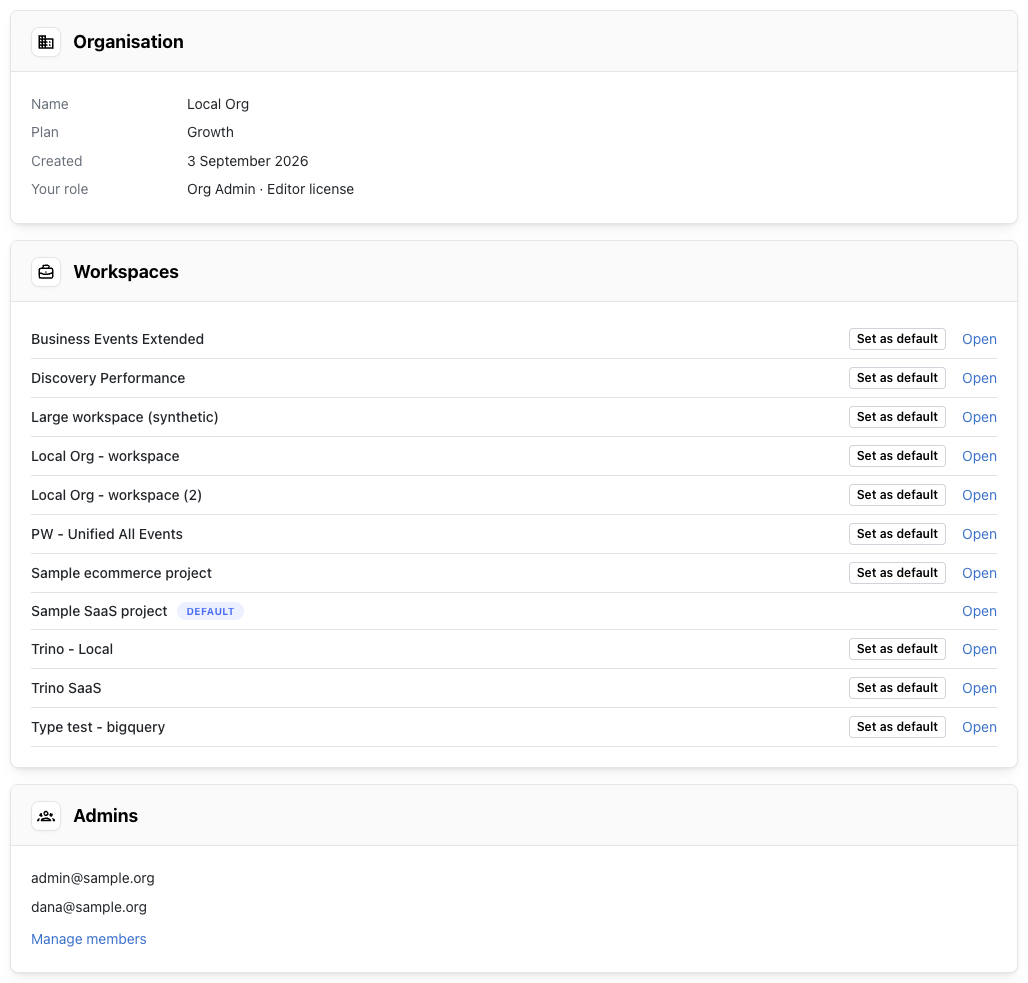
Every organisation has one overview page. It shows the organisation's name and plan, your role, the plan's limits and how much of them is in use, the workspaces you can open and the admins. Open it from Settings → Organisation → Overview.
Use cases
- Find the workspaces you can open, and the default one.
- Find the admins to ask for access to a workspace or a change of role.
- Check the organisation's plan, and how close it is to each limit before you ask an admin for an upgrade.
- Work through the setup steps after the organisation is created.
Who can see what
Everyone who has signed in to the organisation can open the page.
- Everyone sees the organisation's name and plan, their own role, the Plan and limits section, the workspaces they can open, and the admins.
- Org Admins also see the creation date and can set the default workspace. Where self-serve billing is available, they also see the list price of the plan and a Manage subscription button (the renewal date is on the Billing tab; a plan set to end shows its end date here). Depending on how your Mitzu is deployed, they may also see the Get started checklist, the option to load a sample workspace and, on AWS Marketplace deployments, the licence status.
Organisation details
- Name: the organisation's name.
- Plan: the badge next to the name shows the plan the organisation is on: Starter, Pro, Enterprise or Custom, with the days left during a free trial. The line under it shows the number of editor seats. Billing is on the Billing and subscription page.
- Created (Org Admins): the date the organisation was created.
- Your role: your org role and your license, for example Org Admin · Editor license. See Licenses and org roles for what each one can do.
Plan and limits
Every limit of the plan has a tile with how much of it the organisation uses, for example the workspaces, editor seats, viewer licenses, experiments and AI insights. A tile turns orange close to the limit and red once the limit is reached. A limit the plan doesn't include shows the plan that includes it. A limit agreed with Mitzu outside the plan is tagged Custom.
Under the tiles, Features lists what the plan includes. A feature the plan doesn't include has a lock and the plan that includes it.
Compare plans opens the pricing page. Org Admins who can manage billing also see Manage subscription, which opens Billing and subscription.
Get started
Where your deployment shows it, Org Admins see this checklist until the required steps are done. Each row shows whether the step is done. Its link reads Set up until then, and Review after. The steps refer to the default workspace.
- Connect your data warehouse opens Connection settings.
- Add event tables opens Event tables.
- Turn on AI opens AI credentials. Add an Anthropic key or your Bedrock gateway so people can ask questions in plain language.
- Connect SSO (optional) opens Single Sign-on. It is optional, so it doesn't keep the checklist open.
- Invite your team opens Members. It is done once there is more than one person in the organisation.
Workspaces
The workspaces you can open, sorted by name. The default workspace has a Default badge. Each row has an Open link. Org Admins can open every workspace, including restricted ones, so they see all of them.
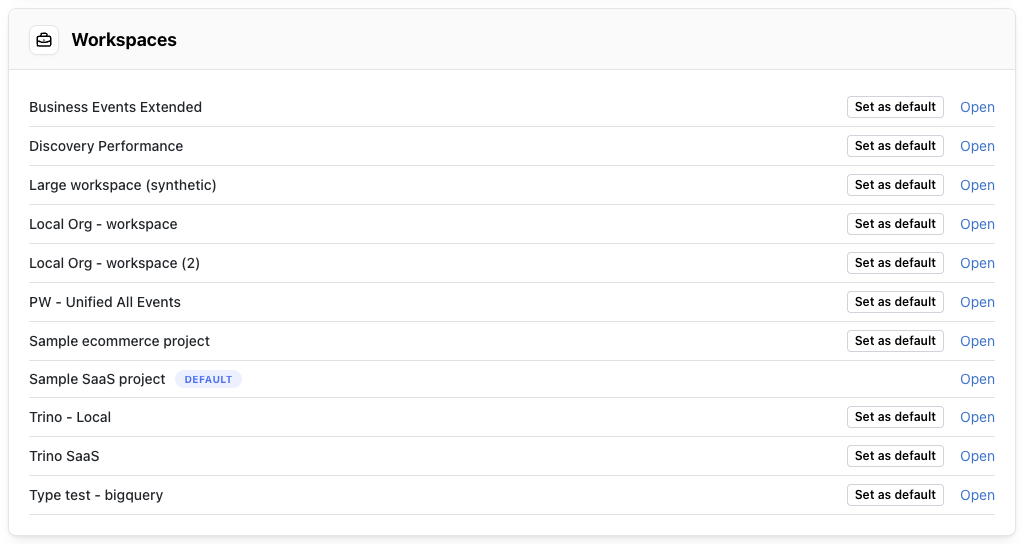
Org Admins also see:
- Set as default on every other workspace. An organisation has one default workspace, so setting a new one moves the Default badge.
- Load sample workspace under the list, when the deployment offers it and no sample workspace exists yet. It creates a workspace with 30 days of generated product events, so you can try the analysis before you connect your warehouse. Mitzu then indexes its event tables, which takes a few minutes.
Admins
Lists the email address of every Org Admin, in alphabetical order. Org Admins see a Manage members link to the Members page. Everyone else sees a note asking them to contact an admin to change their role, invite a colleague or update billing.
Related pages
- Workspace settings for the settings of the workspace you're in.
- Workspace access for who can open each workspace and what they can do there.