Data filter
Use the data filter when several tenants' data sits in the same warehouse tables and each tenant gets its own Mitzu workspace. The filter names a column and a value, for example tenant_id = 4711, and every query in the workspace only reads rows that match.
What a tenant can be
A tenant is whoever owns a slice of rows in your shared tables and should only ever see that slice. The column that identifies it is usually called tenant_id, but any column works. Common cases:
- App: one product or app among several that write into the same event tables, for example each mobile app of a studio, or each brand site of a group.
- Partner: a seller, brand or supplier on your marketplace or platform who gets analytics on their own business.
- Customer: a client of your B2B product who gets analytics on how their own users use it.
The same works for any other split: a store, a franchise, a region or a business unit.
Open it from Settings → Workspace → Data → Data filter. Only organisation admins can see or change it. Workspace admins, members and viewers can't, so a tenant made a workspace admin still can't lift the filter.
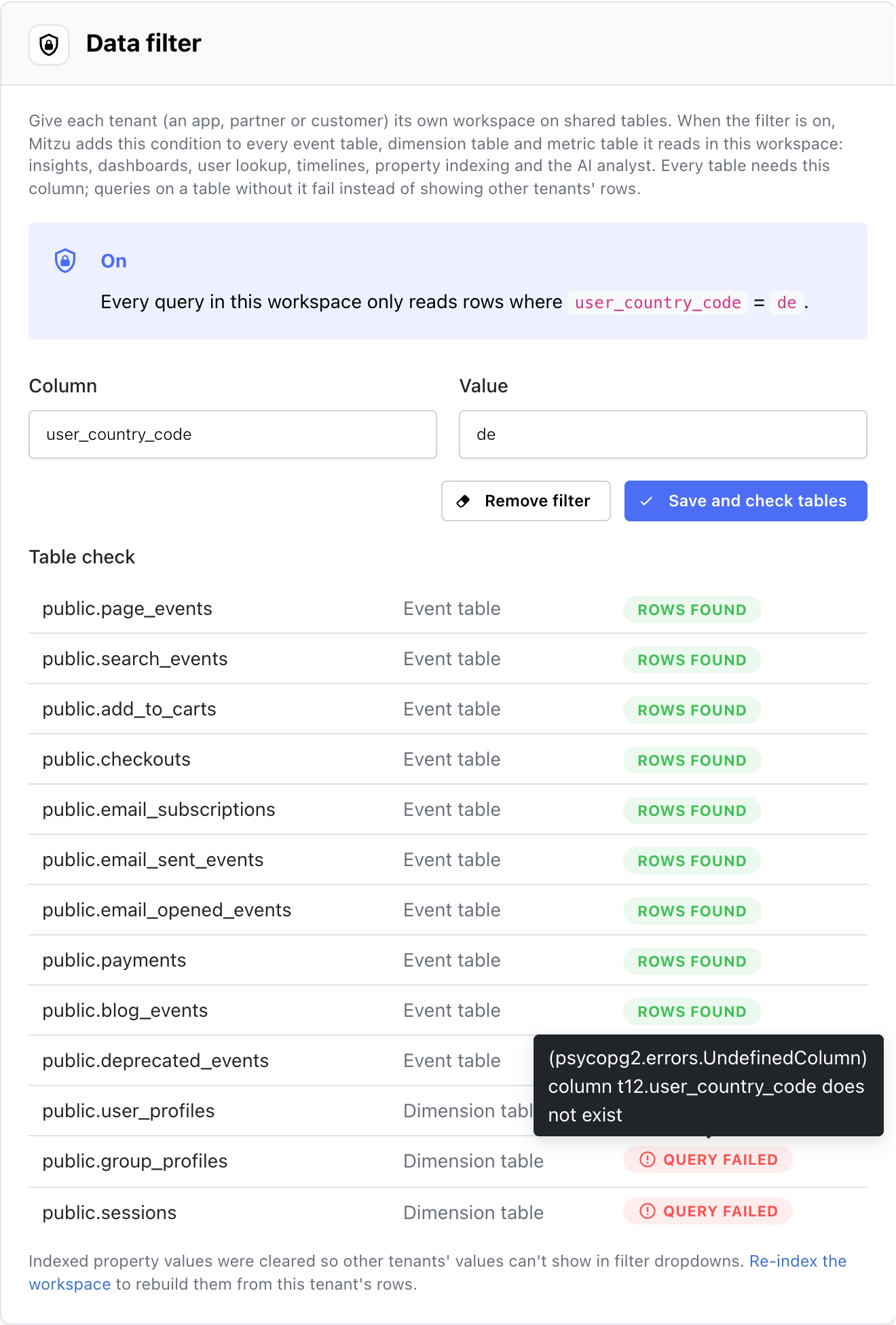
What the filter covers
When the filter is on, Mitzu adds the condition to every query it runs against the workspace's tables:
- Event tables: insights, funnels, retention, journeys, dashboards, experiments and the AI analyst.
- Dimension tables: user and group properties used in filters and breakdowns, Entity Lookup and user profiles.
- Metric tables: warehouse metrics and their previews.
- Indexing: property values collected for filter dropdowns.
Tenants never see the filter: it isn't shown in Explore or on dashboards, and they can't remove it.
Every table needs the column
The filter column must exist in every event, dimension and metric table of the workspace. When a table doesn't have it, queries on that table fail rather than return other tenants' rows.
Save and check tables
Enter the Column and Value, then click Save and check tables. The column can contain letters, digits, underscores and dots.
Saving the filter, changing it or removing it does three things straight away:
- Clears the workspace's cached chart results, chart images and thumbnails. Dashboards recompute with the new filter the next time they are opened or refreshed.
- Clears the indexed property values, so dropdowns can't suggest other tenants' values. Re-index the workspace to rebuild them from this tenant's rows.
- Runs a check on every event and dimension table in the background. It shows whether rows were found, whether none matched, or whether the query failed, for example because the column is missing. Hover over a table's Query failed badge to see the warehouse error.
Click Remove filter to turn the filter off.
Set the filter before you invite the tenant's users. A dashboard refresh or indexing run that started before you saved can finish afterwards with results computed without the filter.
Limitations
- The value is compared as text. A numeric tenant column may need a string column or view on warehouses with strict typing, such as BigQuery, Trino and Athena.
- The SQL admin page runs SQL as written and is not filtered.
- Only indexed property values are cleared. Event names and property names found in other tenants' rows stay in the workspace's catalog.