Home and navigation
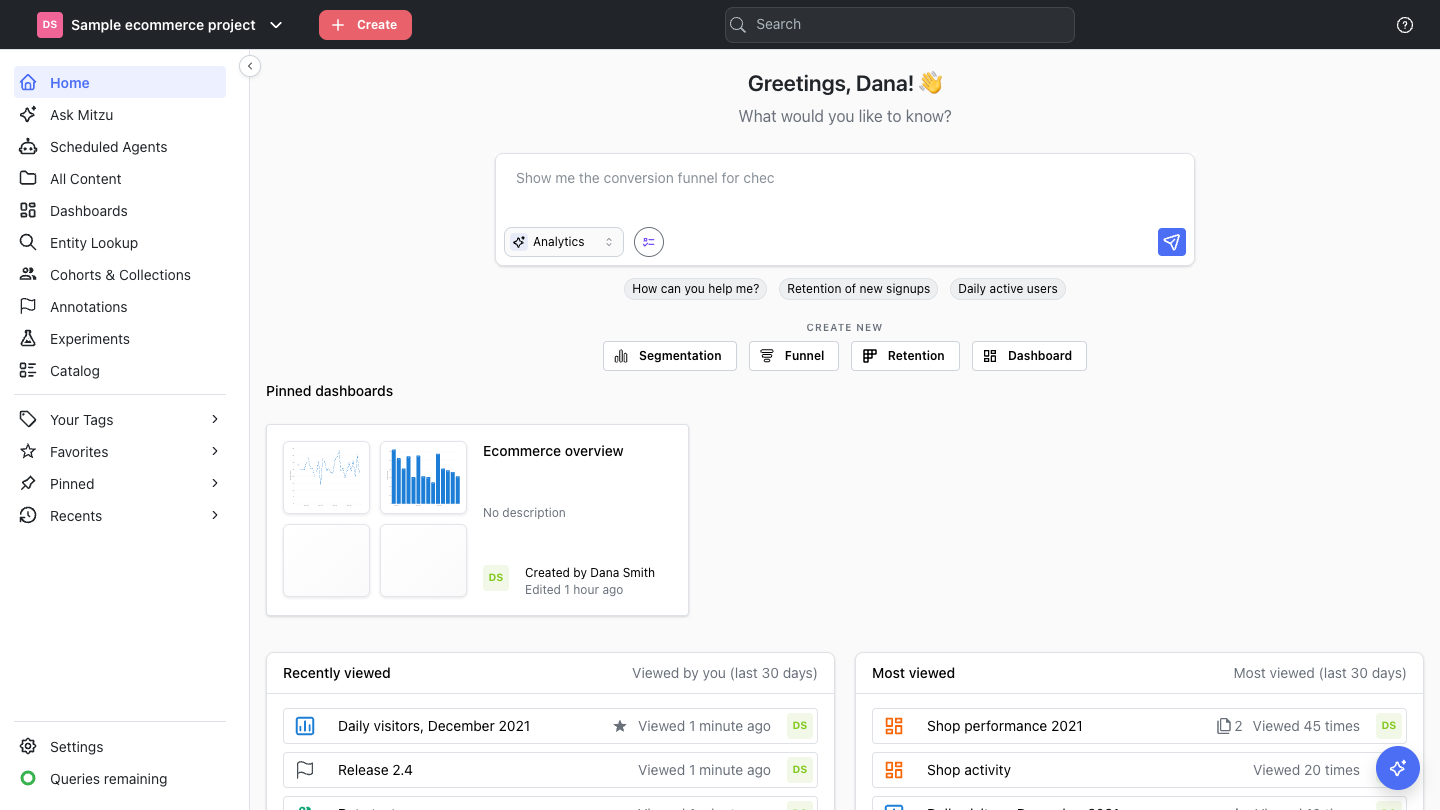
The Home page is where you land when you open a workspace. It shows what to do next, what you opened recently and what your workspace admins have pinned. The left sidebar and the top bar take you to every other part of the workspace.
Use cases
- Get back to the insight or dashboard you had open yesterday.
- Start a new segmentation, funnel, retention or journey.
- Ask a question in plain language with Ask Mitzu.
- Find the dashboards your workspace admins have pinned.
- Look up one user or group in Entity Lookup.
The home page
Which blocks you see depends on how far the workspace is set up and on whether AI is turned on for it.
The question box
When AI is turned on and the workspace is set up, the top of the home page is a question box under the greeting What would you like to know?. Type a question and send it to open a new AI chat with that question. The agent picker in the box chooses the agent:
- Analytics answers questions about your data. It is selected by default.
- Config changes the workspace setup. Only admins can use it. For other roles the option is greyed out.
Suggested questions appear under the box. Click one to ask it. Below them, CREATE NEW offers Segmentation, Funnel, Retention and Dashboard.
Quick actions
When AI is turned off, the home page shows Segmentation, Funnel, Retention, Journey and New dashboard buttons, with a Search box above them.
Pinned dashboards
Up to five dashboards that an admin has pinned to the workspace, sorted by last edit. Each card shows the name, the description, the number of pages, the owner and when the dashboard was last edited. The section is hidden when nothing is pinned.
Recently viewed and Most viewed
- Recently viewed lists up to 10 items you opened in the last 30 days. It includes items of every type you can see, AI chats among them.
- Most viewed lists up to 10 dashboards and insights with the most views in the last 30 days.
Onboarding steps
Until the workspace has a connection and at least one event table, the home page shows a Welcome to Mitzu panel instead. It has a Set up your workspace progress ring and three cards:
- Establish connection connects your data warehouse.
- Connect tables opens after the connection is set up, and maps your event tables.
- Invite colleagues is complete when a second person has joined the organisation.
Until a connection exists, Set up with AI and Upload CSV appear above the cards when AI is turned on. When the public demo is available, Try the live public demo appears at the bottom.
Home banner
Admins can show a banner at the top of the home page for everyone in the workspace. Set it in Settings, then Workspace, under Home banner. The banner has a title, a description, an icon, a colour and an optional link that opens in a new tab. Turn off Banner visible to hide it.
The left sidebar
The sidebar lists the parts of the workspace. Click an item to open it.
- Home returns to the home page.
- Ask Mitzu starts a new AI chat. It is shown when AI is turned on.
- Scheduled Agents lists the scheduled agents in the workspace. It is shown when AI is turned on.
- All Content lists everything in the workspace. See All content.
- Dashboards lists the dashboards.
- Entity Lookup finds a user or group. See Users and groups lookup.
- Cohorts & Collections lists the cohorts and collections. See Cohorts.
- Annotations lists the annotations. See Annotations.
- Experiments lists the experiments.
- Catalog opens the event catalog in Settings.
Below the list are four rows. Hover one to open its list in a flyout, or click it to open the matching list in All content:
- Your Tags appears when the workspace has tags. Each tag shows how many items use it. Admins also see Manage tags. See Tags.
- Favorites holds the items you starred.
- Pinned holds the items an admin pinned to the workspace.
- Recents holds the items you opened last.
A flyout shows up to 10 items and a View all link, or Browse all when it is empty. An empty list says what fills it: Favorite items to add them here, Pin items to add them here or Items you open show up here.
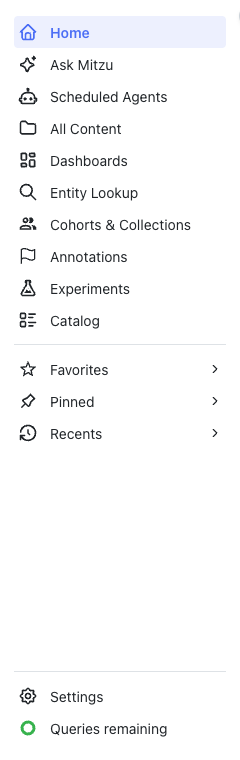
At the bottom of the sidebar are Settings, the Queries remaining gauge, the trial box during a trial, and Chat with us.
Queries remaining
The gauge is shown when your workspace uses Mitzu's AI allowance, and not its own AI key. The ring shows how many AI queries are left this month and the date the count refreshes. It turns yellow below 20%, and then offers Upgrade when self-serve billing is on. At zero it turns red, reads No agent queries left and offers Request more.
Collapsing the sidebar
Use the toggle on the edge of the sidebar to collapse it to icons. Hover an icon to see its name. The Favorites, Pinned, Recents and Your Tags flyouts work the same way when the sidebar is collapsed. On a narrow screen the lists open from the menu button in the top bar.
The top bar
From left to right, the top bar holds the workspace name, which opens the list of workspaces, the menu button on narrow screens, the Create button, the Search box and the support menu.
The Create menu
Create in the top bar starts something new. The menu lists only the items your role can create.
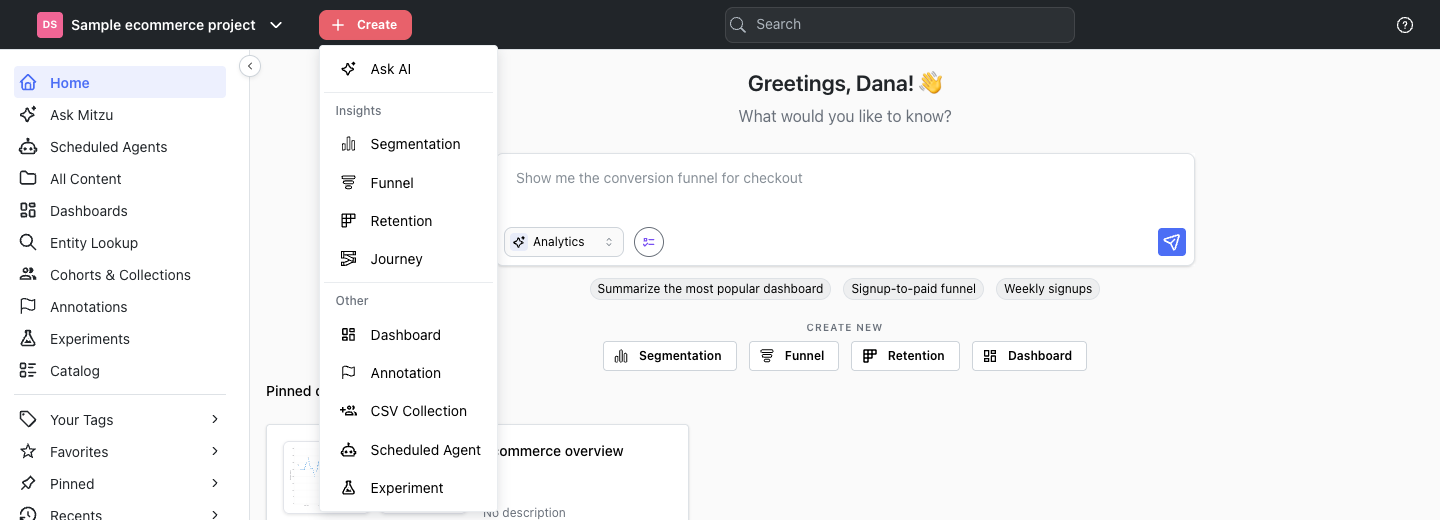
Under Insights:
- Ask AI starts a new AI chat. It is listed when AI is turned on and your role can run AI prompts.
- Segmentation, Funnel, Retention and Journey open Explore with an empty insight of that type. See Segmentation, Funnel, Retention and Journey.
Under Other:
- Dashboard creates an empty dashboard and opens it for editing. See Editing a dashboard.
- Annotation creates a global annotation.
- CSV Cohort imports a list from a CSV file. See Cohorts.
- Scheduled Agent opens a new scheduled agent. It is listed when AI is turned on.
- Experiment opens a new experiment. It is listed when your role can manage experiments.
Search
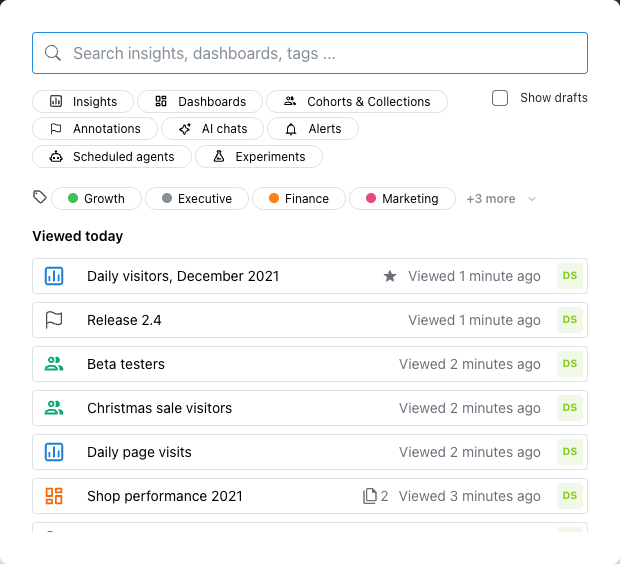
Click the Search box in the top bar to open it. It finds insights, dashboards, cohorts and other items by name and description, and by tag name.
- Start the text with
#to search only by tag, for example#onboarding. Add words after the tag to narrow the tagged items by name. - Use the type chips to limit the results to some types.
- Use the tag chips to limit the results to items with those tags.
- Items that are still drafts are hidden from everyone but their owner. Tick Show drafts to list them. Archived items do not appear in search. See Archiving.
Search sorts results by when you last opened them and groups them: Viewed today, Viewed yesterday, Viewed this week, Viewed last week, Viewed before this week and Other for items you have not opened. Search shows up to 20 results.
Support
Click the question-mark icon in the top bar for Sample data (when the sample organisation is available), the Mitzu Slack community, the Documentation and Contact, and for Chat with us when chat is turned on for your deployment. Chat with us is also at the bottom of the sidebar.
Related pages
- Insights basics explains how the Explore page works.
- All content lists and filters everything in the workspace.
- Saved insights explains how to save and find an insight.
- Tags explains how to label work so it is easy to find.