Population and variants
The Population card of the experiment form says who was in the test and which variant each of them saw. It is the one part of the experiment Mitzu can't guess, and the part most worth checking: if the population is wrong, every number below it is wrong too.
To open the form, click New experiment on the experiments list, or Create → Experiment in the left sidebar. On an existing draft, click Edit.
The card starts with the Allocation window and the Experiment end date. They are described in Test window and scheduling.
Exposure event
The event that marks a user entering the test. Only users who have this event in the allocation window are analysed, and each user's metrics are measured from their first exposure in the window.
The picker lists the events of your catalog, custom events and saved insights excluded. To open
quickly on large catalogs it shows the 100 most used events first, with a last line such as
Showing 100 of 1,240 events. Type to search for more; typing searches the whole catalog.
"Only where" filters
Filters on the exposure event, using the same filter row as an insight. Use them when one event carries many tests — filter it to this test, for example by the property holding the experiment ID:
experiment_idispricing-annual-first
or when the event fires in more places than the test ran:
pageis/pricingplatformisweb
Every filter has to match. Users whose exposure event doesn't match are not in the population.
Variant property
The event property that says which variant a user saw. It is read from the exposure event, so choose the exposure event first. Among the users exposed in the allocation window it can have at most 10 values.
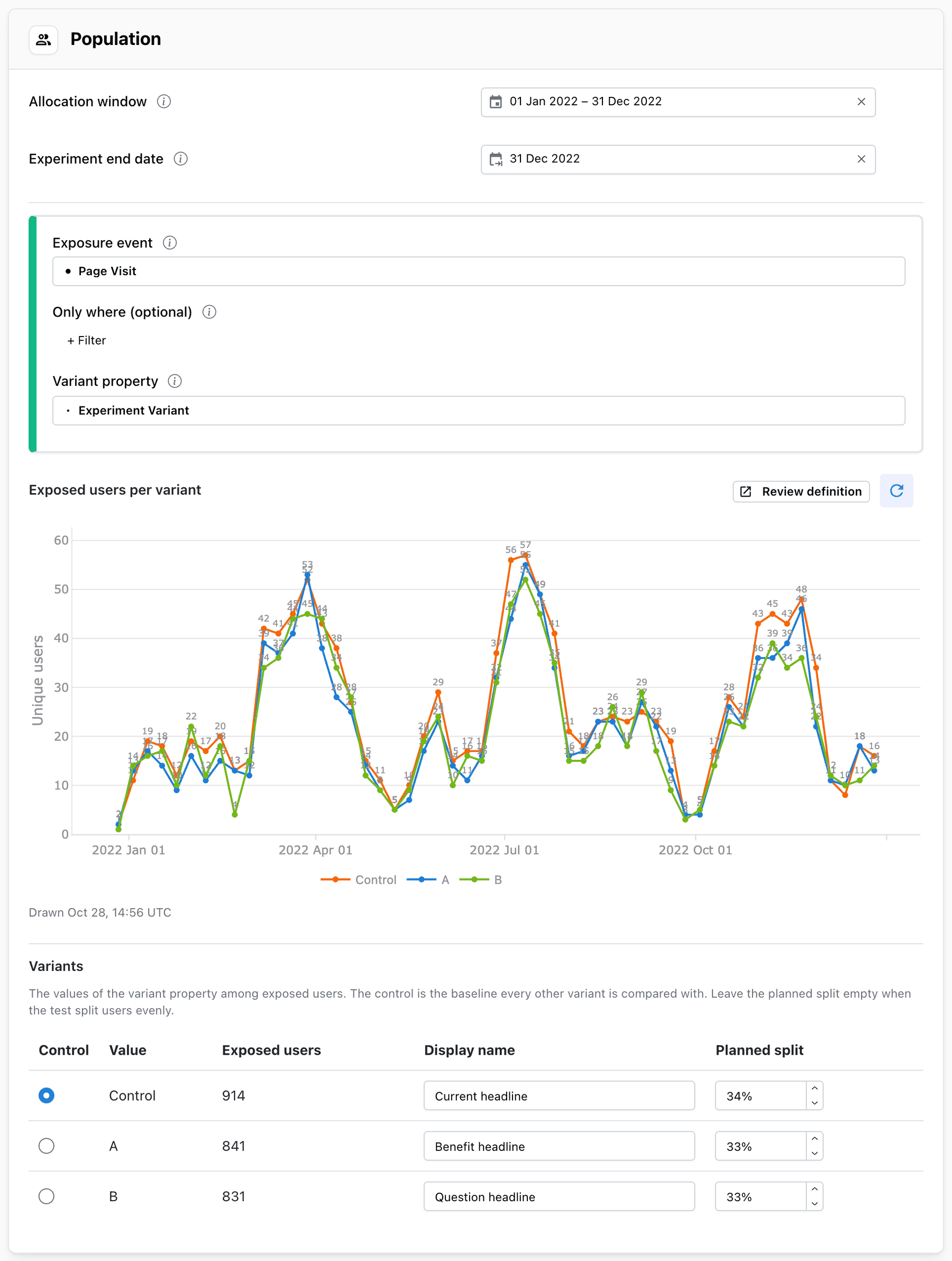
Exposed users per variant
Under the variant property, the Exposed users per variant chart shows how many users saw each
variant over the allocation window. Click the refresh icon to run the query: it redraws the chart and
lists the variants it found. The caption says when the chart was drawn, for example
Drawn Oct 27, 09:41 UTC. If you change the population or the allocation window afterwards, the chart is
marked out of date until you refresh it again.
Review definition opens the same chart as an insight in a new tab, so you can check it, break it down further or save it.
Too many values
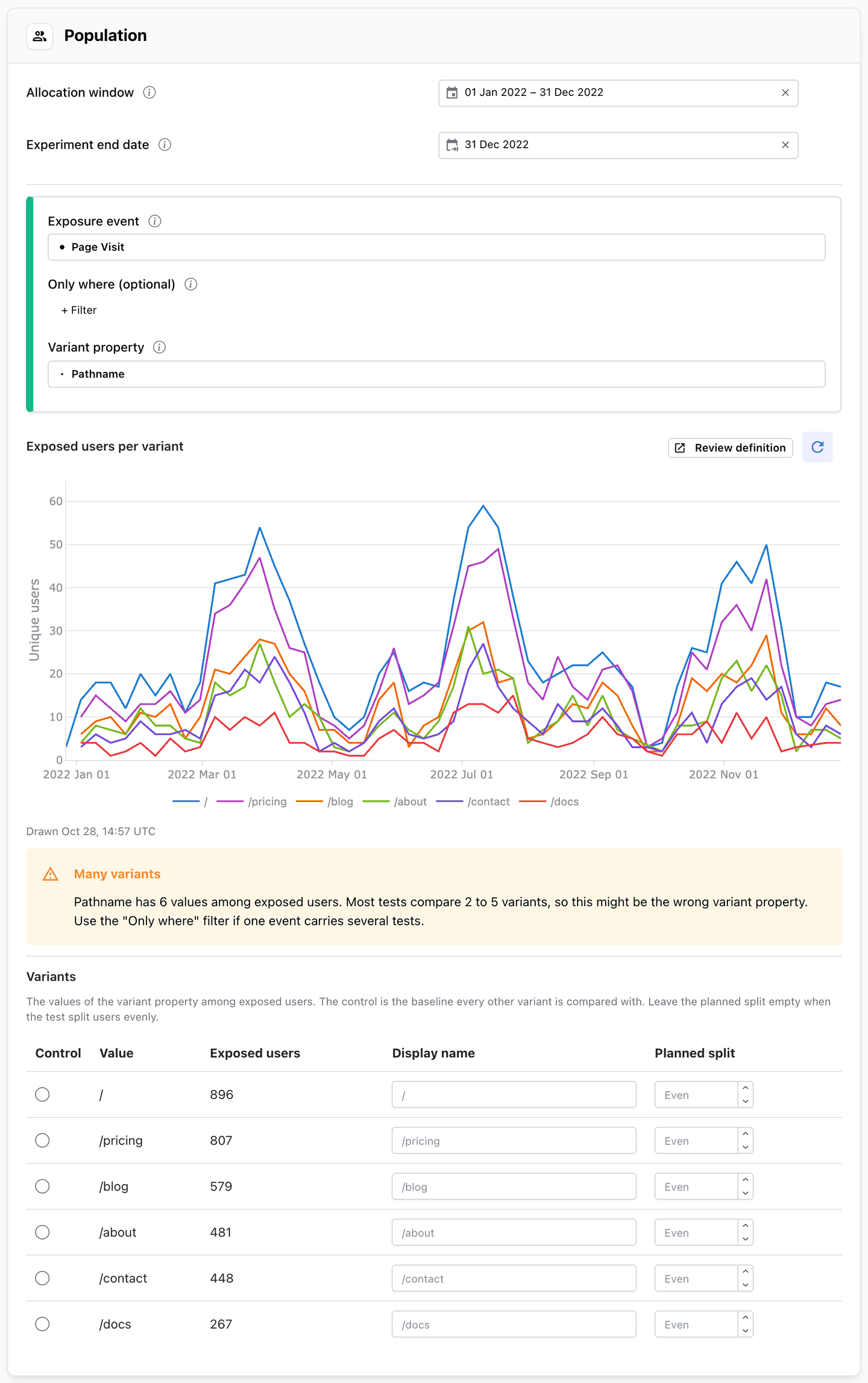
When you refresh, Mitzu checks how many values the variant property has among exposed users:
- 6 to 10 values — a yellow
Many variantswarning. Most tests compare 2 to 5 variants, so this might be the wrong property, or the event carries several tests and needs an "Only where" filter. You can still continue. - More than 10 values — a red
Too many variantserror. The property is cleared, no variants are listed, and the experiment can't be saved with that property until you choose another one or narrow the population with an "Only where" filter.
Variants
After a refresh, the variants table lists every value of the variant property found among exposed users, with the number of users who saw it.
| Column | What it does |
|---|---|
Control | Marks the variant every other variant is compared with |
Value | The variant property's value as it appears in your data |
Exposed users | How many users saw it in the test window, as of the last refresh |
Display name | An optional name shown everywhere in place of the value |
Planned split | The share of users the test was set up to send to it |
A variant you listed earlier that no exposed user has any more is marked Not in the data. Remove
variants you don't want to compare with the trash icon on their row.
An experiment compares 2 to 10 variants, the control included.
The control
The control is the baseline: usually the experience users had before the test. Every other variant is compared with it, and every lift is relative to it.
You choose the control yourself. If an experiment reaches its first evaluation without one — for
example because it was scheduled before any exposure existed to list the variants from — Mitzu uses
a variant named control, baseline, original or default, or otherwise the variant with the
most users.
Display names
Variant values in the data are often codes: 0, 1, var_b, treatment-2026-09. Give them display
names, such as Short form or Social sign-up, and the names are used on the results, the verdict,
the cohorts and the annotations. Display names can be up to 80 characters and must be unique within
the experiment.
Planned split
Leave the planned split empty when the test split users evenly. If it didn't — a 90/10 roll-out, or a 50/25/25 test — enter each variant's share as a percentage. Set it for every variant or for none.
The planned split is what the Traffic split health check compares the real split with. If you leave it empty on an uneven test, that check will flag the test as uneven.
Users without a variant
An exposed user whose exposure event has no value for the variant property is left out of every comparison. The Users left out health check reports how many there were.
Before the test window starts
If you set up an experiment before its test window begins, there is no exposure yet to list the variants from. You can still save it and schedule it without variants. When it is evaluated, Mitzu compares every variant it finds with the automatic control described above.
To pick the control or the planned split yourself, wait until the first users have been exposed, refresh the chart and choose them before you schedule. On an experiment that is already scheduled, move it back to draft first.