Editing, locking and permissions
An experiment can be changed freely while it is a draft. Once it is scheduled, the parts the results depend on are locked, so the analysis you planned is the analysis you get. This page covers what stays editable, how to unlock an experiment, and who can change it.
Editing a draft
Click Edit on the experiment page, or in the ⋮ menu on the experiments list. Every card of the form can be changed: details, population, variants, test window, statistics, sample plan and metrics.
What is locked once scheduled
From the moment you click Schedule experiment, the definition is locked:
- the population — exposure event, "Only where" filters and variant property;
- the variants, the control and the planned split;
- the test window;
- the metrics;
- the statistics settings and the sample plan.
The name, hypothesis, key, link and description stay editable. Edit on a scheduled, running or ready experiment opens the form with the locked cards disabled under a note:
Definition locked The experiment is out of draft, so these settings can't change. Saving updates only the details above. To change the rest, move the experiment back to draft; the results of this run are then no longer shown.
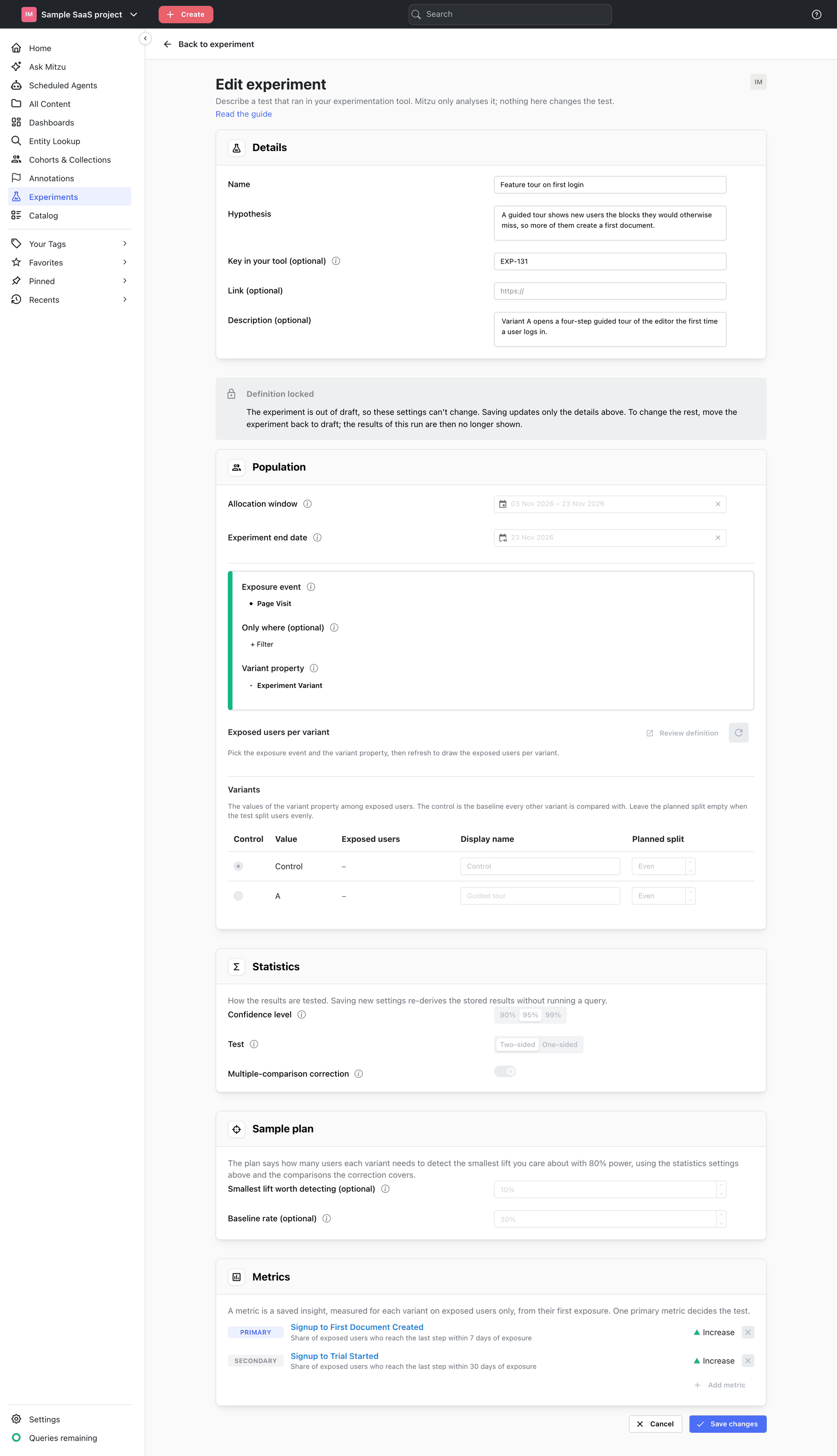
A finalized experiment can't be edited at all until it is reopened.
Why lock the definition
If the metrics, the window or the population could change after results come in, it would be easy — and very tempting — to keep adjusting them until a variant wins. Each adjustment is another roll of the dice, and the "win" that comes out is often noise. Locking makes the plan you wrote down before the test the one it is judged by. See Core principles.
Moving back to draft
Sometimes the definition really is wrong: the wrong exposure filter, a forgotten guardrail, a test that was extended in your tool. Click Back to draft and confirm:
The experiment is unscheduled, so its population, metrics, statistics and test window can be edited again. The results of this run are no longer shown: after you schedule it again, evaluate it to compute new ones.
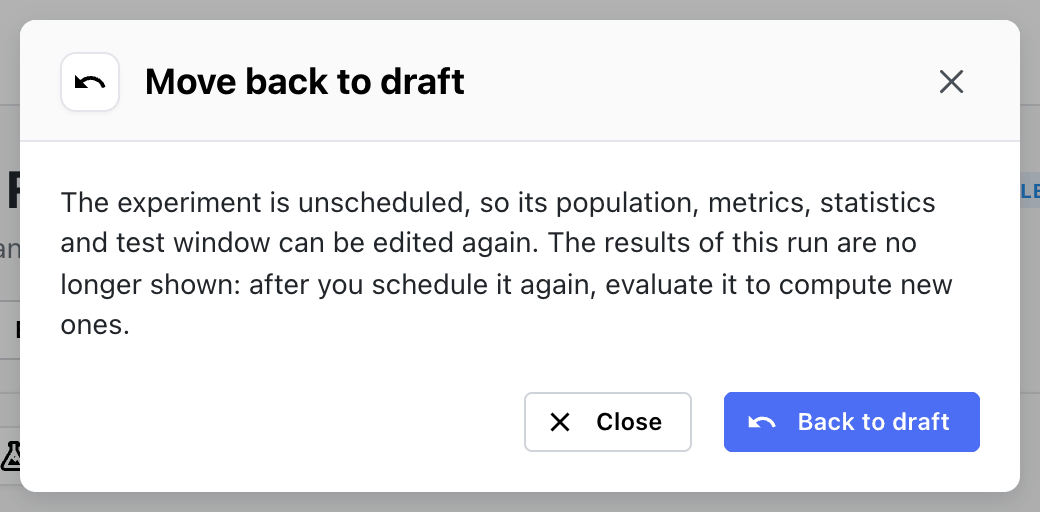
Make your changes, save, schedule again and evaluate. The results start fresh.
Moving back to draft to change the primary metric after seeing the results defeats the lock. Do it to fix a mistake, and say so in the hypothesis or the description.
Archiving and deleting
Archive hides the experiment from the default list. It stays searchable under the Archived
status, keeps its results and decision, and can be brought back with Restore. Archive experiments
that were replaced, set up by mistake or are no longer relevant.
Delete is in the ⋮ menu on the experiments list and in All content. It permanently removes the experiment's definition, results and decision. Cohorts and annotations created from it are kept. Prefer archiving: a deleted experiment can't be looked up later.
Permissions
| Role | Can do |
|---|---|
| Admin | Everything: create, edit, schedule, evaluate, finalize, reopen, archive and delete |
| Member | Everything an admin can do with experiments |
| Viewer | Open experiments and read their results, decisions and health checks. The experiment page has no action buttons; on the list, the ⋮ menu's actions are shown but disabled |
Tagging follows the workspace's tag permissions: admins and members can tag experiments, admins manage the tags themselves.
When a member is removed from the workspace, their experiments are kept and reassigned to another owner.
Experiments is in early access. If Experiments is missing from the left sidebar, it isn't enabled for your workspace yet; contact us to enable it.