Invite your team and connect SSO
Seats
Your Marketplace subscription sets the number of seats. Every member of the organisation takes one, whether they have an editor or a viewer licence. Seat allocation at the top of Settings → Organisation → Members shows how many are in use.
When every seat is taken, Mitzu refuses new invites and first-time SSO sign-ins, and says why. Remove someone or add seats to your subscription. Changing someone's licence or role never needs a seat. A smaller renewal removes nobody: new members are refused until an admin removes someone.
Invite people
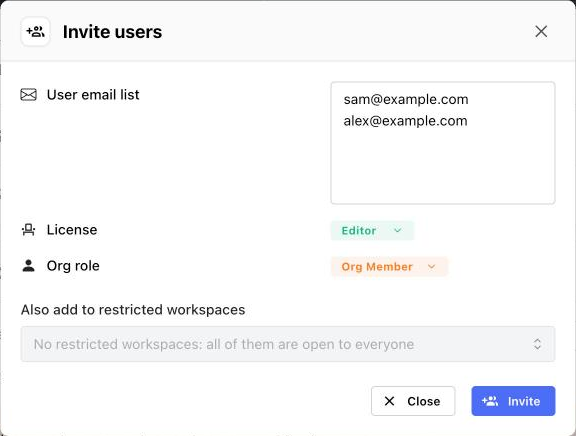
In Settings → Organisation → Members, choose Invite. Enter one email address per line, pick a License and an Org role, and choose Invite. Each person gets an email with a link and a temporary password within seconds, as described in First sign-in.
People on your SSO domain get no password: they sign in with your identity provider. To invite someone off that domain, just invite their address; they get a password sign-in.
To send someone a new invite, for example because the first email was lost, select them, choose Remove, and invite them again. Inviting a current member again is refused. Removing someone also turns off their password sign-in, and inviting them again turns it back on. Their dashboards and insights stay: they pass to the workspace's owner.
There's no open sign-up on a self-hosted stack: people get in through an invite or your identity provider. The Domain sign-ups section on the Members page has no effect here, so you can ignore it.
Invite emails
By default, invites come from Cognito's shared sender (no-reply@verificationemail.com), which allows
50 emails a day and is often filtered as spam. To send from your own domain:
- In Amazon SES, in the stack's region, create a domain identity and publish its three DKIM records. When it shows Verified, copy its ARN.
- A new SES account can only send to verified addresses. Request production access in the SES console.
- Update the stack: set
InviteEmailSesIdentityArnto the identity's ARN andInviteEmailFromto an address on that domain, for exampleMitzu <mitzu@example.com>.
Connect SSO
Mitzu supports any OpenID Connect provider, such as Okta, Microsoft Entra ID or Google Workspace.
-
Open Settings → Organisation → SSO. The page shows the Redirect URL and Logout URL to register with your provider.
-
In your identity provider, create an OIDC web application with that redirect URL, the authorization code flow, and the
openidandemailscopes. Note its client ID and secret. -
Back in Mitzu, enter your company Email domain, the client ID and secret, and the provider's OpenID configuration URL (it ends in
/.well-known/openid-configuration). Choose Fetch OIDC settings, which fills in the three endpoints below it, then Save.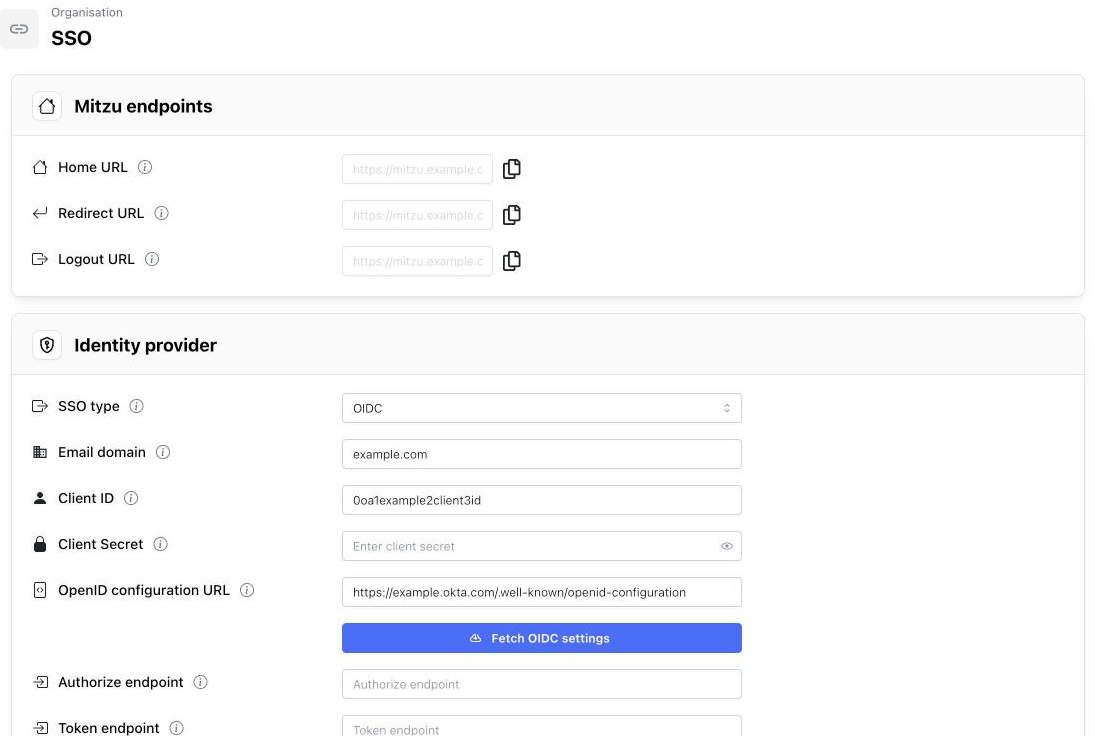
-
Sign in from a private browser window with an address on that domain before you sign out: a wrong setting can lock everyone on the domain out.
From then on, the login page offers Log in with company SSO, and people on the domain sign in through your provider, as long as a seat is free. A member who already has an account on that domain keeps it, with their role and seat, and can use either sign-in. A member who is a workspace admin or owner, or who also belongs to another organisation, gets a separate account instead, the same as an admin.
If you add someone outside your SSO domain through the public API with send_invite_email set to false,
they get no temporary password and can't sign in yet. To send it later, remove them and invite them again.
People on the SSO domain can sign in through your provider straight away.
Admins stay separate on purpose, so a mistake in your provider can't lock them out or hand over their rights. An admin keeps signing in with their password. If they sign in through SSO, they get a separate member account, which takes a seat, so use a colleague's address for the test in step 4 if you can.