Launch from AWS Marketplace
Sign in to the AWS account that will run Mitzu. The subscription and the licence belong to that account, so subscribe and launch from the same one.
Subscribe
-
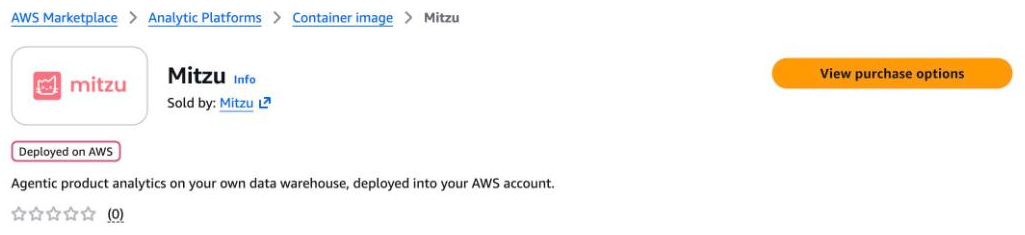
Open the Mitzu listing in AWS Marketplace and choose View purchase options.
-
On Subscribe to Mitzu, review the offer. Under Unit configuration, enter
1for Mitzu platform, plus any Additional seat units you need, then choose Subscribe. Mitzu won't start without the platform unit: seats on their own aren't enough. -
When the subscription is ready, choose Launch your software.
Launch the stack
-
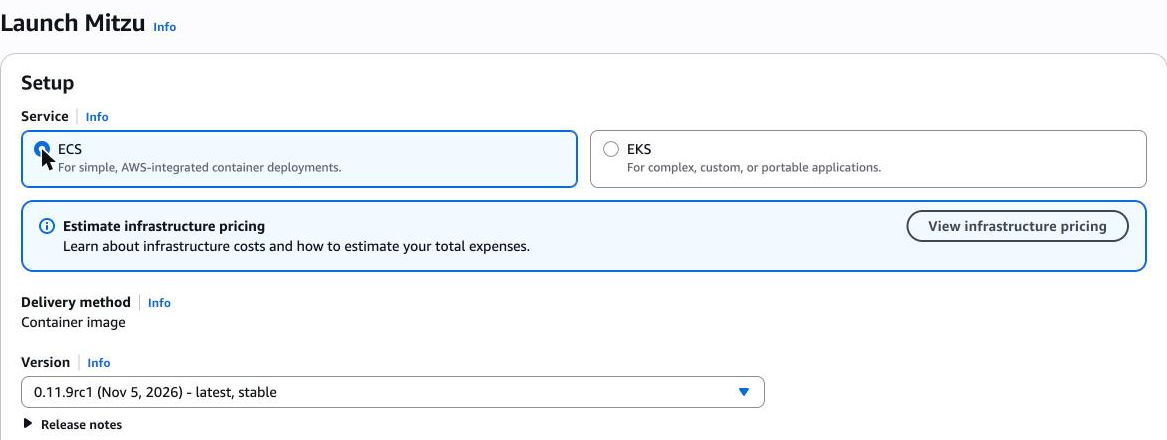
On Launch Mitzu, choose ECS as the service. Mitzu doesn't run on EKS. The newest version is already selected.
-
Under Follow the vendor's instructions, open the link that starts with
https://console.aws.amazon.com/cloudformation. Quick create stack opens in CloudFormation, with the template andImageUrialready filled in. -
Check the region in the top right of the console. The stack launches there, and your certificate must be in the same region.
-
Fill in
DomainName,CertificateArnandAdminEmail, andHostedZoneIdif you use Route 53. The other parameters are described below, and their defaults suit most teams.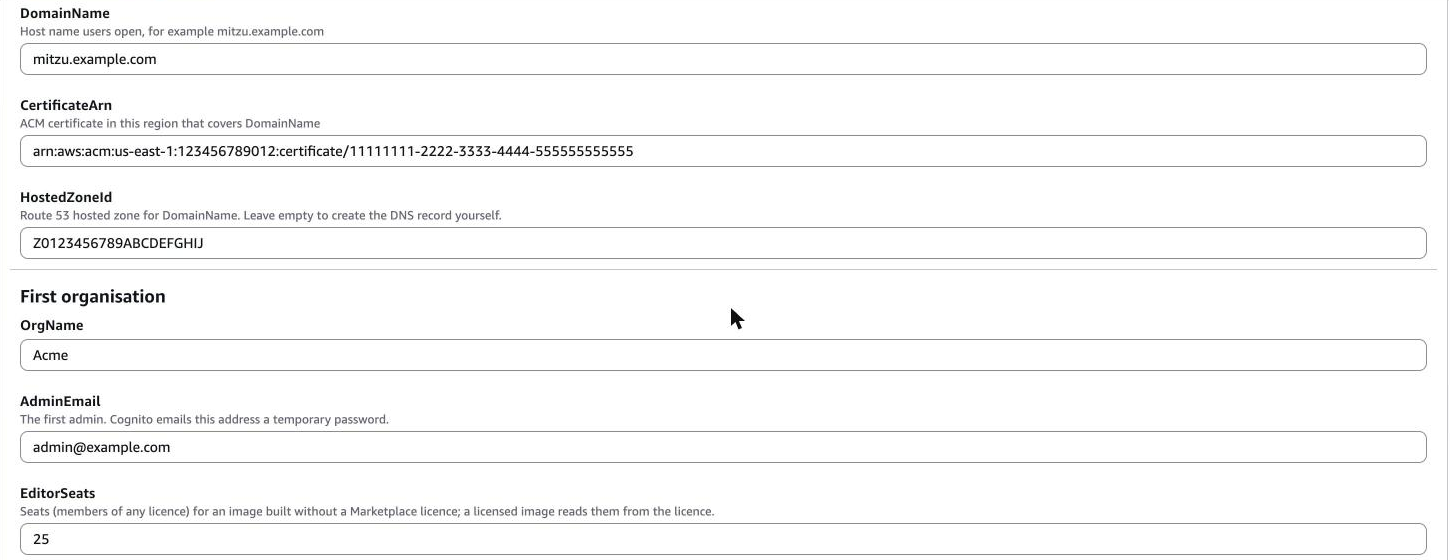
-
At the bottom of the page, tick I acknowledge that AWS CloudFormation might create IAM resources and choose Create stack.

While it runs
The stack takes about 15 minutes, and its status shows on the Events tab. Most of the time goes to the database and the cache. Before any service starts, a one-off task creates the database schema and your organisation, and checks your Marketplace licence. If that task fails, the stack rolls back instead of starting a broken deployment.
AdminEmail gets its invitation within a minute of the start, but the link in it doesn't work yet. Wait until
the status is CREATE_COMPLETE. The Outputs tab then holds what you need next, and you can continue with
First sign-in.
Parameters
| Parameter | What to enter |
|---|---|
ImageUri | Already filled in. Leave it as it is. |
CpuArchitecture | Leave ARM64. The image is built for ARM64 only. |
DomainName | The host name, for example mitzu.example.com. |
CertificateArn | The ACM certificate for that name, in this region. |
HostedZoneId | Your Route 53 zone, or empty to create the DNS record yourself. |
OrgName | The name of your organisation in Mitzu. |
AdminEmail | The first admin. Cognito emails this address a temporary password. |
EditorSeats | Ignored: seats come from your Marketplace licence. |
VpcCidr | The stack's own network range. |
AllowedIngressCidr | Who may reach Mitzu. Default: anyone, behind sign-in. |
DbInstanceClass, DbAllocatedStorage | Database size. The defaults suit most teams. |
DbDeletionProtection | Keep true; it stops the database from being deleted with the stack by accident. |
AlarmEmail | Optional. Receives the stack's alarms (see Operate). |
SmtpHost, SmtpPort, SmtpUsername, EmailSender | Optional. The server for alert and report emails (see Operate). You can add these later. |
InviteEmailSesIdentityArn, InviteEmailFrom | Optional. Send invites from your own SES domain (see Invite emails). You can add these later. |
Outputs
| Output | Use it for |
|---|---|
Url | The address to open. |
LoadBalancerDnsName | Your CNAME target when HostedZoneId is empty. |
EgressIp | The address to allow on your data warehouses. Mitzu also shows it on the connection form. |
LogGroup | Where every Mitzu container logs. |
Cluster | The ECS cluster, for upgrades and restarts. |
UserPoolId | The Cognito user pool that holds your users. |
AnthropicApiKeySecretArn | Optional stack-wide Anthropic key (see AI and MCP). |
SmtpPasswordSecretArn | The password of your SMTP server (see Operate). |
SsoClientSecretArn | Not needed: you enter your identity provider's secret in Mitzu. |
Some output descriptions mention make commands. Those are for Mitzu's own tooling; use the pages linked above
instead.