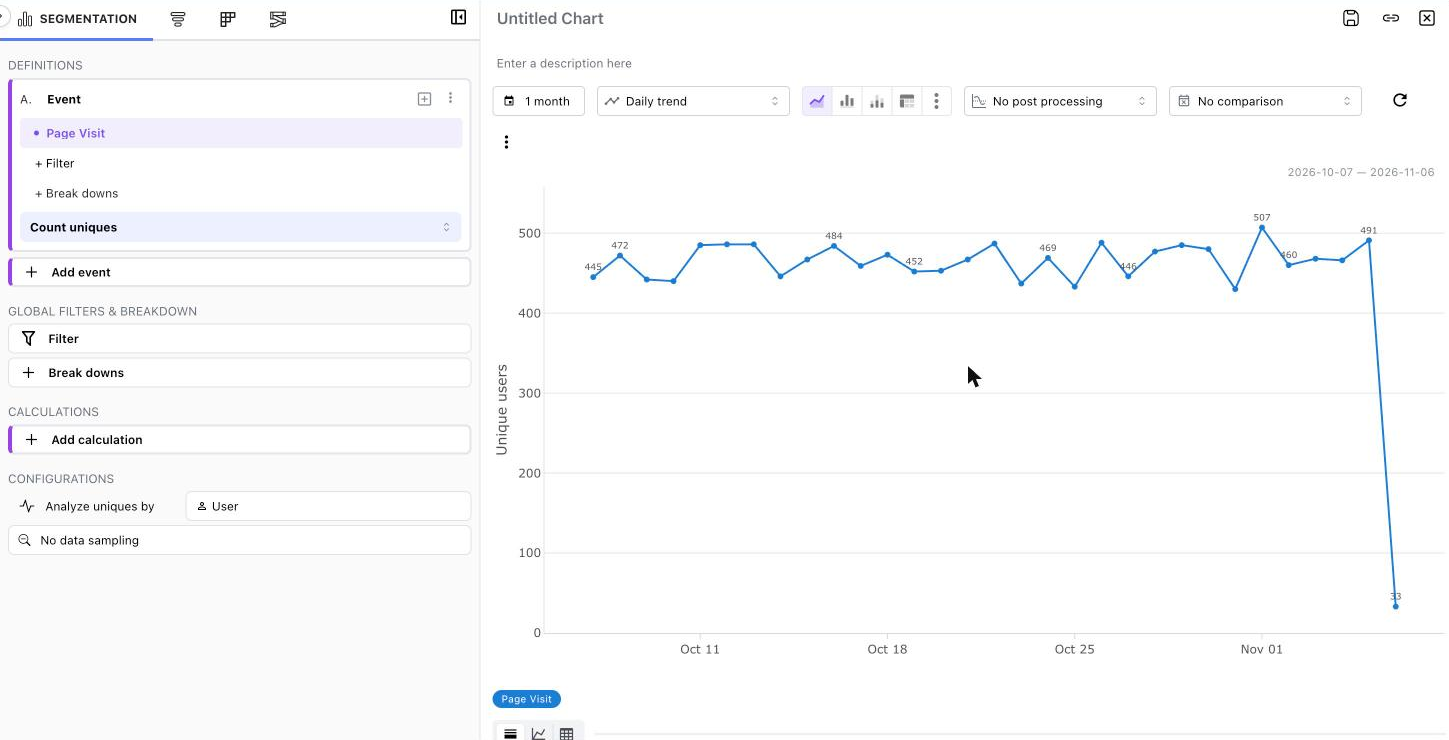
First sign-in
Cognito emails AdminEmail within a minute of the stack starting, so the invitation usually arrives long
before Mitzu is ready. It comes from no-reply@verificationemail.com, with the subject You're invited
to Mitzu:
You've been invited to Mitzu. Sign in at https://mitzu.example.com/auth/redirect-to-login with admin@example.com and the temporary password …, then choose your own password.
The link doesn't work until the stack status is CREATE_COMPLETE, about 15 minutes after launch. If you
didn't use Route 53, create your CNAME record first.
Sign in
-
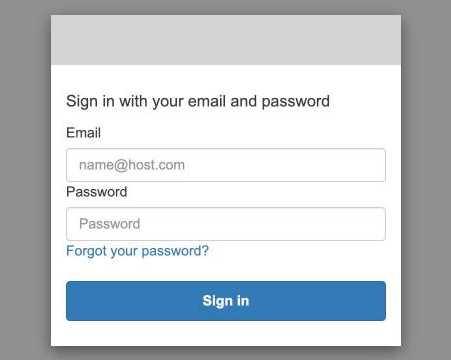
Open the link in the email. It goes straight to the sign-in page of your Cognito user pool, a plain grey page.
-
Sign in with your email address and the temporary password, then choose your own password.
-
You land in Mitzu as the organisation's admin, with no workspaces yet. Choose Create workspace.

Mitzu creates a workspace named after your organisation, for example Acme - workspace, and opens its settings. You can rename it under Workspace details on that page.
If you start from Mitzu's own login page instead of the link, you enter the temporary password there, and it sends you on to the Cognito page, where you enter it a second time. This only happens at first sign-in.

The login page offers company SSO only after you connect an identity provider. Until then, everyone signs in with an email address and password.
If the email doesn't arrive
Look in your spam folder first: Cognito's shared sender is often filtered. The temporary password expires
after 7 days. If it has expired or the email is lost, an AWS administrator can send a new one, using the
UserPoolId stack output:
aws cognito-idp admin-create-user --user-pool-id <UserPoolId> \
    --username admin@example.com --message-action RESEND
If you launched with your own SES identity while the SES account is still in the sandbox, SES only sends to
verified addresses, so verify AdminEmail in SES first.
Finish the setup
Open Settings at the bottom left, then Organisation → Overview. The Get started checklist has the remaining steps, each with a Set up link to the page that does it:
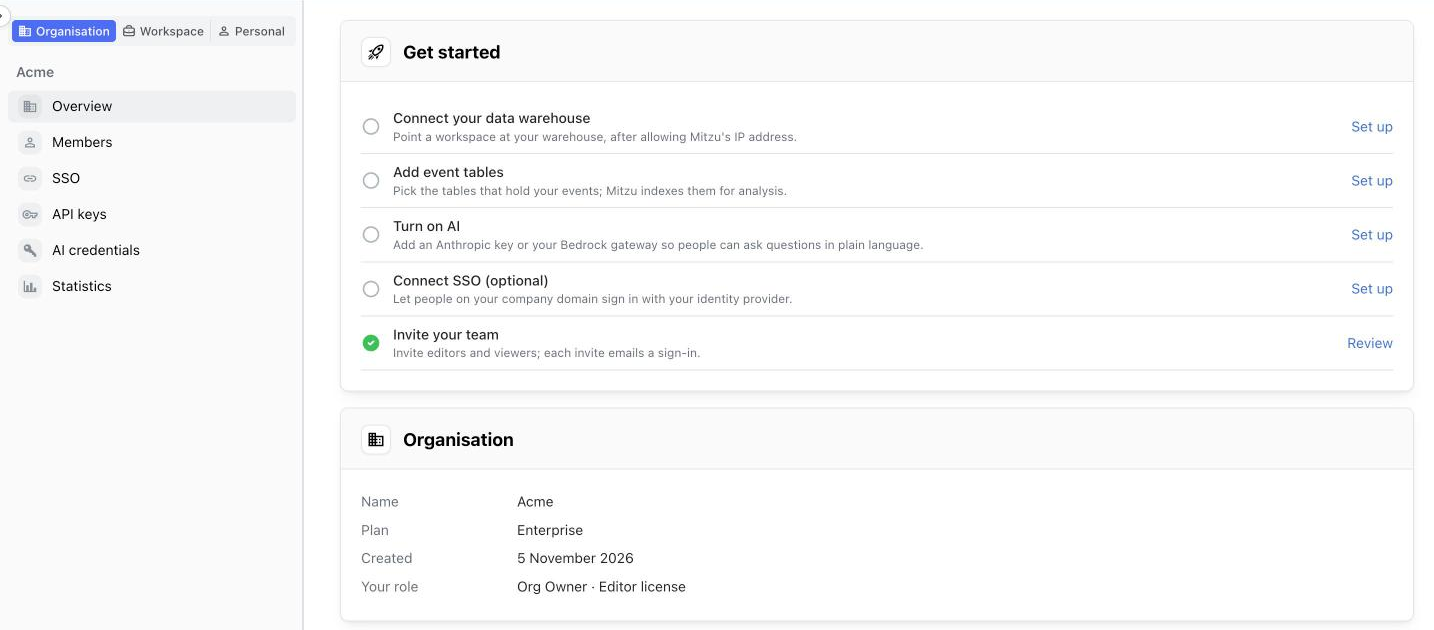
Each step is ticked when it's done, and the checklist disappears once all of them are. The same page shows your Marketplace licence.
Try it with sample data
To look around before connecting your own data, choose Load sample workspace in the Workspaces section of the same page. It creates a Sample workspace with 30 days of generated product events, stored in the stack's own database. Its tables are ready after a minute or two. The sample doesn't tick any step of the checklist.

Switch to it from the workspace menu at the top left. Then choose Segmentation on the home page, select an event such as Page Visit, and choose Run.