Stages of an experiment
Every experiment is in one of five stages, shown as a badge on the experiments list and as a timeline at the top of the Details card. Most stages follow from the calendar and from the results you have computed; only scheduling, finalizing and archiving are things you do yourself.
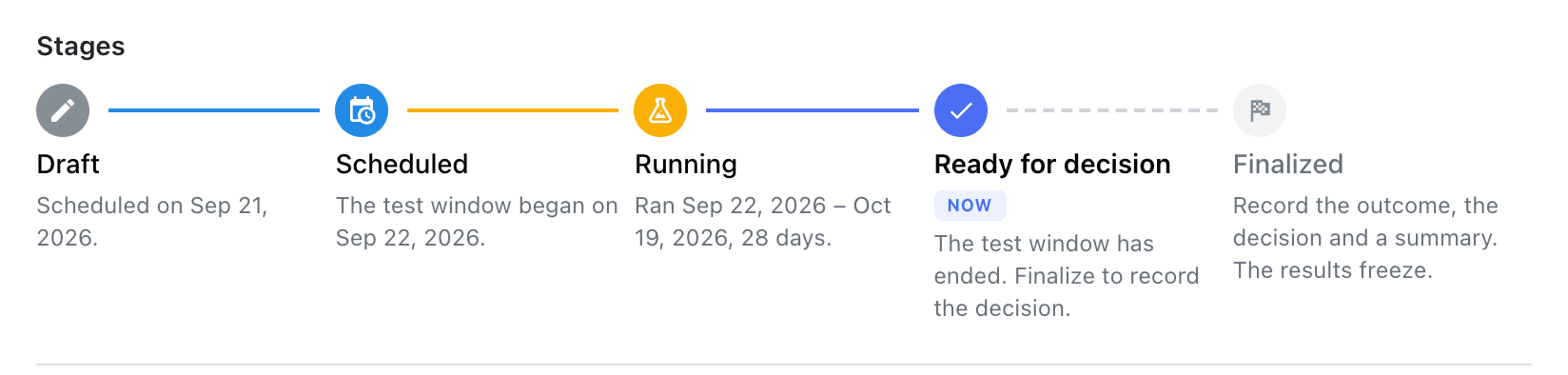
The timeline marks the current stage with Now. Solid connectors join the stages already reached
and dashed ones lead to the stages still ahead. Each step says what happened or what to expect,
with dates.
The stages
| Stage | Badge | When an experiment is in it |
|---|---|---|
| Draft | Draft | It has not been scheduled yet, or its definition is incomplete |
| Scheduled | Scheduled | It is scheduled and the test window starts in the future |
| Running | Running · incomplete | The test window is open, or it has ended but the results don't cover the last day yet or are out of date |
| Ready for decision | Ready for decision | The test window has ended and the results cover all of it |
| Finalized | Finalized | The outcome and decision are recorded and the results are frozen |
Archived is not a stage. An archived experiment shows an Archived badge and is hidden from the
default list; its timeline still shows the stage it had reached. See
Archiving and deleting.
Draft
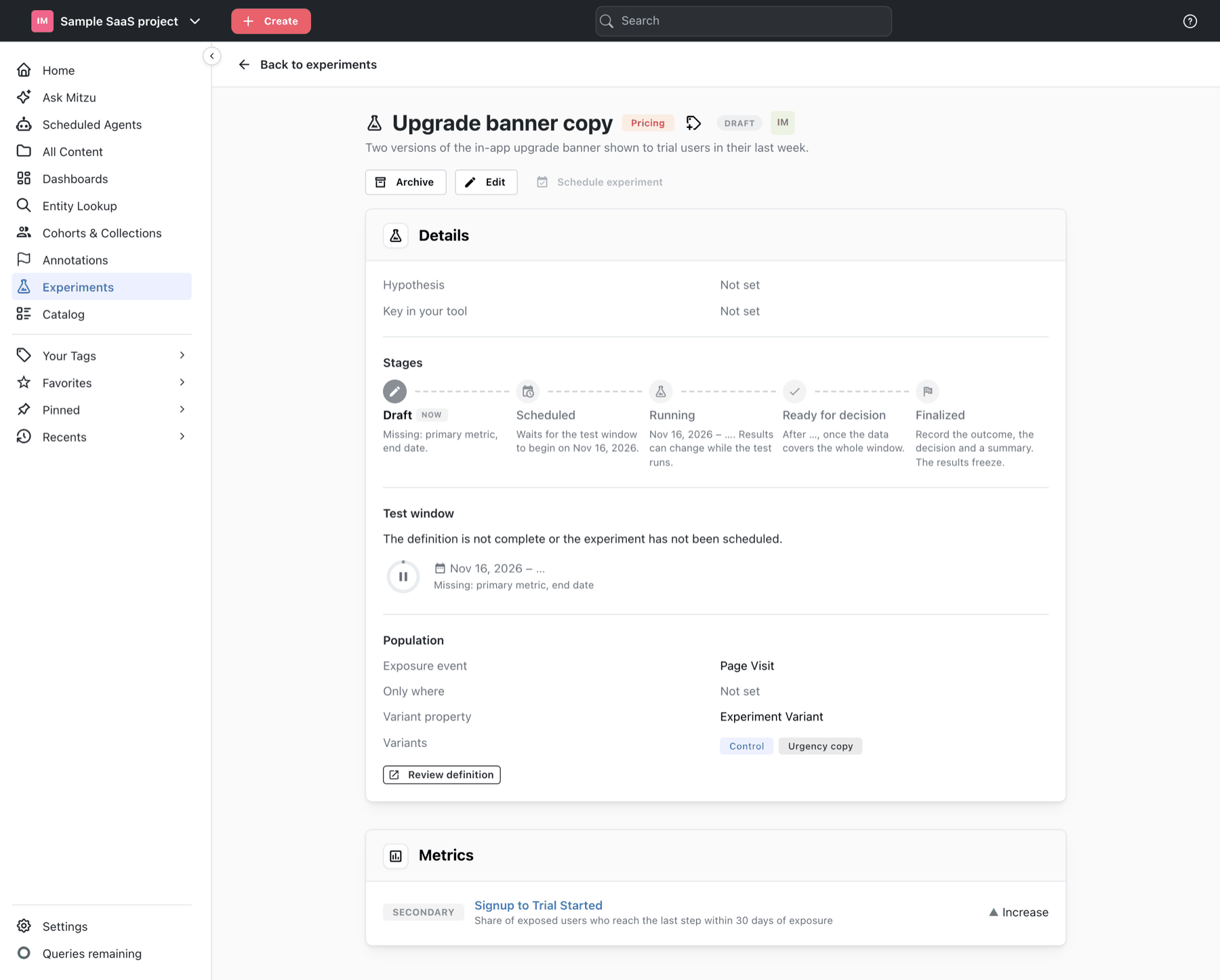
A new experiment starts as a draft. Everything can be edited. The progress line under the badge
says what is still missing before it can be scheduled, for example
Missing: primary metric, end date, or Ready to start once nothing is.
To schedule, an experiment needs an exposure event and variant property, a primary metric and both dates of the test window. Click Schedule experiment in the page header.
Scheduled
Scheduling locks the definition: the population, metrics, statistics settings, sample plan, variants and test window can no longer change. The name, hypothesis, key, link and description stay editable. See Editing and locking.
If the test window starts in the future, the experiment waits here, and the progress line counts
down: Starts in 6 days. No results can be computed yet.
Running
From the first day of the test window the experiment is Running · incomplete. You can evaluate
it as often as you like; each evaluation counts everything up to the moment it runs. The progress line reads
Day 10 of 21.
The Results card shows the numbers so far under the heading Incomplete: no verdict yet. They will
move, and acting on them early makes a false win much more likely.
Once the end date has passed, the experiment stays Running until it is evaluated once more, so
that the results cover the whole window. Mitzu does that evaluation on its own the next morning and
emails the owner; you can also click Re-evaluate yourself. The progress line then reads
Ended · re-evaluate for the final numbers.
Ready for decision
The test window has ended and the latest results cover every day of it. The Results card shows a
verdict, and Finalize appears in the page header. The progress line reads Ended after 21 days.
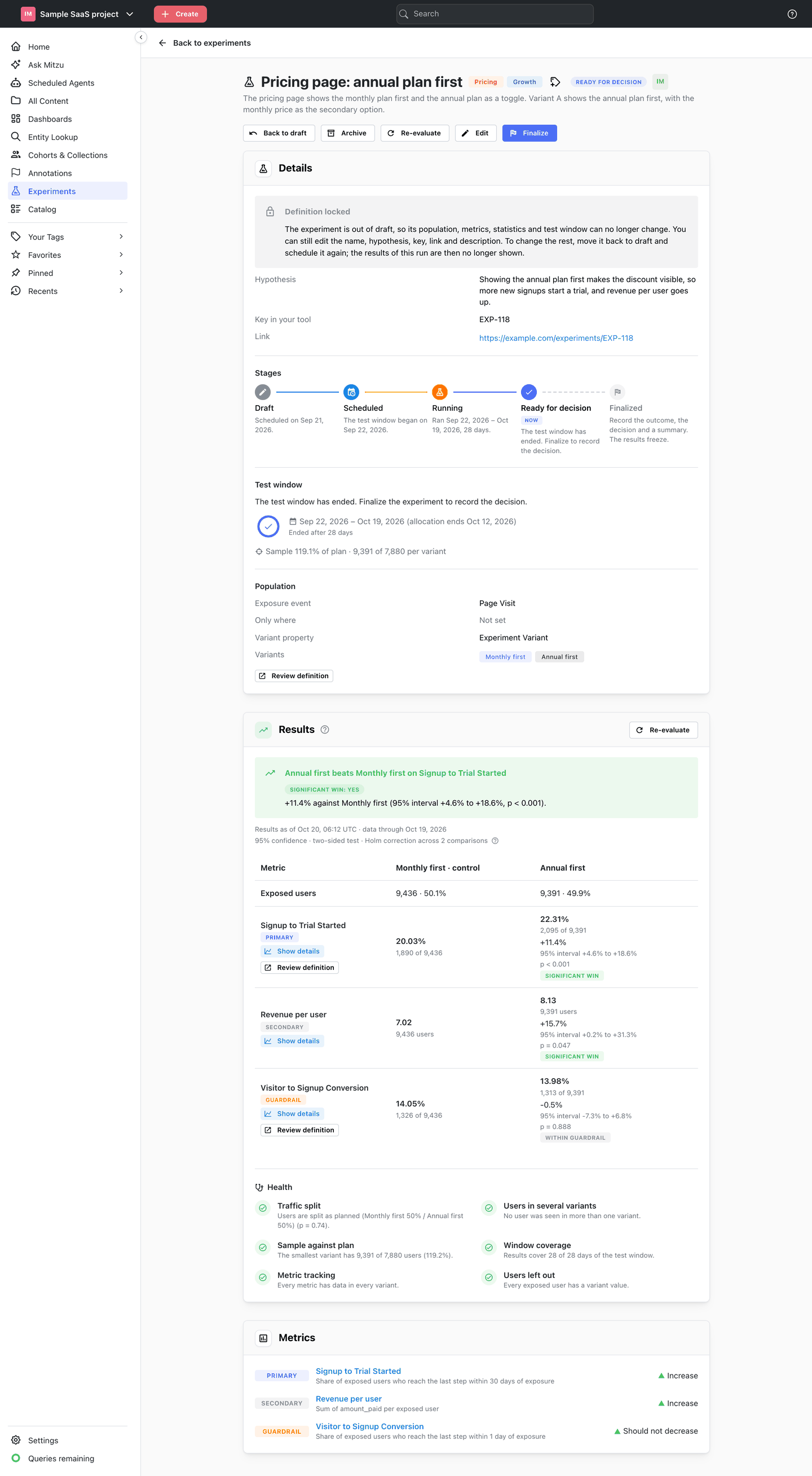
If a metric's saved insight changes afterwards, the results are out of date: the experiment goes back to Running, without a verdict and without Finalize, until you re-evaluate.
Finalized
You have recorded the outcome, the decision and a summary. The results shown are frozen with the
decision and no longer change, even if you re-evaluate. The progress line reads
Ran 21 days · finalized on Oct 2, 2026. See Finalizing.
Moving between stages
The forward path is:
- Draft → Scheduled: you click Schedule experiment.
- Scheduled → Running: the start date arrives. If you schedule an experiment whose window has already started, it goes straight to Running.
- Running → Ready for decision: the end date has passed and you evaluate once more.
- Ready for decision → Finalized: you click Finalize and record the decision.
And the ways back:
- Back to draft is available on scheduled, running and ready experiments. It asks for confirmation, unlocks the definition and hides the results of the current run: after you schedule the experiment again, evaluate it to compute new ones.
- Reopen turns a finalized experiment back into a ready one. The recorded decision is removed and the latest results are adopted. To change the definition after reopening, move it back to draft as well. See Reopening and re-evaluating.
- Archive and Restore work from any stage.
What you can do in each stage
| Action | Draft | Scheduled | Running | Ready | Finalized |
|---|---|---|---|---|---|
| Edit the whole definition | ✓ | ||||
| Edit name, hypothesis, key, link, description | ✓ | ✓ | ✓ | ✓ | |
| Schedule experiment | ✓ | ||||
| Evaluate / Re-evaluate | ✓ | ✓ | ✓ (compares with the decision) | ||
| Back to draft | ✓ | ✓ | ✓ | ||
| Finalize | ✓ | ||||
| Reopen | ✓ | ||||
| Duplicate as follow-up | ✓ | ||||
| Save variant cohorts, add annotations | ✓ | ||||
| Archive / Restore | ✓ | ✓ | ✓ | ✓ | ✓ |