Filter groups
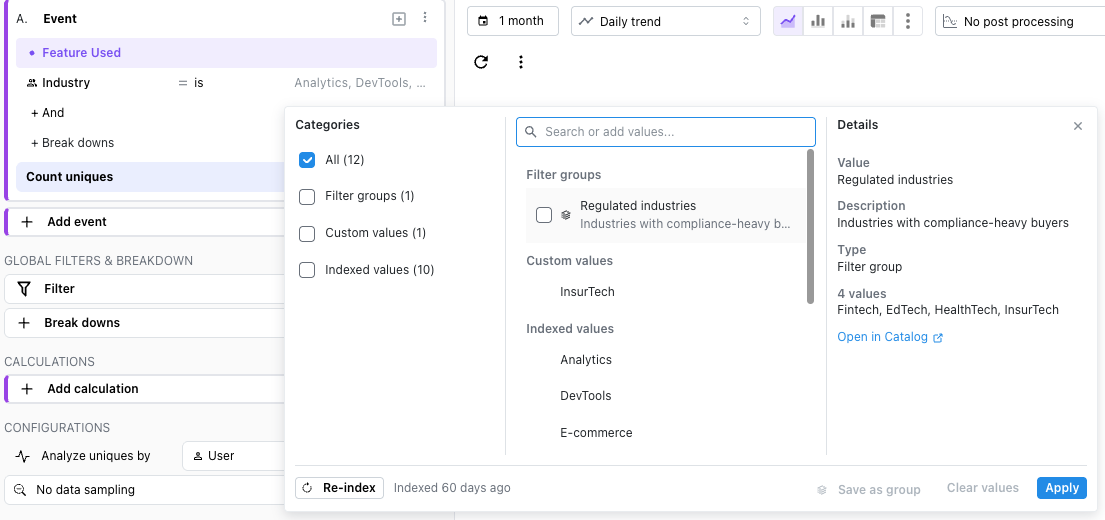
Some filters use the same long list of values every time, such as the countries of a sales region or the plans that count as paid. A filter group is a saved, named list of values of a property that you pick in a filter like a single value.
Use cases
- The countries that make up a sales region: EMEA, DACH, Nordics
- The plan names that count as paid
- Internal and test accounts to leave out of customer numbers
- The
utm_sourcevalues of paid campaigns - The platforms that count as mobile
Creating a filter group from a filter
- Add a property filter with the
isoris notoperator. - Open the value picker and tick the values. To add a long list, paste it into the search box with one value per line.
- Click
Save as groupat the bottom of the value picker. The button is available once at least two values are ticked. - In the window that opens, enter a name and, optionally, a description, then click
Save and apply.Canceltakes you back to the value picker with your values still ticked.
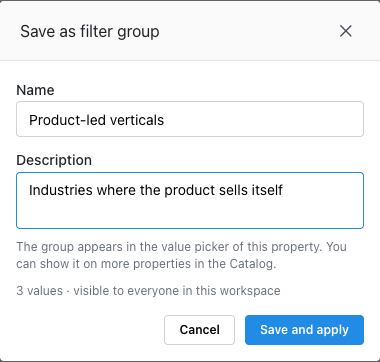
The group takes the place of the ticked values in the filter. Everyone in the workspace can now pick it on that property.
Using a filter group
Filter groups are listed under Filter groups in the value picker of the properties they are shown on. Hover over a group to see its description and values.
- A filter can hold groups and single values together. With
is, a row matches when its value is in any of them. - With
is not, the filter leaves out every value of the group. - Groups are offered for the
isandis notoperators only.
Editing a group changes every insight, dashboard filter, custom event and cohort that uses it. Dashboards show the new numbers after their next refresh.
Managing filter groups
Open Workspace settings and select Filter groups under Catalog. The list shows every group with the properties it is shown on and its values. The Details column shows the owner, where the group is used (saved insights, dashboards through their insights or the dashboard filter, custom events and cohorts) and when it was last updated.

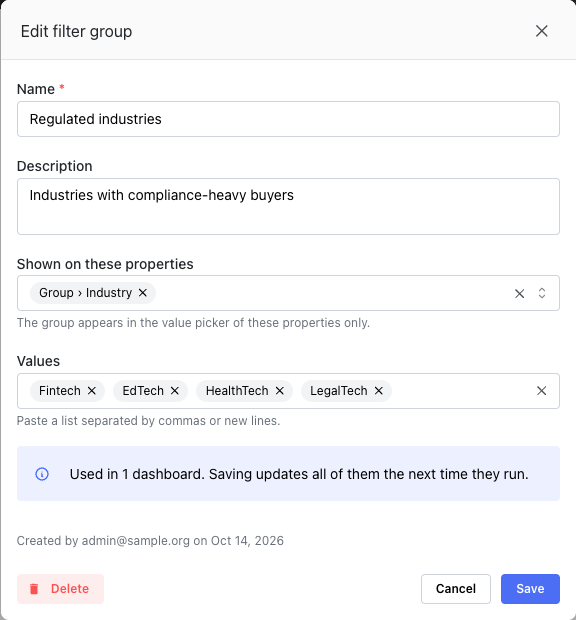
Click Add filter group to create a group, or Edit to change one in a window:
- Name and Description
- Shown on these properties: the group appears in the value picker of these properties only. Pick more than one when the same values exist on several properties, for example a country event property and the country on user profiles.
- Values: type values, or paste a list separated by commas or new lines.
Deleting a group tells you where it is used. Filters that held it show Deleted filter group, and the insights, dashboards, custom events and cohorts using it do not run until you remove it from the filter.
Members and admins can create, edit and delete filter groups. Viewers can use them in filters.
Filter groups and the Mitzu agent
The analytics agent knows your filter groups. Name a group in your question, such as "sign ups from our EMEA countries last month", and the agent filters with that group.
Members and admins can also ask the agent to create a filter group, add or remove values, or delete one. The agent shows the change and where the group is used, and waits for you to confirm before saving.