Scheduled Agents
A scheduled agent runs a Mitzu agent on its own schedule. You give it a question and a cadence, and it runs that investigation without you having to ask — a weekly churn-risk digest, an anomaly watch on activation, a daily check for new events landing in your warehouse.
What makes a scheduled agent more than a recurring query is the optional trigger: a plain-English condition Mitzu checks against each run's answer before deciding whether to email you. Quiet weeks stay quiet. When something matches, the email is a short brief — and one click opens the full investigation as a real Mitzu conversation.
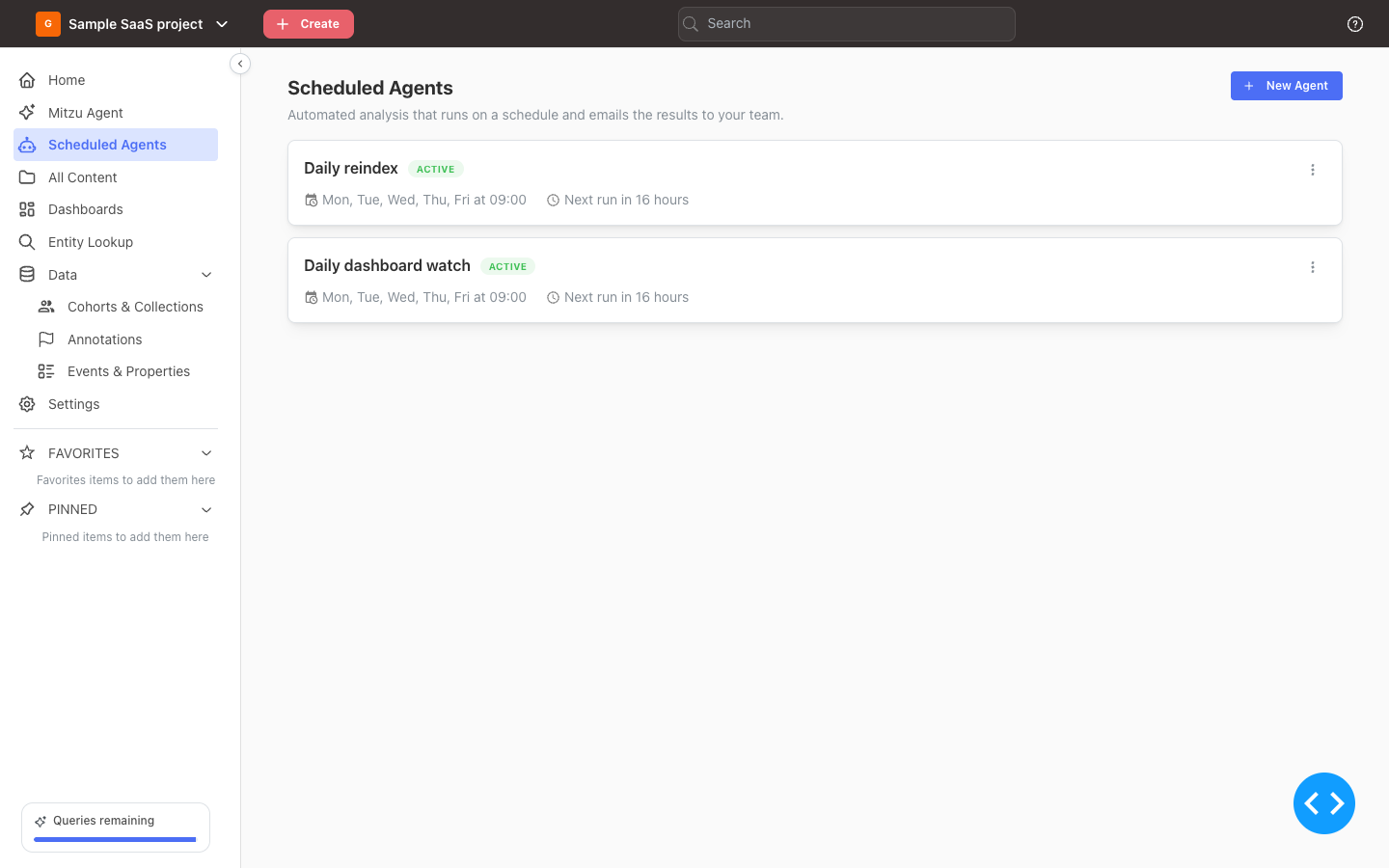
Where to find them
Click Scheduled Agents in the left sidebar. The list shows every agent in the project with its schedule, when it runs next, and whether it's active or paused. From here you can create a new agent, open one to see its run history, or run, pause, edit, and delete an existing one.
Scheduled Agents is available on workspaces with AI enabled. If you don't see it in the sidebar, ask a workspace admin to enable it.
Monitoring a dashboard
A dashboard you have to remember to check is worse than one that watches itself. Click Monitor in a dashboard's action bar to turn it into a scheduled agent in one step — and to see who's already watching, so you don't set up a second agent for something already covered.
- If no agent watches the dashboard yet, the popover explains what a monitoring agent does and offers a Create agent button.
- If agents are already watching, the popover lists them — each with its last run, run count, and owner — alongside New agent and See all agents.
Either button opens the scheduled-agent form prefilled to monitor this dashboard: a name, a description, a prompt describing the dashboard, and notifications preset to Every run with you added as a recipient. Nothing is scheduled until you confirm — every field stays editable. Once created, a confirmation appears with a link to open the agent, and the agent shows up in the dashboard's Monitor popover from then on.
The link is provenance, not a promise: editing the agent's prompt later never drops it from the list, and if the dashboard is deleted the agent is kept and simply stops appearing there.
A monitoring agent reports the dashboard as it is. It never refreshes the panels itself — if they are older than the dashboard's refresh schedule, the run says so and points out when auto-refresh is off or not keeping up, so the fix lands on the schedule rather than on a one-off refresh nobody sees.
Creating a scheduled agent
Click New agent and fill in four sections.
Details
- Name — how the agent appears in the list and in the subject line of its emails.
- Description (optional) — a short note on what it keeps an eye on.
Instructions
- Agent — which agent runs on each cycle. Analytics (the default) answers questions about your data. Config maintains your project setup and applies changes automatically on every run; it's only available to workspace admins. See Agent types below.
- Prompt — the instructions sent to the agent on every run. Write it the way you'd ask the question in a normal conversation, e.g. "Analyse the sign-up funnel for the last 7 days, compare it to the previous week, and summarise where users drop off."
- Use template — start from a ready-made prompt instead of a blank box. Two starter templates are available: Daily KPI watch and Sign-up funnel check. You can edit the prompt after applying a template.
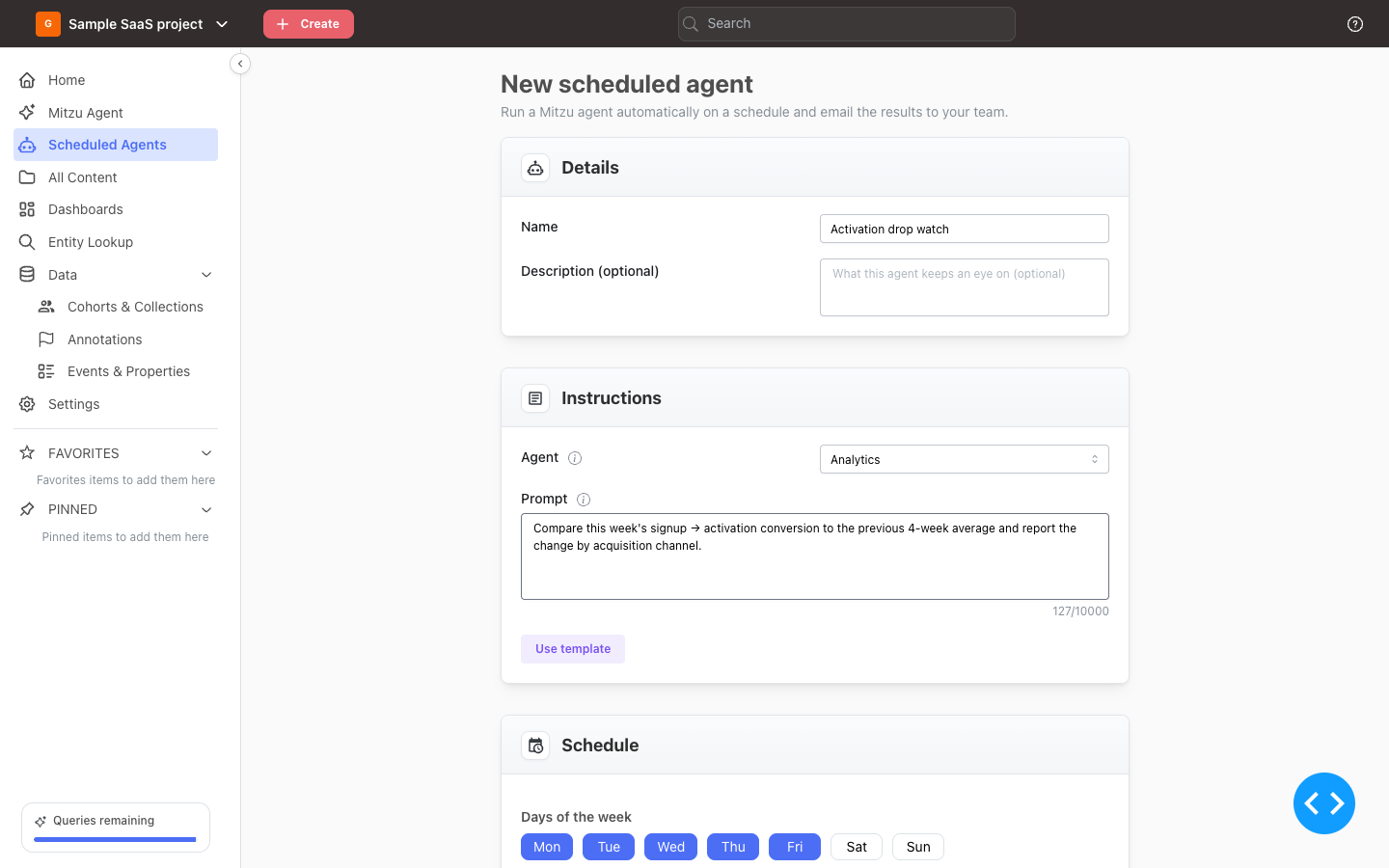
Schedule
Pick the days of the week and the time the agent runs, in the timezone you select. The form shows a preview of when the next run will happen.
- For a daily agent, select all seven days.
- For a weekly agent, select a single day.
- Any combination in between works too — for example weekdays only.
New agents default to weekdays at 09:00. You must choose a timezone before saving.
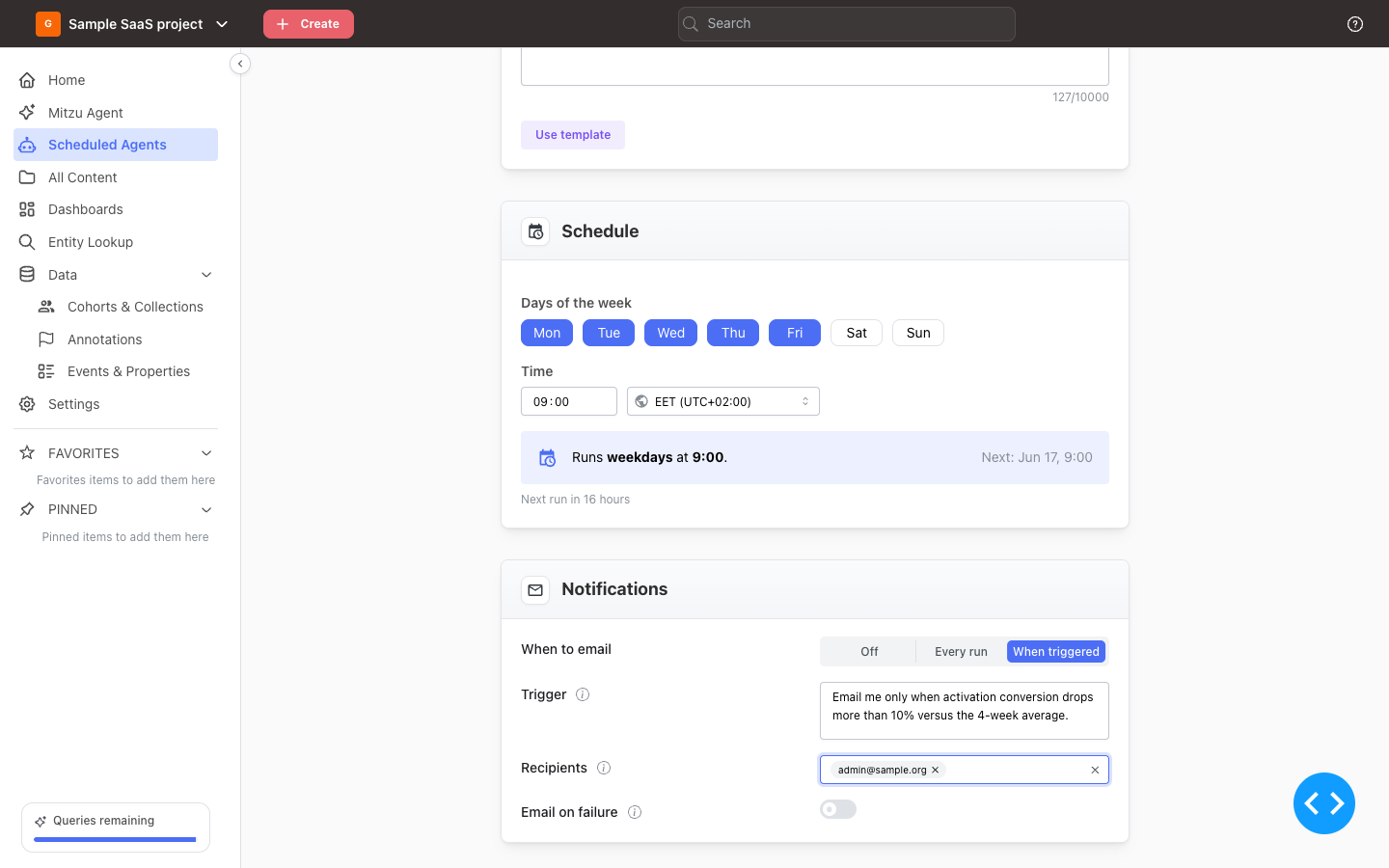
Notifications
This section decides when — and to whom — the agent emails its results.
- When to email — choose one of three modes:
- Off — the agent runs and records its results, but never emails. You can still open each run from the agent's history.
- Every run — email the recipients after every completed run.
- When triggered — email only when the run's answer meets a condition you describe. See The trigger.
- Trigger — shown when you pick When triggered. Describe in plain English when the results are worth an email, e.g. "Email only when sign-ups drop more than 10% week over week." After each run, an AI check reads the answer and decides whether this condition is met.
- Recipients — who gets the email. Only workspace members can be added as recipients.
- Email on failure — when on, recipients are also notified if a run fails or errors. The agent's owner always receives failure notifications.
The trigger
Anything that runs on a schedule has the same problem: it emails you whether or not there's anything to say, and before long you learn to ignore it. The trigger is how a scheduled agent avoids that.
You tell it in plain English what's worth knowing, and on each run it decides whether that's actually happened. Keep it precise — "flag any cohort whose 30-day retention fell below 40%" — or leave it open — "tell me if anything looks off with activation" — and let the agent make the call.
How it works on each run:
- The agent runs your prompt and produces its answer, exactly as it would in a normal conversation.
- A separate AI check reads the agent's instructions, your trigger condition, and the run's final answer, then decides whether the condition is met.
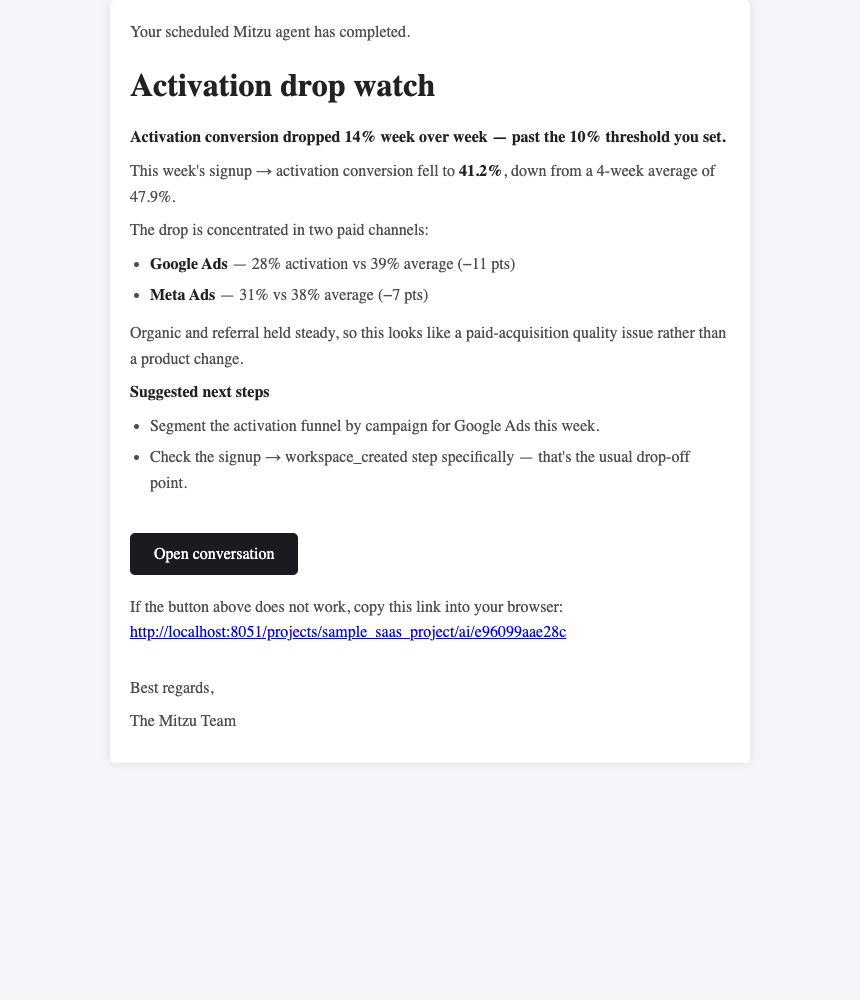
- If it's met, the recipients get an email. The body isn't a raw dump of the run — it's a concise brief written for the reader, with a link to the full conversation.
- If it isn't met, no email is sent. The run is still saved to the agent's history so you can review it anytime.
Every outcome is recorded on the run in the agent's run history, so you can always see why a given run did or didn't email you.
What lands in your inbox
The insight that arrives isn't a throwaway line of text. The email contains:
- The agent's name and whether the run completed or failed.
- A short summary of the run's findings.
- An Open conversation button.
Because every run happens inside a real Mitzu conversation, you're never starting from scratch. Open the conversation and you can see how the agent built the analysis and reached its read — the charts, the segments, the reasoning. From there you can ask a follow-up, save a result as a cohort, or hand the whole thread to a colleague.
Run history
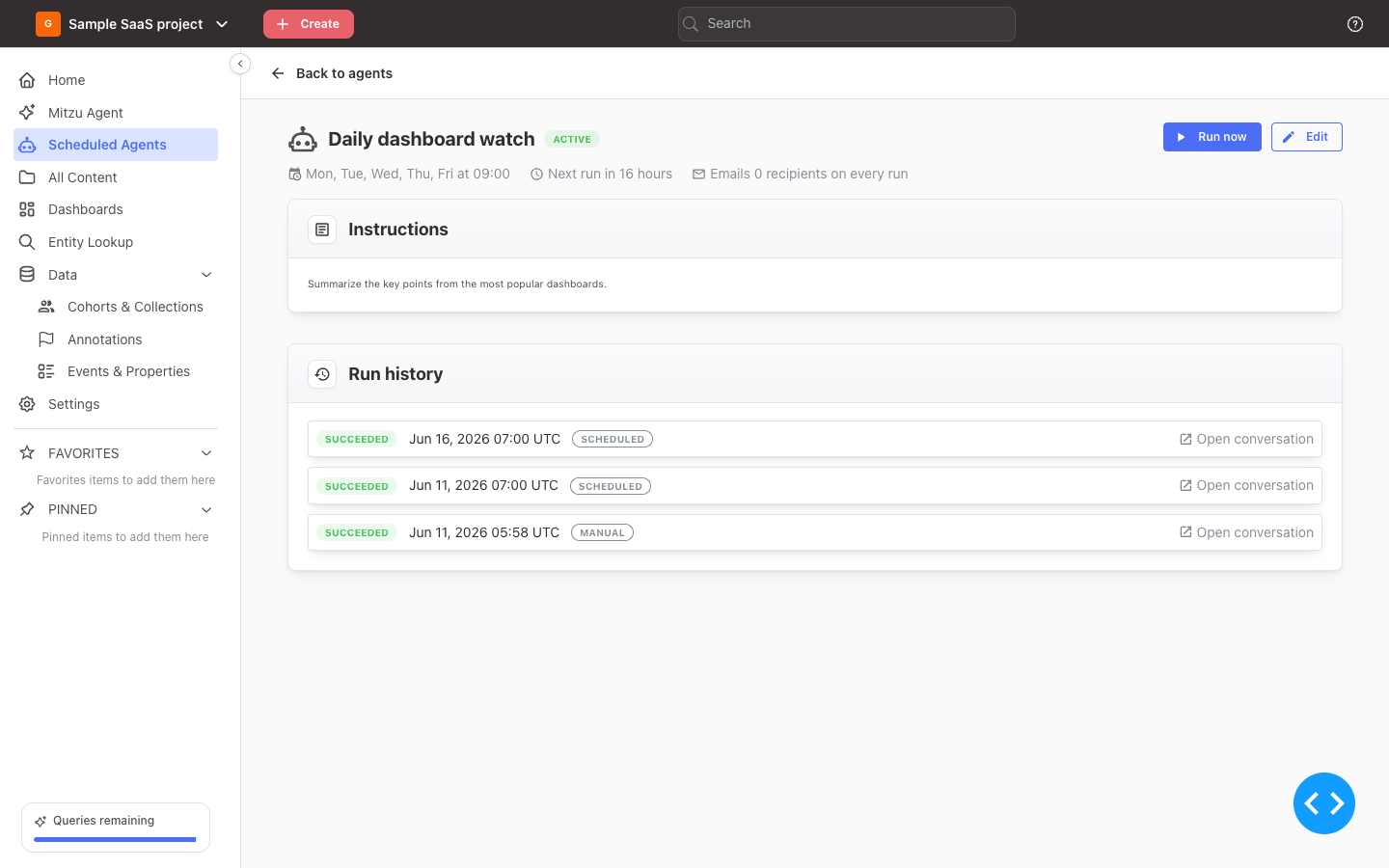
Open an agent to see its details and a history of every run, newest first. Each run shows:
- A status badge — Pending, Queued, Running, Succeeded, Failed, or Cancelled.
- When it was scheduled for.
- Whether it was a Scheduled run or a Manual one (started with Run now).
- For When triggered agents, the notification outcome:
- Email sent — the trigger condition was met and the email went out.
- No email — the run completed but didn't meet the condition.
- No recipients — the condition was met, but no recipients are configured.
- Trigger check failed — the trigger couldn't be evaluated for that run. Hover the badge to see the reason.
- A findings badge, when something changed since the previous run — see What the agent remembers below.
- An Open conversation link to the full run.
Managing an agent
- Run now — start an immediate run without waiting for the next scheduled time. It's recorded as a Manual run and follows the same notification settings.
- Pause / Resume — pause to stop the schedule without losing the configuration; resume to put it back on its days.
- Edit — change any field, including the prompt, schedule, and notifications.
- Delete — remove the agent and its schedule.
What the agent remembers
Each run records a short summary of what it reported: a headline, and one entry for each thing it singled out as changed, anomalous or wrong. The next run is given that summary before it starts.
This is what makes "since the last run" mean something. An agent whose instructions say "summarise how each chart has moved since the last run" is told when the last run actually completed, so it reports on the right window instead of guessing one. If a run fails, the gap simply widens and the next run covers both periods.
It also stops an agent re-reporting the same thing every day. A conversion drop flagged on Monday is described on Tuesday as still present, rather than raised again as a new discovery.
The summary is not the conversation. Previous runs are never replayed — only their recorded summaries are available, so the cost of this history stays the same however long an agent has been running.
The findings badge
Each finding is compared against the previous run and marked new, continuing or resolved. The badge in the run history counts only what moved — new and resolved — so a run that merely restates yesterday's problems carries no badge at all, and the runs worth opening stand out.
Hover the badge to see the findings grouped under New, Resolved and Continuing.
Agents that were already running before this existed have no recorded history, so their first run afterwards has nothing to compare against. Continuity starts from the run after that.
Agent types
A scheduled agent can run either of two agents on each cycle.
- Analytics (default) — runs the analytics agent against your prompt: segmentation, funnels, retention, and discovery, returned as findings and charts. This is the right choice for standing investigations and monitoring.
- Config — runs the configuration agent unattended to keep your project setup current. On a scheduled run it applies non-destructive changes automatically without stopping to ask, so it's useful for tasks like picking up new events that land in your warehouse. As a safeguard, removing tables is never performed on an unattended run. The Config option only appears for workspace admins.
Limits and permissions
- A project can have up to 10 scheduled agents.
- Recipients must be members of the workspace — you can't send to an arbitrary email address.
- Each agent runs under its owner's permissions (the member who created it). If the owner loses access to the workspace or to the selected agent, the agent can't run until that's resolved.
- The Config agent is restricted to workspace admins (users with the Admin role).
Example use cases
The format — a prompt, a schedule, and an optional trigger that decides when to write — fits any standing investigation your team would otherwise wish it could keep up with:
- A weekly churn-risk digest for customer success, triggered only when at-risk accounts appear.
- An anomaly watch on activation conversion, emailing you when it moves off its recent average.
- A daily check for new events landing in your warehouse.
- A weekly retention report by cohort.
Tips for better results
- Write the prompt the way you'd ask it in a conversation. The same things that improve analytics agent answers — clear event and property names, configured dimension tables, custom instructions — apply here, because a scheduled agent runs the same agent.
- Make the trigger specific when you can. A precise condition ("more than 10% week over week") produces fewer, higher-signal emails than a vague one. Use an open-ended trigger only when you genuinely want the agent to use its judgement.
- Start with Every run, then tighten. If you're not sure what a useful trigger looks like, run a few cycles on Every run to see the kind of answers the agent produces, then switch to When triggered with a condition based on what you saw.
- Use Run now to test. A manual run uses the exact prompt, schedule context, and notification settings of a real run, so it's the fastest way to check both the analysis and the email before you rely on the schedule.