Configuration Agent
The configuration agent helps you set up your workspace by scanning your data warehouse and configuring the right tables for analytics. Instead of manually mapping event tables, dimension tables, and columns, the agent handles it for you — building the semantic layer that Mitzu's analytics engine queries against.
What it can do
- Scan your warehouse — list schemas and tables, inspect column types and names
- Identify event tables — recognizes common patterns from vendors like Segment, Snowplow, GA4, and Firebase, as well as custom event tables
- Identify dimension tables — finds user and account profile tables to enrich your analytics with user-level attributes
- Map columns automatically — detects timestamp, user ID, and event name columns with high confidence
- Configure tables — adds event and dimension tables to your workspace with the correct field mappings
- Trigger indexing — starts indexing after configuration so your data is ready to query
- Clean up the data catalog — reads the event property and dimension property catalogs, then fills in descriptions, renames properties, and hides the ones nobody should see
What the agent produces
The output of the configuration agent is a semantic layer over your warehouse: a mapping of event tables, dimension tables, user and group identifiers, timestamps, and event names. Mitzu's query engine uses this layer to translate questions into SQL. As your warehouse evolves, you can re-run the agent to keep the semantic layer in sync.
During onboarding
The first time you set up a workspace, the home page shows a Set up with AI button. Click it to connect your data warehouse and let the configuration agent take over.
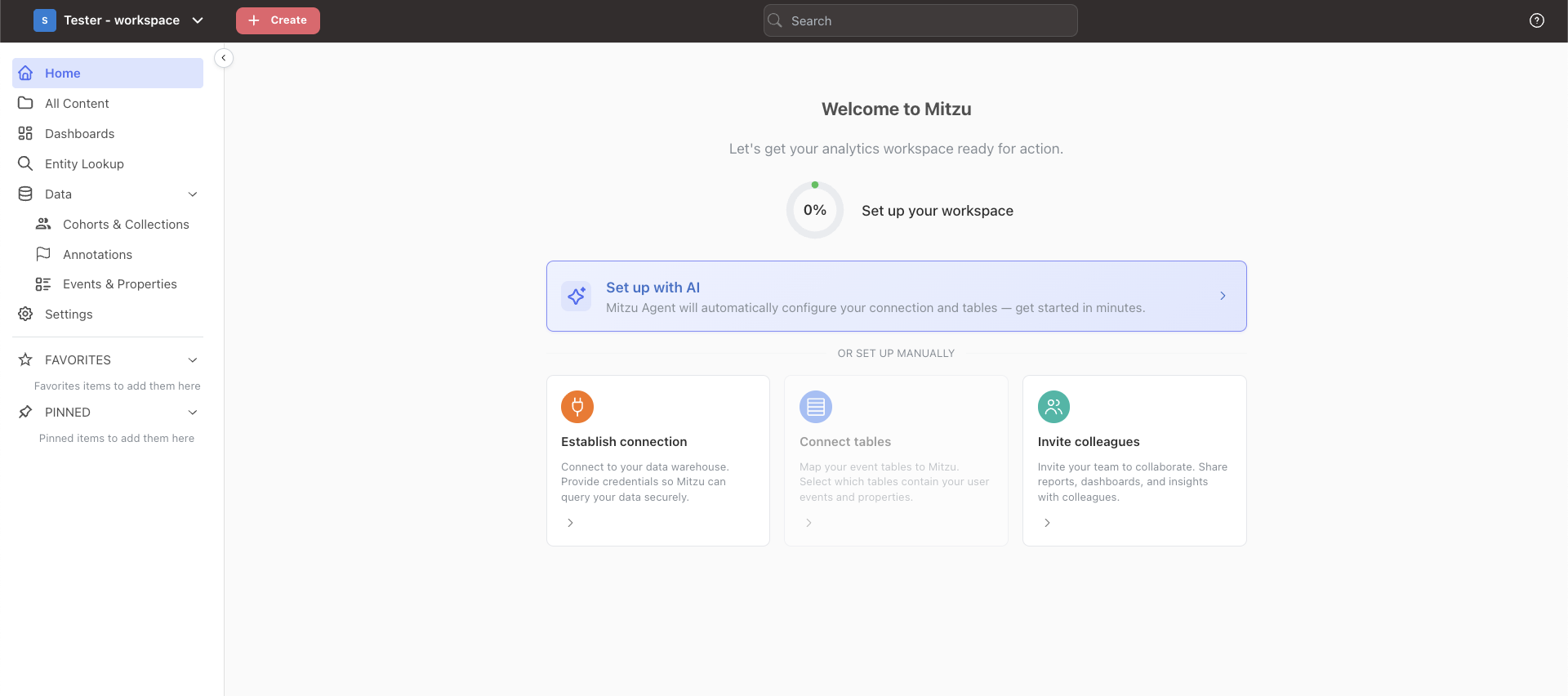
In onboarding mode, the agent works with minimal friction:
- Connect your warehouse — provide your data warehouse credentials.
- Automatic scanning — the agent explores your schemas, identifies event and dimension tables, and maps columns.
- Auto-configuration — high-confidence tables are configured automatically. The agent asks about ambiguous ones.
- Indexing — once configured, indexing starts so your data is ready for analysis.
The agent starts with a minimum viable set of 4-6 event tables and 1-2 dimension tables. You can always add more tables later — getting started quickly is more important than configuring everything up front.
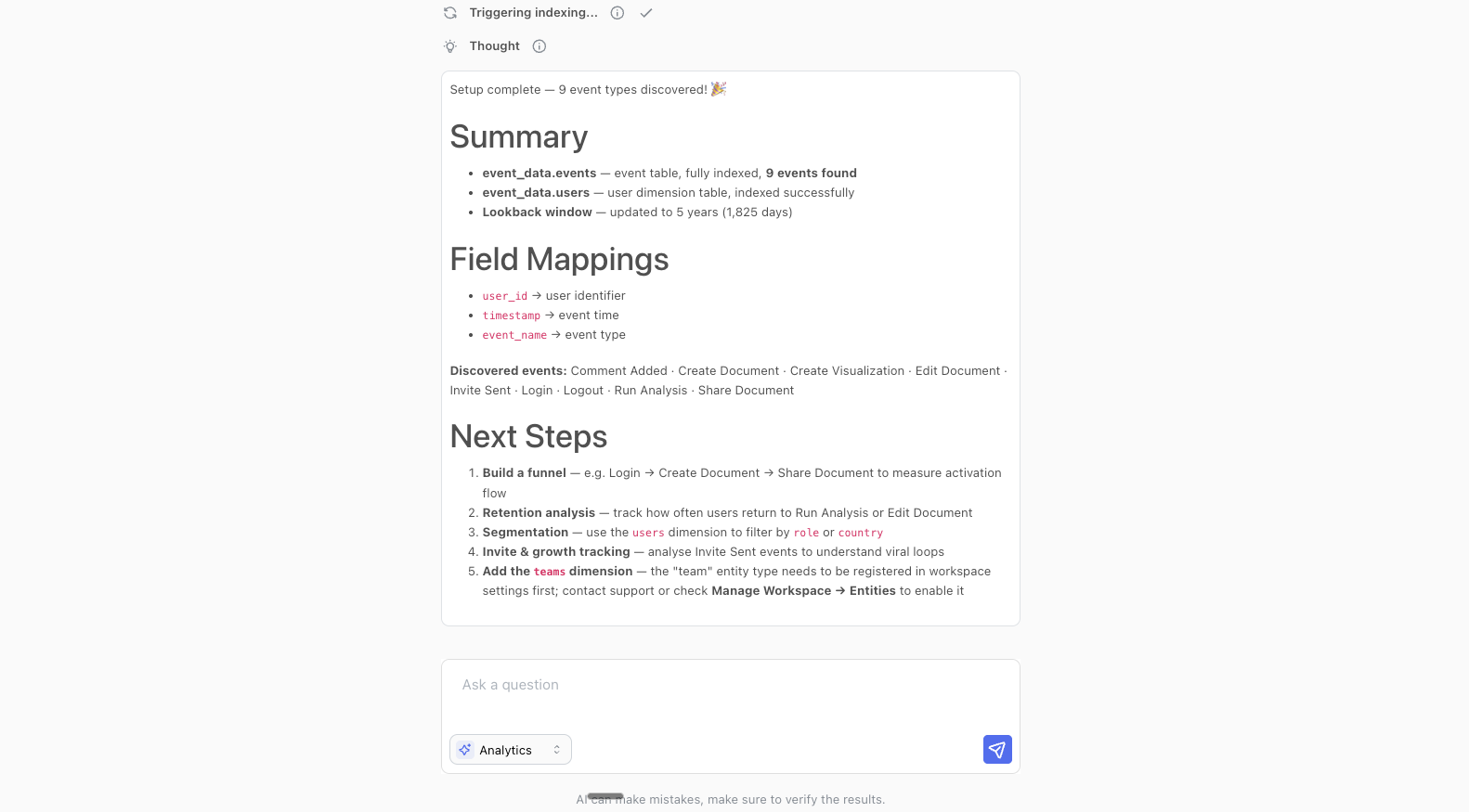
After initial setup
Switch to the configuration agent at any time using the agent mode selector — the dropdown in the corner of the agent chat input. It is available everywhere the agent appears: the home page, the full-screen agent view, and the sidebar panel. You can also access it directly from the Settings pages.
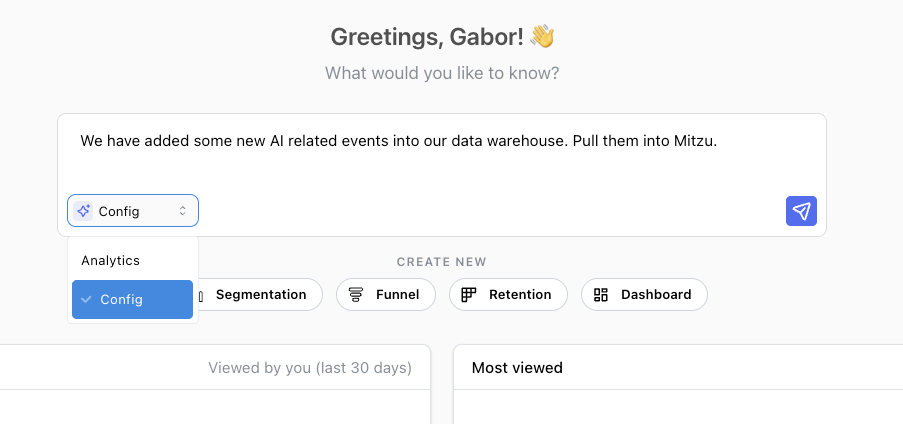
Outside of onboarding, the agent is more conversational — it asks clarifying questions and requires your confirmation before making changes.
Common use cases:
- New events in your tracking — you've added new analytics events to your data warehouse and want to pull them into Mitzu
- New dimension tables — a user profiles or account attributes table was added, and you want to use it for breakdowns
- Reconfigure field mappings — column names or roles have changed and the existing mappings need updating
- Remove stale tables — deprecated or replaced tables that should no longer appear in the data catalog
- Describe and tidy properties — a freshly indexed workspace has hundreds of undocumented properties, and the agent can describe, rename, and hide them in bulk instead of one row at a time
- Explore your warehouse — discover other schemas and tables that are available but not yet configured
Cleaning up the property catalog
Right after indexing, most properties carry a name generated from the column name and no description at all. Ask the agent to fix that in plain language — "fill in the descriptions for the properties on checkout completed", "rename utm_src to UTM Source", "hide every _internal_* property" — and it reads the catalog, proposes the changes, and applies them once you confirm. The changes show up in Data catalog straight away; no re-indexing is needed.
Two things are worth knowing before you confirm:
- Event properties are shared. An event property is identified by its field path, so renaming or hiding one changes it on every event that carries that field path, for everyone in the workspace. The agent says how many events are affected before it writes. Dimension properties belong to a single dimension table and affect only themselves.
- Display names must be unique. If the name you asked for already belongs to another property, nothing is written — the agent tells you which property is holding the name so you can pick another one or rename that one first.
The agent reports exactly what it wrote and what it skipped. A property it could not find in the catalog is named in the result rather than silently ignored.
The agent can set display names, descriptions, and visibility. It cannot create or delete properties, or change their data types — those follow your warehouse schema and the indexing configuration.
What it recognizes
The agent understands common data warehouse patterns:
- Vendor tables — Segment tracks, Snowplow events, GA4 event tables, Firebase analytics
- Event table signals — tables with the
_eventssuffix, or names liketracks,pages,sessions - Dimension table signals — tables with the
_profilessuffix, or names likeusers,accounts - Skipped automatically — tables with
deprecated,tmp,staging,backup, orarchivein the name
Permissions
- Admins can discover, configure, and remove tables, and edit the property catalog
- Non-admins can discover tables, read the property catalog, and get recommendations but cannot make changes — the agent presents its suggestions for an admin to implement